How Do I Reset My Bluetooth Player to Fix Connection Issues
Resetting your Bluetooth player is one of the easiest ways to fix annoying connection problems. Whether your Bluetooth won’t pair, keeps dropping, or won’t connect at all, a simple reset often solves the issue in minutes. This guide walks you through every method, from basic restarts to factory resets, so you can get back to seamless wireless audio without the frustration.
Bluetooth technology has become a part of our daily lives. We use it for music, calls, navigation, and more. But when your Bluetooth player starts acting up, it can throw a wrench into everything. You press play, and nothing happens. You try to pair, and the connection fails. It is frustrating, right?
The good news is that most Bluetooth connection problems are easy to fix. A reset often does the trick. Whether you are dealing with a Bluetooth speaker, a car audio system, or a wireless headphone, this guide will show you exactly how to reset your Bluetooth player and get things working again. Let us dive in.
Key Takeaways
- Soft Reset: A quick restart can clear minor Bluetooth glitches and restore normal pairing.
- Factory Reset: When nothing else works, a factory reset wipes all paired devices and starts fresh.
- Paring Mode: Putting your device into pairing mode is essential for re-establishing connections.
- Distance and Obstacles: Physical barriers and range limits are common causes of Bluetooth dropouts.
- Software Updates: Keeping your device firmware and Bluetooth drivers updated prevents many issues.
- Battery Level: Low battery can weaken Bluetooth signals and cause unstable connections.
- Interference: Wi-Fi routers and other wireless devices can disrupt Bluetooth signals.
📑 Table of Contents
- Why Does My Bluetooth Player Keep Disconnecting?
- How to Perform a Soft Reset on Your Bluetooth Player
- How to Factory Reset Your Bluetooth Player
- Putting Your Bluetooth Player Into Pairing Mode
- Advanced Bluetooth Troubleshooting Tips
- How to Prevent Bluetooth Connection Issues in the Future
- Final Thoughts
Why Does My Bluetooth Player Keep Disconnecting?
Before we jump into the reset process, it helps to understand why Bluetooth problems happen in the first place. Once you know the cause, you can prevent it from happening again. Here are the most common reasons your Bluetooth connectivity might be acting up.
Distance and Physical Barriers
Bluetooth works over short ranges. Most devices connect well within 30 feet. Walls, furniture, and even your own body can block the signal. If your player is in another room, you might lose the connection. This is one of the top reasons people think their Bluetooth device is broken when it is really just a range issue.
Interference From Other Devices
Your home is full of wireless signals. Wi-Fi routers, microwaves, and even other Bluetooth devices can create interference. This happens because Bluetooth and Wi-Fi share the same frequency band, which is 2.4 GHz. When too many signals crowd the airwaves, your Bluetooth connection suffers.
Outdated Software
Just like your phone or computer, your Bluetooth player needs updates. Manufacturers release firmware updates to fix bugs and improve Bluetooth pairing performance. If your device has not been updated in a while, it might struggle to connect with newer devices.
Low Battery
A low battery can weaken your Bluetooth signal significantly. When power drops, the device may not have enough energy to maintain a stable connection. Always check your battery level before troubleshooting. Sometimes the simplest fix is just plugging in your device.
Paired Device Conflicts
Bluetooth players can remember multiple paired devices. Over time, this list can get cluttered. Old or unused devices in the memory can cause conflicts. Your player might try to connect to the wrong device or freeze during the pairing process.
How to Perform a Soft Reset on Your Bluetooth Player
A soft reset is the first thing you should try. It is quick, easy, and fixes most minor issues. A soft reset does not delete any of your settings or paired devices. It simply refreshes the Bluetooth module and clears temporary glitches.
Step-by-Step Soft Reset Guide
Here is how to do a soft reset on most Bluetooth players:
- Turn off your Bluetooth player. Use the power button or switch to shut it down completely.
- Wait 30 seconds. This gives the internal circuits time to fully discharge. Do not skip this step.
- Turn the player back on. Press the power button and wait for it to boot up fully.
- Re-enable Bluetooth. Go to your Bluetooth settings and turn it back on.
- Try reconnecting. Select your player from the list of available devices and pair it again.
That is it. In most cases, a soft reset resolves the issue. If it does not, move on to the next method.
Quick Tip for Car Bluetooth Systems
If your Bluetooth player is built into your car, you can try turning the ignition off and on again. This essentially performs a soft reset on the car’s infotainment system. Some people also find that holding the power button on the car stereo for 10 seconds works wonders. If you are curious about other car tech features, check out our guide on switching drive modes while driving for more tips on getting the most from your vehicle’s tech.
How to Factory Reset Your Bluetooth Player
When a soft reset does not work, it is time for a factory reset. This method wipes all your settings, paired devices, and preferences. It returns the player to its original out-of-the-box state. Think of it as giving your device a fresh start.
When Should You Factory Reset?
You should try a factory reset when:
- Your player will not pair with any device.
- The Bluetooth connection drops constantly.
- The player freezes or becomes unresponsive.
- You are selling or giving away the device and want to clear all data.
- A software update has gone wrong and the player behaves strangely.
How to Factory Reset Different Types of Players
The exact steps vary by brand and model. Here are the general methods for the most common types of Bluetooth players:
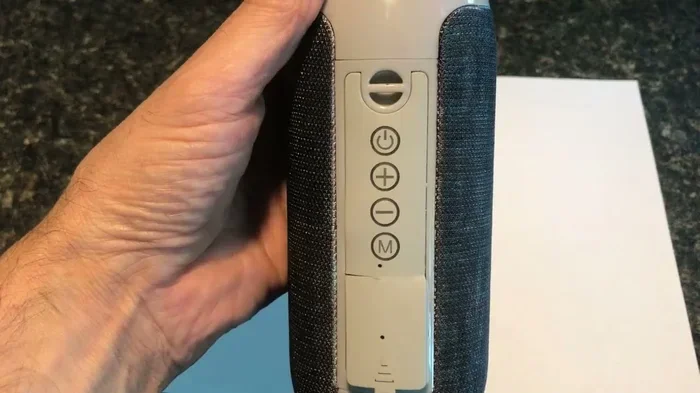
Bluetooth Speakers: Most speakers have a small reset button on the bottom or back. Use a paperclip to press and hold it for 5 to 10 seconds. The speaker will usually flash a light to confirm the reset.
Wireless Headphones: Many headphones use a button combination. Try holding the power button and the volume down button together for 10 seconds. Check your user manual for the exact combination.
Car Audio Systems: For car stereos, you may need to hold the power button and the volume knob simultaneously. Some systems require you to navigate to a settings menu and select “Factory Reset.” If you are dealing with car audio issues, you might also find our article on changing the sound system in your car helpful for understanding your options.
Portable Media Players: These often have a reset pinhole. Look for a tiny hole on the device, insert a SIM ejector tool or paperclip, and press gently.
What Happens After a Factory Reset?
After a factory reset, you will need to pair your devices again. All your custom settings will be gone. The player will revert to its default configuration. Make sure you have your device manual handy if you need to reconfigure specific settings.
Putting Your Bluetooth Player Into Pairing Mode
Sometimes the issue is not a reset problem at all. Your player might just need to be put into pairing mode. This is a special state that allows new devices to discover and connect to it. Many people skip this step and wonder why their player will not connect.
How to Enter Pairing Mode
Here is how to put most Bluetooth players into pairing mode:
- Turn the player off completely.
- Press and hold the Bluetooth button. On most devices, this is a dedicated button with the Bluetooth symbol.
- Wait for the indicator light to flash. A flashing blue or red light means the player is discoverable.
- Search for the device on your phone or computer. Go to your Bluetooth settings and look for the player in the list.
- Select the player and tap Pair.
If your player does not have a dedicated Bluetooth button, try holding the power button for 5 to 7 seconds. On some models, you need to hold the volume up button while turning the device on. Always check your user manual for the specific method.
Common Pairing Mode Mistakes
Here are some mistakes people make when trying to pair their Bluetooth player:
- Not holding the button long enough. You need to hold it for at least 5 seconds.
- Trying to pair from too far away. Keep your devices within 3 feet during the initial pairing.
- Forgetting to turn Bluetooth on on the receiving device.
- Not clearing old paired devices from the memory first.
Advanced Bluetooth Troubleshooting Tips
If a soft reset and a factory reset did not solve the problem, do not give up yet. There are several advanced steps you can take to fix stubborn Bluetooth issues. These tips address deeper problems that a simple reset might not reach.
Clear Old Paired Devices
Go into your Bluetooth player’s memory and delete old paired devices. Most players can store between 5 and 20 paired devices. If the list is full, new connections may fail. Clearing the list frees up space and removes potential conflicts. On most devices, you can do this by going to Settings, then Bluetooth, then selecting “Forget Device” or “Delete” next to each old entry.
Update Your Device Firmware
Check if there is a firmware update available for your Bluetooth player. Manufacturers often release updates that fix Bluetooth connectivity bugs. To update, you typically need to download the manufacturer’s app or visit their website. Follow the on-screen instructions to install the latest firmware.
Check for Interference
Move away from Wi-Fi routers, microwaves, and other wireless devices. Try connecting in a different room or outdoors. If the connection improves, interference was the problem. You can also try changing your Wi-Fi channel to reduce overlap with the Bluetooth frequency.
Restart Your Phone or Computer
Sometimes the problem is not with the player at all. Your phone or computer might need a restart too. A quick reboot clears the Bluetooth cache on your device and can resolve connection issues. This is one of the simplest yet most overlooked troubleshooting steps.
Forget and Re-Pair the Device
On your phone or computer, go to Bluetooth settings, find the player, and select “Forget This Device.” Then turn Bluetooth off and back on. Put the player back into pairing mode and reconnect. This forces both devices to establish a fresh connection without any cached data causing problems.
Check for Hardware Damage
If none of the above steps work, there might be a hardware issue. Look for physical damage to the Bluetooth antenna or charging port. If the device has been dropped or exposed to water, internal components may be damaged. In this case, you may need professional repair or a replacement.
For more car-related tech guidance, our article on downloading an app to start your car covers how mobile apps interact with vehicle systems and Bluetooth connectivity. Understanding these connections can help you troubleshoot broader tech issues in your vehicle.
How to Prevent Bluetooth Connection Issues in the Future
Prevention is always better than cure. Once you get your Bluetooth player working again, you want to keep it that way. Here are simple habits that will help you avoid connection problems in the future.
Keep Your Devices Updated
Regularly check for firmware and software updates for both your Bluetooth player and the device you connect it to. Updates often include bug fixes that improve Bluetooth pairing stability and range.
Manage Your Paired Devices
Do not let your paired device list grow too long. Periodically go through the list and remove devices you no longer use. A clean list means fewer conflicts and smoother connections.
Store Your Player Properly
When not in use, store your Bluetooth player in a cool, dry place. Extreme temperatures can damage internal components, including the Bluetooth module. Keep it away from direct sunlight and moisture.
Charge Regularly
Do not let your Bluetooth player run out of battery completely. Lithium-ion batteries perform best when kept between 20% and 80% charged. A well-charged player maintains a stronger and more stable Bluetooth signal.
Minimize Interference
When using your Bluetooth player, try to stay away from crowded wireless environments. If you are at a busy café or a crowded event, move to a quieter spot if you experience connection issues.
Reset Periodically
Even if your Bluetooth player is working fine, a quick reset every few weeks can keep things running smoothly. Think of it like restarting your computer. It clears out temporary data and keeps the Bluetooth module fresh.
Final Thoughts
Resetting your Bluetooth player does not have to be complicated. A soft reset fixes most minor issues. A factory reset handles the stubborn ones. And putting your device into pairing mode solves many connection mysteries. With the steps in this guide, you should be able to troubleshoot and fix almost any Bluetooth connection problem you encounter.
Remember to keep your devices updated, manage your paired list, and store your player properly. These simple habits go a long way in preventing future issues. If you have tried everything and the problem persists, it might be time to consult the manufacturer or consider a replacement.
For more helpful tips on car technology and maintenance, explore our other articles. Whether you are curious about taking a rental car to Canada with your connected devices or want to learn about other vehicle tech features, we have you covered. Keep your Bluetooth player happy, and it will keep your audio flowing smoothly.
Frequently Asked Questions
How long does a Bluetooth reset take?
A soft reset takes less than a minute. You turn the device off, wait 30 seconds, and turn it back on. A factory reset takes a bit longer, usually 5 to 10 minutes, depending on the device. After a factory reset, you will also need time to re-pair your devices.
Will resetting my Bluetooth player delete my music?
No. A reset only clears Bluetooth settings and paired device lists. Your music files, playlists, and saved content remain untouched. However, if you are using a streaming service, you may need to log in again after a factory reset.
Why won’t my Bluetooth player turn on after a reset?
If your player will not turn on after a reset, try charging it for at least 30 minutes. A deeply discharged battery may not respond immediately. If it still does not power on, the battery or internal circuitry may be damaged. Contact the manufacturer for support.
How often should I reset my Bluetooth player?
You do not need to reset your Bluetooth player regularly. Only reset when you experience connection problems. Doing a soft reset once every few weeks can help maintain performance, but frequent resets are not necessary and may cause unnecessary wear on the device.
Can I reset my Bluetooth player without a manual?
Yes. Most Bluetooth players follow a standard reset process. You can usually find the reset method by searching the model number online or visiting the manufacturer’s website. Many brands also have support videos on YouTube that walk you through the process step by step.
What is the difference between a soft reset and a factory reset?
A soft reset simply restarts the device and clears temporary glitches. It does not delete any data or settings. A factory reset wipes all settings, paired devices, and preferences, returning the player to its original state. Always try a soft reset first before moving to a factory reset.