How Do I Restart My Bluetooth Cache and Fix Issues
Restarting your Bluetooth cache is one of the simplest and most effective ways to fix connection problems. Whether your Bluetooth is not connecting, dropping signals, or failing to pair, clearing the cache can solve the issue quickly. This guide walks you through the exact steps for phones, cars, and computers, so you can get back to seamless connectivity in no time.
Have you ever tried connecting your phone to your car’s Bluetooth system and it just refuses to work? Or maybe your wireless headphones keep disconnecting mid-song for no obvious reason. These frustrating moments happen more often than you might think, and the culprit is often a corrupted Bluetooth cache.
The good news is that fixing this problem is usually quick and easy. You don’t need to be a tech expert. In this guide, we will walk you through exactly how to restart your Bluetooth cache on every device you own. We will also cover common problems, prevention tips, and expert advice that will save you time and headaches.
Whether you are dealing with Bluetooth pairing issues in your car, audio dropouts on your phone, or connection failures with a new device, this article has you covered. Let’s dive in and get your Bluetooth connectivity back on track.
Key Takeaways
- Bluetooth cache stores pairing data: Clearing it removes old, corrupted connections that cause problems.
- Restart steps vary by device: Phones, cars, and computers each have unique methods to reset Bluetooth cache.
- Common issues include pairing failures, audio dropouts, and signal loss: These are often fixed by restarting the cache.
- Prevention is easy: Regular maintenance and smart habits keep Bluetooth running smoothly.
- Avoid common mistakes: Don’t skip software updates or ignore error messages when troubleshooting.
- Expert tips save time: Simple habits like toggling Bluetooth off and on can prevent most cache issues.
📑 Table of Contents
- What Is Bluetooth Cache and Why Does It Matter?
- Common Bluetooth Cache Problems You Might Face
- How to Restart Bluetooth Cache on Different Devices
- Step-by-Step Guide to Clearing Bluetooth Cache
- Quick Tips to Prevent Bluetooth Cache Issues
- Common Mistakes to Avoid When Fixing Bluetooth Cache
- Comparison: Bluetooth Cache Restart Methods by Device Type
- When Should You Seek Professional Help?
- Key Takeaways
What Is Bluetooth Cache and Why Does It Matter?
Every time you pair a device using Bluetooth technology, your phone or computer stores data about that connection. This stored data is called the Bluetooth cache. It includes things like device names, pairing codes, connection preferences, and signal history.
Think of the Bluetooth cache like a contact list for your wireless connections. Your phone keeps track of every device it has ever connected to. This makes reconnecting fast and convenient. But just like any list, it can get cluttered or corrupted over time.
When the cache becomes corrupted, you start experiencing Bluetooth problems. These can range from simple connection delays to complete failure to pair. A Bluetooth reset that clears the cache gives your device a fresh start.
What Data Does the Bluetooth Cache Store?
The cache holds several types of information that help your device remember past connections:
- Device names and MAC addresses of paired Bluetooth devices
- Pairing keys and security tokens that authenticate connections
- Connection settings like audio profiles and signal strength history
- Cached pairing requests from devices you may no longer use
Over time, this data can pile up. Old devices you no longer use still take up space. Corrupted entries can interfere with new connections. This is why knowing how to clear Bluetooth cache is such a valuable skill.
Why Regular Cache Maintenance Helps
Just like you clear out old apps or files on your phone, your Bluetooth cache benefits from occasional cleaning. Regular maintenance keeps your Bluetooth connection fast and reliable. It also frees up small amounts of memory that can improve overall device performance.
Common Bluetooth Cache Problems You Might Face
Before we get into the fix, let’s talk about the symptoms. How do you know if your Bluetooth cache is causing issues? Here are the most common problems people run into every day.
Bluetooth Not Connecting at All
This is the most obvious sign. You go to your Bluetooth settings, see the device listed, tap connect, and nothing happens. The pairing request times out or fails immediately. Often, this is caused by a stale or corrupted cache entry that conflicts with a fresh connection attempt.
Frequent Disconnections and Dropouts
Your device connects fine at first, but then it keeps dropping the signal. You might be listening to music in the car and suddenly the audio cuts out. This Bluetooth signal instability is a classic sign that the cache has old or conflicting data.
Paired Devices Not Showing Up
Sometimes a device that was previously paired simply disappears from the list. Or it shows up but will not respond when you try to connect. This happens when the cache entry is damaged or incomplete.
Audio Quality Issues
Even if the connection works, poor audio quality can point to cache problems. You might hear static, lag, or robotic-sounding audio. This often means the Bluetooth audio profile stored in the cache is outdated or corrupted.
Slow Pairing Process
If it takes forever for two devices to find each other, the cache might be overloaded. Too many old entries slow down the Bluetooth discovery process and make pairing sluggish.
How to Restart Bluetooth Cache on Different Devices
The exact steps to restart your Bluetooth cache depend on what device you are using. Below, we cover the most common devices and operating systems. Follow the section that matches your situation.
Restarting Bluetooth Cache on Android Phones
Android phones make it relatively easy to clear the Bluetooth cache. Here is the step-by-step process:
- Open the Settings app on your phone.
- Tap on Apps or Applications, depending on your Android version.
- Tap the three-dot menu in the top right corner.
- Select Show System Apps or System Apps.
- Scroll down and find Bluetooth in the list.
- Tap on it, then select Storage.
- Tap Clear Cache first, then Clear Data if needed.
- Restart your phone to apply the changes.
After your phone reboots, go to Bluetooth settings and try pairing your device again. This simple Bluetooth reset fixes most connection problems on Android.
Restarting Bluetooth Cache on iPhones and iPads
Apple devices handle Bluetooth cache differently. iOS does not give you direct access to clear the Bluetooth cache the same way Android does. Instead, you need to use a combination of steps:
- Open Settings and tap Bluetooth.
- Toggle Bluetooth off and wait 30 seconds.
- Toggle it back on.
- If that does not work, go to Settings, then General, then Transfer or Reset iPhone.
- Tap Reset, then select Reset Network Settings.
- Enter your passcode and confirm.
- Reconnect your Bluetooth devices after the reset.
Note: Resetting network settings will also clear your Wi-Fi passwords and other network data. Make sure you know your Wi-Fi password before doing this.
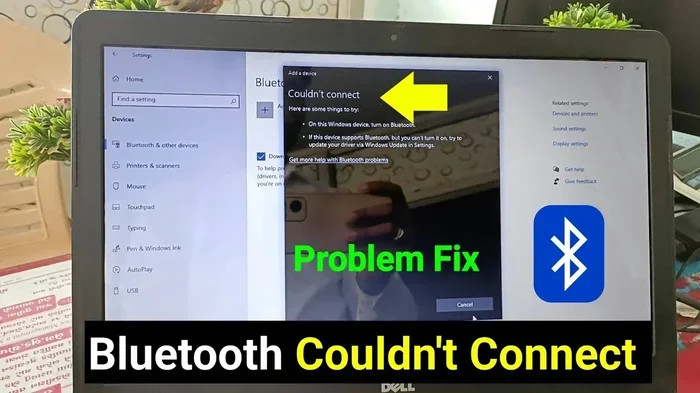
Restarting Bluetooth Cache on Windows Computers
Windows users can clear the Bluetooth cache through the Device Manager. Here is how:
- Right-click the Start button and select Device Manager.
- Expand the Bluetooth section.
- Right-click on your Bluetooth adapter and select Uninstall Device.
- Check the box that says Delete the driver software for this device.
- Click Uninstall.
- Restart your computer.
- Windows will automatically reinstall the Bluetooth driver on boot.
This method effectively performs a full Bluetooth driver reset and clears all cached pairing data. It works well for stubborn connection problems.
Restarting Bluetooth Cache on Mac Computers
Mac users have a slightly different process:
- Click the Apple menu and select System Preferences (or System Settings on macOS Ventura and later).
- Go to Bluetooth.
- Click the X next to any device you want to remove.
- Hold the Shift and Option keys simultaneously.
- Click the Bluetooth icon in the menu bar.
- Select Debug, then Remove All Devices.
- Restart your Mac.
This clears the entire Bluetooth module cache and gives you a clean slate for pairing.
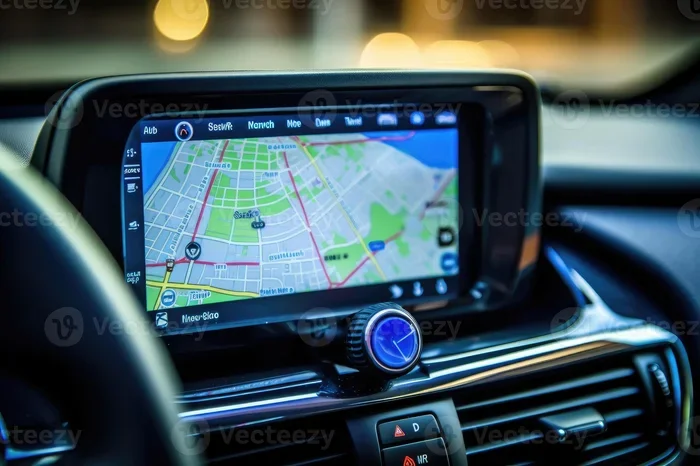
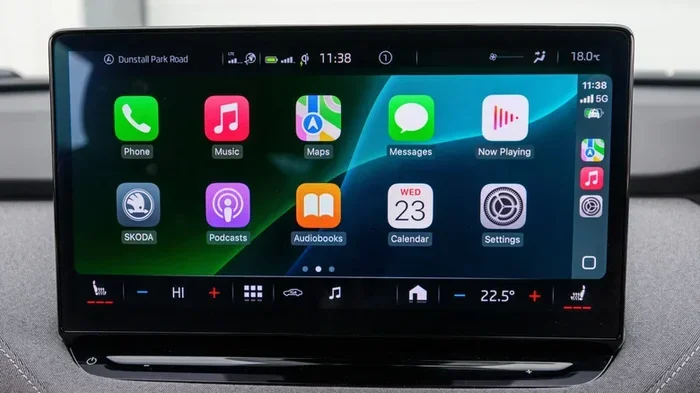
Restarting Bluetooth Cache in Cars
Car Bluetooth systems can be particularly tricky because they run on embedded software. Here is what you can do:
- Turn off the car ignition and wait at least 60 seconds.
- Restart the car and go to the Bluetooth settings in the infotainment system.
- Delete all previously paired devices from the car’s system.
- On your phone, go to Bluetooth settings and delete the car entry.
- Restart both the car and your phone.
- Re-pair the devices from scratch.
Some car systems also allow you to reset the entire infotainment unit. Check your car’s manual for specific instructions on performing a Bluetooth cache reset for your vehicle model.
Step-by-Step Guide to Clearing Bluetooth Cache
Now that you know how to restart the cache on different devices, let’s put it all together into a universal troubleshooting flow. This guide works regardless of what device you are using.
Step 1: Identify the Problem
Before you start clearing the cache, make sure the issue is actually related to the cache. Ask yourself these questions:
- Is the device you are trying to connect turned on and within range?
- Have you recently updated your device software?
- Does the device connect to other devices without problems?
- Is the problem happening with multiple devices or just one?
If the problem is isolated to one device, the issue might be with that device rather than your cache. But if multiple devices are affected, clearing the cache is a great next step.
Step 2: Turn Bluetooth Off and On
This sounds too simple, but it works more often than you would expect. Toggling Bluetooth off for 30 seconds and back on forces the device to refresh its Bluetooth connection and clear temporary glitches.
Step 3: Remove Old Devices
Go through your paired device list and remove any devices you no longer use. Old entries clutter the cache and slow down the Bluetooth discovery process. Keep only the devices you actively use.
Step 4: Clear the Cache Properly
Follow the specific steps for your device type as outlined above. Make sure you clear both the cache and the data if the simple cache clear does not work. This ensures a complete Bluetooth reset.
Step 5: Restart Your Device
Always restart your device after clearing the cache. A reboot allows the system to rebuild the cache from scratch and apply all changes properly.
Step 6: Re-Pair Your Devices
After the restart, go back to Bluetooth settings and re-pair your devices. Make sure you follow the pairing instructions for each device carefully. A fresh pairing creates a clean, up-to-date cache entry.
Step 7: Test the Connection
Once paired, test the connection thoroughly. Play audio, make a call, or transfer a file to make sure everything works smoothly. If problems persist, move on to the next troubleshooting steps.
Quick Tips to Prevent Bluetooth Cache Issues
Prevention is always better than cure. Here are some simple habits that keep your Bluetooth cache healthy and your connections strong.
- Restart your Bluetooth weekly: A quick toggle off and on keeps the cache fresh and prevents buildup.
- Delete unused pairings regularly: Remove devices you no longer use to keep the cache lean.
- Keep your device software updated: Software updates often include fixes for Bluetooth connectivity bugs.
- Avoid connecting to too many devices at once: Overloading the cache can cause conflicts and slow performance.
- Keep devices within range: Maintaining a strong Bluetooth signal reduces the chance of corrupted cache entries.
- Restart your car infotainment system monthly: This clears temporary data that can build up in car Bluetooth systems.
Expert Insight: According to automotive tech specialists, car Bluetooth systems benefit most from a full cache reset every three to six months. This prevents the gradual buildup of stale pairing data that causes slow connections and audio dropouts. A simple monthly reset takes less than two minutes and can save you hours of frustration.
Common Mistakes to Avoid When Fixing Bluetooth Cache
Even with the best intentions, people often make mistakes when troubleshooting Bluetooth problems. Here are the most common ones and how to avoid them.
Skipping the Restart After Clearing Cache
Clearing the cache without restarting your device is like cleaning a room and leaving the door open. The system needs a reboot to fully apply the changes and rebuild the cache properly. Always restart after any cache-clearing process.
Ignoring Software Updates
Outdated software is one of the leading causes of Bluetooth connection issues. Updates often include important patches for Bluetooth functionality. If you are experiencing problems, check for updates before diving into cache clearing.
Deleting the Wrong Device
When removing old pairings, double-check that you are deleting the right device. It is easy to accidentally remove a device you still use. Make a mental note of your active devices before cleaning up the list.
Not Trying a Full Reset When Needed
Sometimes a simple cache clear is not enough. If toggling Bluetooth, removing old devices, and clearing the cache do not solve the problem, you may need a full network settings reset or even a factory reset of the Bluetooth module. Do not give up too early.
Assuming the Problem Is Always the Cache
Not every Bluetooth error is caused by a corrupted cache. Hardware failures, interference from other devices, and software bugs can all cause similar symptoms. If cache clearing does not fix the issue, consider other possible causes.
Comparison: Bluetooth Cache Restart Methods by Device Type
| Device Type | Method | Time Required | Difficulty Level | Effectiveness |
|---|---|---|---|---|
| Android Phone | Clear cache via Settings > Apps > Bluetooth | 3-5 minutes | Easy | High |
| iPhone/iPad | Reset network settings | 5-10 minutes | Easy | High |
| Windows PC | Uninstall Bluetooth driver in Device Manager | 5-7 minutes | Medium | Very High |
| Mac Computer | Remove all devices via Debug menu | 3-5 minutes | Medium | High |
| Car Infotainment | Delete all pairings + restart system | 5-10 minutes | Easy to Medium | Medium to High |
| Wireless Headphones | Factory reset (varies by brand) | 2-5 minutes | Easy | High |
As you can see, the process varies by device but is generally straightforward. The most effective method is always a complete Bluetooth reset that clears both cache and data, followed by a fresh restart.
When Should You Seek Professional Help?
Most Bluetooth cache issues can be fixed at home using the steps above. However, there are situations where professional help is the right call.
If you have cleared the cache, restarted your device, and re-paired all devices multiple times and the problem still persists, there may be a hardware issue. A failing Bluetooth module or damaged antenna can mimic cache problems. In these cases, a professional diagnosis is worth the investment.
Similarly, if your car’s Bluetooth system consistently fails to maintain a connection even after a full cache reset, the issue may be with the car’s onboard computer. A qualified automotive technician can run diagnostics and determine if the Bluetooth unit needs replacement.
For software-related issues, checking with the device manufacturer’s support team can also help. Many companies offer live chat or phone support that can walk you through advanced Bluetooth troubleshooting steps specific to your model.
Key Takeaways
- Bluetooth cache stores pairing data: Clearing it removes old, corrupted connections that cause problems.
- Restart steps vary by device: Phones, cars, and computers each have unique methods to reset Bluetooth cache.
- Common issues include pairing failures, audio dropouts, and signal loss: These are often fixed by restarting the cache.
- Prevention is easy: Regular maintenance and smart habits keep Bluetooth running smoothly.
- Avoid common mistakes: Don’t skip software updates or ignore error messages when troubleshooting.
- Expert tips save time: Simple habits like toggling Bluetooth off and on can prevent most cache issues.
Frequently Asked Questions
What happens when I restart my Bluetooth cache?
Restarting your Bluetooth cache clears all stored pairing data and temporary connection files. Your device will forget previously paired devices, which means you will need to re-pair them after the restart. This process removes corrupted entries and gives your Bluetooth system a fresh start, often fixing connection issues immediately.
Will clearing my Bluetooth cache delete my personal data?
No, clearing the Bluetooth cache does not delete any personal data like photos, contacts, or apps. It only removes stored information about your Bluetooth connections, such as device names and pairing keys. Your personal files and settings remain completely safe.
How often should I restart my Bluetooth cache?
There is no strict schedule, but restarting your Bluetooth cache every few months is a good habit. If you notice connection problems, dropping signals, or slow pairing, clearing the cache should be one of your first troubleshooting steps. Regular maintenance prevents issues from building up over time.
Can restarting Bluetooth cache fix audio dropouts in my car?
Yes, audio dropouts in your car are very often caused by a corrupted Bluetooth cache. Clearing the cache on both your phone and your car’s infotainment system, then re-pairing the devices, resolves most audio dropout issues. This is one of the most effective fixes for car Bluetooth problems.
What is the difference between clearing Bluetooth cache and resetting network settings?
Clearing the Bluetooth cache only affects Bluetooth data. Resetting network settings clears all network-related data, including Wi-Fi passwords, cellular settings, and VPN configurations. The Bluetooth cache clear is a more targeted fix, while a network settings reset is a broader solution for multiple connection problems.
Why does my Bluetooth keep failing to pair even after clearing the cache?
If clearing the cache does not fix pairing issues, the problem may be caused by outdated software, hardware failure, or interference from other devices. Make sure both devices have the latest software updates. Also, move away from other wireless devices that might be causing signal interference. If the problem continues, contact the device manufacturer for further support.
=== CONCLUSION ===
Dealing with Bluetooth connection problems can be incredibly frustrating, but the solution is often simpler than you think. Restarting your Bluetooth cache is a quick, free, and effective way to fix most Bluetooth issues on your phone, computer, or car. By following the steps in this guide, you can clear corrupted data, refresh your connections, and get back to seamless wireless audio and data transfer.
Remember to make cache maintenance a regular part of your device care routine. A little prevention goes a long way. Keep your paired devices list clean, stay on top of software updates, and don’t ignore warning signs like slow pairing or audio dropouts. These small habits keep your Bluetooth system running at its best.
If you found this guide helpful, share it with a friend who is struggling with Bluetooth issues. Sometimes the simplest solutions are the ones we overlook, and knowing how to restart your Bluetooth cache can save hours of frustration. Take control of your Bluetooth connectivity today and enjoy a smoother, more reliable wireless experience across all your devices.