How Do I Enable Apple CarPlay Here Is the Full Guide
Wondering how do I enable Apple CarPlay? This full guide walks you through every method, from USB cable connections to wireless setup, so you can get your favorite apps on the road in minutes. We cover compatibility, step-by-step instructions, common fixes, and expert tips to make your driving experience smarter and safer.
You have an iPhone. You love Apple CarPlay. But when you get behind the wheel, nothing happens. The screen stays blank. The apps dont load. You wonder, how do I enable Apple CarPlay? The good news is that turning on CarPlay is usually quick and straightforward. Whether you drive a new sedan or an older SUV, this guide will walk you through every step. You will learn about wired and wireless connections, compatibility checks, and how to fix common problems.
Apple CarPlay brings your favorite apps right to your cars display. You get navigation, music, messages, and phone calls all in one safe, driver-friendly interface. It works with Siri so you can keep your eyes on the road. In this article, we break down the full process of how do I enable Apple CarPlay in simple, easy-to-follow steps. No tech degree required. Just a few minutes and a little patience.
Key Takeaways
- Easy Setup: You can enable Apple CarPlay using a USB cable or wirelessly, depending on your car model.
- Broad Compatibility: Most cars made after 2016 support Apple CarPlay, and it works with iPhone 5s and newer.
- Two Connection Methods: Wired USB offers stability, while wireless CarPlay provides convenience without cables.
- Troubleshooting Is Simple: Most CarPlay issues can be fixed with a cable swap, restart, or software update.
- Maximize Your Experience: Use Siri, update your apps, and customize your CarPlay home screen for the best results.
- Aftermarket Options Exist: Older cars can get CarPlay support through adapters and stereo replacements.
📑 Table of Contents
- What Is Apple CarPlay and Why Should You Use It?
- How Do I Enable Apple CarPlay Using a USB Cable
- How Do I Enable Apple CarPlay Wirelessly
- CarPlay Compatibility: Which Cars and iPhones Work?
- Troubleshooting: Apple CarPlay Won’t Connect
- Tips to Get the Most Out of Apple CarPlay
- Frequently Asked Questions
What Is Apple CarPlay and Why Should You Use It?
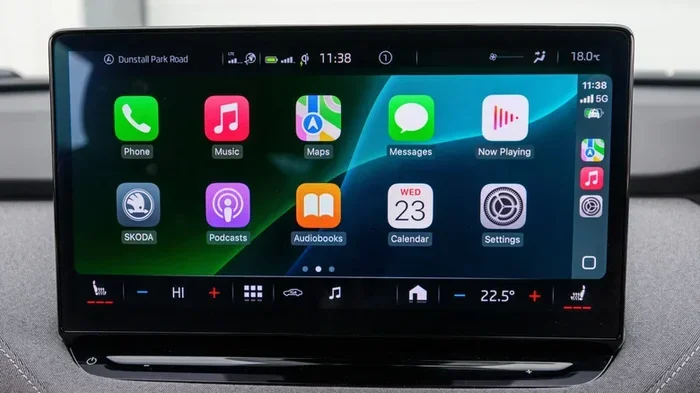
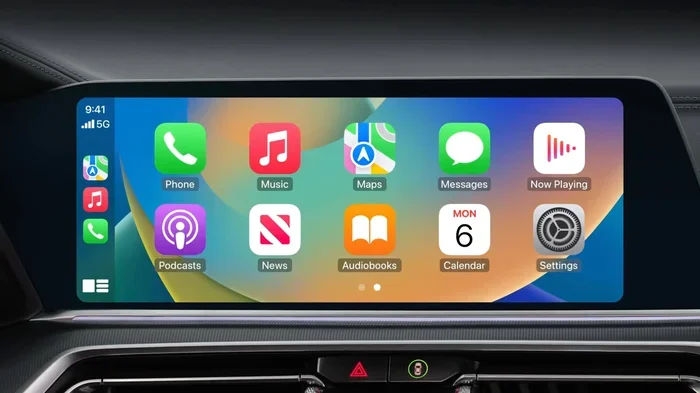
Apple CarPlay is a smart feature that mirrors key iPhone functions onto your cars infotainment screen. Think of it as a safe bridge between your phone and your vehicle. When you connect your iPhone, you get access to maps, music, podcasts, audiobooks, and messaging. The interface is designed to be simple and distraction-free.
So why should you bother setting it up? First, it keeps your phone screen locked while driving. Second, Siri handles most tasks through voice commands. Third, it works with many popular apps like Google Maps, Spotify, WhatsApp, and Spotify. If you spend a lot of time in your car, Apple CarPlay setup is one of the best upgrades you can make.
Here is a quick look at what CarPlay offers:
- Turn-by-turn navigation with real-time traffic updates
- Hands-free calling and messaging
- Music and podcast streaming from your favorite apps
- Siri voice assistant for hands-free control
- Customizable home screen layout
Now that you know what CarPlay does, let us dive into the main question: how do I enable Apple CarPlay on your specific setup.
How Do I Enable Apple CarPlay Using a USB Cable
The most common way to activate Apple CarPlay is through a USB cable. Almost every car that supports CarPlay has a USB port. This method works reliably and does not depend on your cars software version. Heres exactly what to do.
Step 1: Check Your USB Cable and Port
Not all USB cables are created equal. For a smooth Apple CarPlay setup, you need a Lightning cable or a USB-C cable (depending on your iPhone model). Plug one end into your iPhone and the other into your cars USB port. Look for a symbol that looks like a smartphone next to the port. That is your CarPlay-ready port.
If your car has multiple USB ports, try each one. Some ports are for charging only and will not support CarPlay. This is a common mistake that trips up many drivers.
Step 2: Start Your Cars Infotainment System
Start your car or turn on the ignition. Go to your infotainment system and select the source or input. Look for an option labeled CarPlay, USB, or Smartphone. On some systems, it appears automatically when you plug in your phone.
On your iPhone, you may see a prompt asking if you trust this computer. Tap Trust and enter your passcode. This allows your phone to communicate with the car system.
Step 3: Enable CarPlay in Your iPhone Settings
If nothing happens on the car screen, check your iPhone settings. Open Settings and tap General. Then tap CarPlay. You should see your car listed there. Tap your car name to activate the connection.
You can also go to Settings and search for CarPlay directly. This is a quick shortcut that saves time. Once enabled, your CarPlay home screen should appear on the car display.
Quick Tips for USB Connections
- Use an Apple-certified cable to avoid connection issues
- Clean the USB port on both your phone and car
- Restart your iPhone if the connection fails
- Try a different USB port if one does not work
- Keep your iOS updated to the latest version
How Do I Enable Apple CarPlay Wirelessly
Wireless CarPlay is a game-changer. You do not need to dig for a cable every time you get in the car. If your car and iPhone support it, wireless Apple CarPlay setup takes just a few taps. Lets walk through the process.
Check if Your Car Supports Wireless CarPlay
Not all cars support wireless CarPlay. Newer models from brands like BMW, Mercedes-Benz, Ford, and Honda often do. Check your owners manual or look for a wireless CarPlay logo on the infotainment screen. If your car only has a USB port, you may need a wireless CarPlay adapter later.
Enable Wireless CarPlay on Your iPhone
Open Settings on your iPhone and tap General. Then tap CarPlay. Your car should appear in the list if it is in range. Tap the car name and select Enable Wireless CarPlay.
On the cars infotainment screen, look for a wireless CarPlay option in the settings menu. Select it and follow the prompts to pair with your iPhone. The first time you do this, both devices will need to be on the same Wi-Fi network.
Setting Up a Wireless CarPlay Adapter
If your car does not have built-in wireless CarPlay, you can add it. Wireless CarPlay adapters plug into your cars USB port and create a wireless bridge between your phone and the infotainment system. Popular brands include Carlinkit and AAWireless. These adapters are affordable and easy to install. They are a great option for older cars or vehicles with only wired connections.
Quick Tips for Wireless CarPlay
- Keep Bluetooth and Wi-Fi turned on in your iPhone settings
- Make sure your car is in park or neutral when connecting
- Restart both devices if the wireless connection fails
- Update your cars firmware for the best wireless performance
CarPlay Compatibility: Which Cars and iPhones Work?
Before you try to enable CarPlay, it helps to know if your devices are compatible. CarPlay compatibility depends on both your iPhone model and your car brand. Here is what you need to know.
iPhone Compatibility
Apple CarPlay works with the following iPhone models and newer:
- iPhone 5s
- iPhone SE (all generations)
- iPhone 6 and 6 Plus
- iPhone 6s and newer
- iPhone 7 and newer
- iPhone 8 and newer
- iPhone X and newer
- iPhone 11 and newer
- iPhone 12 and newer
- iPhone 13 and newer
- iPhone 14 and newer
- iPhone 15 and newer
As long as your iPhone is running iOS 7.1 or later, you should be able to use CarPlay. However, for the best experience, always keep your iPhone updated to the latest iOS version.
Car Compatibility
Most major car brands support Apple CarPlay. Here is a list of brands that offer CarPlay in at least some of their models:
- Acura
- Alfa Romeo
- Audi
- BMW
- Chevrolet
- Citroen
- Dodge
- Ford
- Fiat
- Honda
- Hyundai
- Jaguar
- Jeep
- Kia
- Land Rover
- Lexus
- Mazda
- Mercedes-Benz
- Mitsubishi
- Nissan
- Peugeot
- Renault
- Subaru
- Tesla (with adapter)
- Toyota
- Volkswagen
- Volvo
If you are not sure whether your specific car supports CarPlay, check the owners manual or visit the Apple CarPlay compatibility page on Apple’s website. You can also search for your car model year along with Apple CarPlay to find quick answers.
Troubleshooting: Apple CarPlay Won’t Connect
So you have followed all the steps, but CarPlay not working is what you are seeing. Do not panic. This is a very common issue, and it is almost always fixable. Here are the most effective troubleshooting steps.
Fix 1: Try a Different USB Cable
A faulty or non-certified cable is the number one reason CarPlay fails to connect. Replace your cable with an Apple-certified Lightning or USB-C cable. Avoid cheap, unbranded cables from unknown sellers. They often lack the data transfer capability that CarPlay needs.
Fix 2: Restart Both Devices
Sometimes a simple restart solves everything. Turn off your car, restart your iPhone, and try again. This clears temporary glitches that can block the CarPlay connection.
Fix 3: Update Your Software
Go to Settings on your iPhone and tap General, then Software Update. Install any available updates. Also check if your car manufacturer has released a firmware update for the infotainment system. Outdated software is a common cause of connection problems.
Fix 4: Reset CarPlay Settings
On your iPhone, go to Settings, then General, then CarPlay. Select your car and choose Reset Settings. This clears any saved preferences and lets you set up CarPlay fresh.
Fix 5: Clean the USB Port
Dust, lint, and debris can build up in USB ports over time. Use a soft brush or compressed air to clean both the iPhone port and the car USB port. A dirty port can prevent a proper connection.
Fix 6: Disable and Re-Enable CarPlay
Go to Settings on your iPhone, tap General, then CarPlay. Turn off CarPlay for your car, wait a few seconds, and turn it back on. This refreshes the connection between your phone and the car system.
If none of these fixes work, your cars infotainment system may need a factory reset. Consult your owners manual or contact your dealership for assistance.
Tips to Get the Most Out of Apple CarPlay
Once you have enabled Apple CarPlay, you can make the experience even better with a few simple tweaks. These tips will help you get the most from your CarPlay setup every time you drive.
Customize Your CarPlay Home Screen
You can rearrange the apps on your CarPlay home screen. Go to Settings on your iPhone, tap General, then CarPlay. Tap and hold any app icon to move it. Put your most-used apps like Maps, Music, and Messages front and center.
Use Siri for Hands-Free Control
Siri is your best friend when driving. Say Hey Siri followed by your request. You can ask Siri to call a contact, play a playlist, navigate to a location, or send a text message. This keeps your hands on the wheel and your eyes on the road.
Explore Navigation Apps Beyond Apple Maps
While Apple Maps works great, many drivers prefer Google Maps or Waze for CarPlay navigation. Both apps are free and offer unique features. Google Maps has excellent satellite views, while Waze excels at real-time traffic and hazard alerts.
Keep Your Apps Updated
CarPlay apps receive regular updates that improve performance and fix bugs. Open the App Store on your iPhone and check for updates. Keeping your apps current ensures the smoothest CarPlay experience.
Use CarPlay with Your Car Speakers
CarPlay routes audio through your cars speakers. This means your music, podcasts, and navigation prompts come through the car audio system. Make sure your car speakers are turned on and the volume is set appropriately for a seamless audio experience.
Consider an Aftermarket CarPlay Solution
If your older car does not support CarPlay natively, do not worry. Aftermarket CarPlay adapters and stereo replacements are widely available. Brands like Pioneer, Kenwood, and Sony offer CarPlay-compatible stereos that fit most vehicles. An aftermarket CarPlay adapter can breathe new life into an older car and make it feel modern again.
Frequently Asked Questions
Can I Use Apple CarPlay on Any Car?
No, Apple CarPlay only works with cars that support the feature. Most cars made after 2017 include CarPlay as standard or an option. You can check your cars compatibility by looking at the owners manual or searching online for your specific model and year.
Do I Need an Internet Connection for Apple CarPlay?
You do not need a constant internet connection for basic CarPlay functions like making calls or playing locally stored music. However, navigation apps and streaming services do require data. You can use your iPhones cellular data or connect to a Wi-Fi network for the best experience.
Can I Use Apple CarPlay with an Android Phone?
No, Apple CarPlay is exclusive to iPhones. Android users have a similar feature called Google Android Auto. Both systems offer comparable functionality, but they are designed for their respective phone platforms.
Why Does My Apple CarPlay Keep Disconnecting?
CarPlay disconnections are often caused by a loose cable, outdated software, or a dirty USB port. Try using a different cable, restarting both devices, and cleaning the ports. If the problem persists, reset your CarPlay settings on your iPhone.
Is Apple CarPlay Safe to Use While Driving?
Yes, Apple CarPlay is designed to be safe. The interface is simplified for driving, and Siri handles most interactions through voice commands. The screen locks most functions while the car is in motion, reducing distractions and helping you stay focused on the road.
Can I Use Apple CarPlay While Charging My iPhone?
Yes, when you connect your iPhone via USB for CarPlay, it charges at the same time. This is one of the biggest advantages of wired CarPlay. Your phone stays powered up during long drives, so you do not have to worry about battery drain.