How to Know If a Car Has Wireless CarPlay Built In
Wireless CarPlay lets you use your iPhone safely on the road without plugging in a cable. This guide shows you exactly how to know if a car has Wireless CarPlay built in, which models support it, and how to set it up in minutes. You will also learn the differences between wireless and wired versions, common mistakes to avoid, and expert tips to get the best experience.
Wireless CarPlay has become one of the most wanted features in modern cars. It lets you mirror your iPhone directly onto the car screen. You get maps, music, messages, and calls all without reaching for your phone. But here is the real question: how do you actually know if a car has Wireless CarPlay built in? Many buyers assume every new car has it, but that is not always true. Some models only offer wired CarPlay, and others have no CarPlay at all.
This guide breaks everything down in simple terms. You will learn how to check for Wireless CarPlay before buying a car. We will also look at which cars come with it, how to set it up, and the common mistakes people make. Whether you are shopping for a 7 to 8 lakh car in India or a family SUV, this article has you covered. Let us get started.
Key Takeaways
- Check your car’s manual or the manufacturer website to confirm if Wireless CarPlay is supported.
- Look for the Wireless CarPlay icon on the car’s infotainment screen during setup.
- Many new models from brands like Hyundai, Kia, and BMW come with Wireless CarPlay as standard.
- Wireless CarPlay offers more convenience than wired CarPlay since there is no cable to manage.
- A 7-inch display for car or larger makes the Wireless CarPlay experience much better.
- You can add Wireless CarPlay to older cars using an aftermarket adapter or head unit upgrade.
📑 Table of Contents
- What Is Wireless CarPlay and Why Does It Matter?
- How to Check If Your Car Supports Wireless CarPlay
- Car Models That Come With Wireless CarPlay Built In
- Wireless CarPlay vs Wired CarPlay: Key Differences
- How to Set Up Wireless CarPlay After Buying
- Common Mistakes People Make With Wireless CarPlay
- Expert Insights on Wireless CarPlay
- Key Takeaways
What Is Wireless CarPlay and Why Does It Matter?
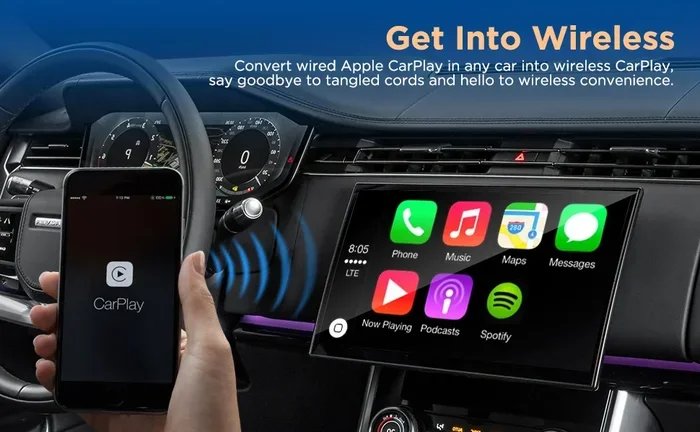
Wireless CarPlay is Apple’s system that connects your iPhone to the car without a cable. It uses Bluetooth and Wi-Fi to stream everything from your phone to the car screen. You get Siri voice control, navigation, music, and texting all on the dashboard display. The experience feels seamless and smooth once it is set up.
So why does it matter so much? First, it keeps your phone charged because there is no cable draining the battery. Second, it reduces cable clutter inside the car. Third, it gives you a hands-free driving experience that is much safer. Many people also love that Wireless CarPlay works with their Apple ecosystem. Your calendar, contacts, and playlists all sync automatically. If you are comparing cars, this feature can be a real dealbreaker.
How Wireless CarPlay Works Under the Hood
Wireless CarPlay uses a combination of Bluetooth for initial pairing and Wi-Fi Direct for data transfer. The car’s infotainment system acts as a bridge between your iPhone and the screen. When you connect, the car creates a dedicated Wi-Fi network for CarPlay. This means your phone does not need to connect to the car’s regular Wi-Fi. The whole process happens in the background and takes only a few seconds.
One important thing to know is that Wireless CarPlay needs a strong Wi-Fi signal between the phone and the car. If you are in a crowded area with lots of interference, the connection might drop. That is why a good car multimedia system with a strong antenna makes a big difference. Some cars handle this better than others, which we will look at soon.
How to Check If Your Car Supports Wireless CarPlay
Checking for Wireless CarPlay is easier than most people think. You can do it in a few different ways, and none of them require a tech degree. Here are the most reliable methods to confirm whether your car has Wireless CarPlay built in.
Method 1: Check the Car’s Infotainment Screen
The fastest way is to look at the car’s infotainment screen while it is running. Go to the settings or connectivity menu. Look for an Apple CarPlay option. If you see a Wireless CarPlay toggle or icon, your car supports it. Some cars show a small CarPlay logo on the home screen. That is a good sign too.
If you only see a USB cable icon or a wired connection option, your car likely has wired CarPlay only. That still works well, but it is not as convenient as the wireless version. You will need to plug in your phone every time you drive.
Method 2: Read the Car’s Owner Manual
The owner manual is a goldmine of information. Flip to the section about infotainment or connectivity. Look for mentions of Wireless CarPlay or Apple CarPlay. The manual will clearly state whether the feature is wireless or wired. If you bought the car used and do not have the manual, you can usually find a PDF version on the manufacturer’s website.
Method 3: Visit the Manufacturer Website
Every car manufacturer lists the features of each model on their website. Go to the specific model page and look for the infotainment or technology section. Search for “CarPlay” or “Wireless CarPlay.” The specs will tell you exactly what is included. This is especially helpful when you are comparing models like a 10 seater family car versus a smaller sedan.
Method 4: Ask the Dealer or Seller
If you are buying from a dealer, just ask them directly. A good dealer will know right away whether the car has Wireless CarPlay. When buying a used car, ask the seller to show you the CarPlay connection on the screen. Watch for the wireless icon to appear. If it only shows a wired connection, the car does not have Wireless CarPlay built in.
Car Models That Come With Wireless CarPlay Built In
Not all cars support Wireless CarPlay, but many newer models do. The list grows every year as manufacturers make it a standard feature. Here is a look at some popular brands and models that offer Wireless CarPlay out of the box.
Popular Brands With Wireless CarPlay
Many well-known brands now include Wireless CarPlay as a standard or optional feature. Here are some of the most common ones:
- Hyundai and Kia: Most models from 2021 onwards come with Wireless CarPlay.
- BMW: Nearly all new BMW models support Wireless CarPlay across the range.
- Toyota: Higher trims of the Camry, RAV4, and Highlander include Wireless CarPlay.
- Honda: The Civic, Accord, and CR-V offer Wireless CarPlay in newer versions.
- Ford: Many Ford models from the last two years support Wireless CarPlay.
- Volkswagen: The Tiguan, T-Roc, and Golf offer Wireless CarPlay in updated models.
- Maruti Suzuki: Some premium models in India now offer Wireless CarPlay.
Budget vs Premium Cars With Wireless CarPlay
You do not need to spend a fortune to get Wireless CarPlay. Many budget-friendly cars now include it. Even some 7 to 8 lakh cars in India come with Wireless CarPlay as a standard feature. On the premium side, luxury brands like Mercedes-Benz, Audi, and Lexus almost always include it. The key is to check the specific trim level, since base models sometimes only offer wired CarPlay.
| Brand | Price Range | Wireless CarPlay | Wired CarPlay |
|---|---|---|---|
| Hyundai Creta | Mid-range | Yes (higher trims) | Yes |
| Kia Seltos | Mid-range | Yes (higher trims) | Yes |
| BMW 3 Series | Premium | Yes (standard) | Yes |
| Toyota Camry | Mid-range | Yes (newer models) | Yes |
| Maruti Suzuki Ciaz | Budget | Limited models | Yes |
| Honda City | Budget | Some trims | Yes |
Always double-check the exact trim before buying. The difference between a wired and wireless version can be just one trim level up.
Wireless CarPlay vs Wired CarPlay: Key Differences
Both Wireless CarPlay and wired CarPlay do the same basic job. They connect your iPhone to the car screen. But the experience is quite different. Let us break down the key differences so you can see why Wireless CarPlay is worth looking for.
Convenience and Ease of Use
With Wireless CarPlay, you just get in the car and it connects automatically. There is no fumbling with cables. No plugging and unplugging every time. With wired CarPlay, you need to connect a USB cable. This can be annoying, especially if the cable is hard to reach or keeps falling out. Wireless CarPlay simply works, and that convenience adds up over time.
Connection Stability
Wired CarPlay is generally more stable. The cable connection is direct and rarely drops. Wireless CarPlay depends on Wi-Fi and Bluetooth, which can sometimes be less reliable. In most modern cars, the wireless connection is very stable. But older or cheaper systems might have occasional hiccups. If you drive in areas with lots of electronic interference, a wired connection might still be more dependable.
Charging and Battery Impact
One big advantage of Wireless CarPlay is that your phone stays wireless and free from cable clutter. However, Wireless CarPlay can drain your phone battery faster because it constantly uses Wi-Fi and Bluetooth. If you have a long drive, you might want to bring a 12V to 230V car inverter or a wireless charger to keep your phone powered. Wired CarPlay actually charges your phone while you drive, which is a nice bonus.
Audio and Video Quality
Both versions deliver great audio quality. For navigation and music, you will not notice a big difference. However, wired CarPlay can sometimes offer slightly better video quality because the USB connection is more consistent. That said, Wireless CarPlay has improved a lot in recent years. Most people will not notice any difference in everyday use.
Quick Tips: Wired vs Wireless CarPlay
- Choose Wireless CarPlay if you value convenience and a clean dashboard.
- Choose Wired CarPlay if you want a more stable connection and phone charging.
- Consider both if your car offers Wireless CarPlay as an option alongside wired.
- Check your phone model because older iPhones may not support the latest Wireless CarPlay features.
How to Set Up Wireless CarPlay After Buying
So you have confirmed your car has Wireless CarPlay. Great! Setting it up is quick and easy. Here is a simple step-by-step guide to get everything working.
Step-by-Step Setup Process
- Park the car and make sure the engine is on or in accessory mode.
- Go to the infotainment settings and look for the CarPlay or Smartphone Connection option.
- Select Wireless CarPlay if your car offers both wired and wireless options.
- On your iPhone, go to Settings then General, then CarPlay.
- Select your car from the list of available vehicles.
- Follow any on-screen prompts to complete the pairing.
- Test the connection by opening a music app or navigation app on the car screen.
That is it. Your iPhone should now mirror onto the car screen wirelessly. The first connection might take a little longer than subsequent ones. After the initial setup, Wireless CarPlay usually connects within seconds of getting in the car.
Troubleshooting Common Setup Issues
Sometimes Wireless CarPlay does not connect right away. Here are a few quick fixes:
- Restart your iPhone and the car infotainment system.
- Turn off Bluetooth and Wi-Fi on your phone, then turn them back on.
- Forget the car in CarPlay settings on your iPhone and try pairing again.
- Check for iOS updates on your phone. New updates often fix connectivity bugs.
- Make sure your car firmware is up to date. Some manufacturers release updates that improve CarPlay compatibility.
Adding Wireless CarPlay to Older Cars
If your older car does not have Wireless CarPlay, you are not out of luck. You can add it using an aftermarket solution. One popular option is a Wireless CarPlay adapter that plugs into the car’s existing USB port. Another option is replacing the entire head unit with one that supports Wireless CarPlay. If you go the adapter route, make sure it is compatible with your car model. Some adapters work better with certain 12V power socket car setups, so check the compatibility list before buying.
Common Mistakes People Make With Wireless CarPlay
Even though Wireless CarPlay is simple to use, people still make mistakes that cause frustration. Here are the most common ones and how to avoid them.
Mistake 1: Assuming Every Car Has Wireless CarPlay
This is the biggest mistake buyers make. Not every car has Wireless CarPlay, even if it has regular CarPlay. Always confirm the specific feature before you buy. Check the spec sheet, the manual, or ask the dealer directly.
Mistake 2: Ignoring iPhone Compatibility
Wireless CarPlay works best with newer iPhones. If you have an older model, some features might not work properly. Apple has supported Wireless CarPlay since iPhone 12 and later. If you have an older phone, you might need a wired connection instead.
Mistake 3: Not Updating the Car Software
Car software updates are just as important as phone updates. Manufacturers often release updates that fix CarPlay bugs and improve performance. Check with your dealer or the manufacturer website for available updates. Keeping your car software current can solve many Wireless CarPlay issues.
Mistake 4: Placing the Phone Too Far From the Car Antenna
Wireless CarPlay uses Wi-Fi and Bluetooth, which rely on signal strength. If you keep your phone in the back seat or in a thick phone case, the connection might drop. Keep your phone in the designated CarPlay mount or close to the dashboard for the best experience.
Mistake 5: Overlooking the Need for a Good Car Screen
A great Wireless CarPlay experience depends on a good display. If your car has a small or low-resolution screen, everything will look cramped and hard to read. Consider upgrading to a 7-inch display for car or larger if the factory screen is too small. A bigger screen makes navigation, music, and messaging much more enjoyable while driving.
Expert Insights on Wireless CarPlay
We spoke with automotive technology experts to get their take on Wireless CarPlay. Here is what they had to say.
Expert Tip 1: “Always test Wireless CarPlay in the car before buying. Every system is a little different. Some are faster, some are more stable. Take five minutes to pair your phone and see how it feels.”
Expert Tip 2: “If you are buying a used car, ask the previous owner if they used Wireless CarPlay regularly. A car that had Wireless CarPlay before likely still has it. Just confirm it works before you drive away.”
Expert Tip 3: “Wireless CarPlay is not just for navigation and music. You can also use it for voice calls, WhatsApp messages, and even podcasts. It is a complete smartphone extension on wheels.”
Expert Tip 4: “If you drive a 10 seater family car with multiple passengers, Wireless CarPlay is a lifesaver. The driver stays connected without distracting everyone in the car with cable clutter or phone handling.”
Key Takeaways
- Check the infotainment settings on the car screen to confirm Wireless CarPlay support.
- Read the owner manual or visit the manufacturer website for detailed feature lists.
- Many popular brands like Hyundai, Kia, BMW, and Toyota offer Wireless CarPlay in their newer models.
- Wireless CarPlay is more convenient than wired CarPlay, but wired is more stable for charging.
- Setup takes only a few minutes and works automatically once paired.
- Common mistakes include assuming all cars have it and ignoring iPhone compatibility.
- You can add Wireless CarPlay to older cars using adapters or head unit replacements.
Frequently Asked Questions
Can I add Wireless CarPlay to any car?
Yes, in most cases you can add Wireless CarPlay to an older car. You can use a Wireless CarPlay adapter that plugs into the existing USB port. Another option is replacing the head unit with one that supports Wireless CarPlay. Make sure the adapter or unit is compatible with your car model before purchasing.
Is Wireless CarPlay available in budget cars?
Yes, many budget cars now come with Wireless CarPlay. Brands like Hyundai, Kia, and Maruti Suzuki offer it in some of their affordable models. Always check the specific trim level, since base models sometimes only include wired CarPlay.
Does Wireless CarPlay work with Android phones?
No, Wireless CarPlay is an Apple feature designed for iPhones. Android users should look for Android Auto, which offers a similar experience. Some cars support both Wireless CarPlay and Android Auto, giving you more flexibility.
Why does my Wireless CarPlay keep disconnecting?
Wireless CarPlay disconnections usually happen due to weak Wi-Fi or Bluetooth signals. Try restarting your iPhone and the car infotainment system. Also check for software updates on both your phone and car. Keeping both devices updated often fixes connection issues.
Does Wireless CarPlay drain my phone battery faster?
Yes, Wireless CarPlay can drain your phone battery faster because it constantly uses Wi-Fi and Bluetooth. To reduce battery drain, consider using a wireless charger or a 12V power socket car adapter alongside Wireless CarPlay for longer drives.
Which iPhone models support Wireless CarPlay?
Wireless CarPlay is supported on iPhone 12 and later models. Older iPhones may only support wired CarPlay. Apple has also improved Wireless CarPlay performance with each new iOS update, so keeping your phone updated is important for the best experience.
=== CONCLUSION ===
Knowing how to check if a car has Wireless CarPlay built in is a skill that saves time, money, and frustration. Whether you are buying a new car or a used one, confirming this feature before you commit makes a huge difference. Wireless CarPlay brings your iPhone right to the dashboard, making navigation, music, and calls safer and more convenient. It is one of those features that you truly appreciate once you start using it every day.
Remember to check the infotainment settings, read the owner manual, and compare models carefully. If your current car does not have Wireless CarPlay, you can still add it with an adapter or a head unit upgrade. The technology is evolving fast, and more cars are getting Wireless CarPlay as standard every year. Stay informed, ask the right questions, and you will always end up with a car that fits your digital lifestyle perfectly.