How to Customize Your iPhone Screen for the Best Look
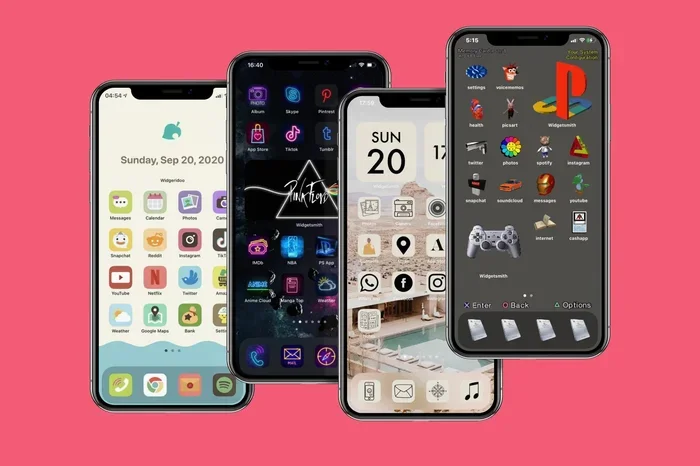
Want to make your iPhone look amazing? This guide shows you exactly how to customize iPhone screen with wallpapers, widgets, icons, and more. You will learn simple steps to personalize every screen on your device and make it truly yours.
Your iPhone is one of the most personal devices you own. It sits in your pocket all day. You glance at it dozens of times. So why does it look the same as everyone else’s? The good news is that you can easily customize iPhone screen to match your style. Whether you love bold colors, clean minimalism, or a dashboard-ready setup for your car, the options are endless. In this guide, we will walk you through every way to make your iPhone screen look its absolute best.
Customizing your iPhone is not just about looks. It also makes your phone faster to use. A well-organized screen means fewer taps. It means less scrolling. It means you find what you need in seconds. This guide covers everything from wallpapers and widgets to app layout and CarPlay settings. By the end, you will know exactly how to make your iPhone screen work harder and look better than ever before.
Key Takeaways
- Wallpaper Power: A great wallpaper transforms the look and feel of your iPhone instantly.
- Widgets Are Game-Changers: Adding widgets saves time and makes your home screen more useful.
- App Organization Matters: Folders and smart layouts keep your screen clean and easy to navigate.
- Lock Screen Customization: iOS lets you tweak fonts, colors, and widgets right from the lock screen.
- CarPlay Integration: Automotive drivers can customize their dashboard display for a safer, cleaner experience.
- Accessibility Settings: Bold text, larger icons, and dark mode make your screen more comfortable to use.
- Small Changes, Big Impact: Even minor tweaks can make your iPhone feel brand new.
📑 Table of Contents
- Why Customize Your iPhone Screen?
- How to Change Your iPhone Wallpaper
- Adding Widgets to Your Home Screen
- Organizing Apps and Icons on Your Home Screen
- Customizing the Lock Screen
- CarPlay and Automotive-Friendly Screen Settings
- Accessibility and Display Settings for a Better Screen
- Common Mistakes to Avoid When Customizing Your iPhone Screen
- Expert Insights on iPhone Screen Customization
- Final Thoughts
Why Customize Your iPhone Screen?
Most people never change their iPhone settings after the initial setup. They leave the default wallpaper and app layout exactly as Apple set them. But your iPhone should reflect who you are. Think about it. You pick your clothes each morning. You choose your hairstyle. Your phone screen deserves the same thought.
Beyond personal expression, customization offers real benefits. A clean, organized screen reduces stress. You can find apps faster. You can check important info at a glance. For drivers, a well-designed screen can even improve safety. iPhone screen customization is not a luxury. It is a smart way to get more from your device every single day.
Boost Your Daily Productivity
When your home screen is set up right, you save time. You do not have to hunt for apps. You do not have to squint at tiny text. A few simple changes can turn a cluttered screen into a powerful tool. Widgets show you weather, calendar events, and reminders without even opening an app. That is time you get back in your day.
Make Your Phone Safer to Use While Driving
If you use your phone in the car, screen customization matters even more. A clean lock screen and a well-organized CarPlay interface reduce distractions. You can set up your iPhone home screen so the most important apps are right where you need them. We will cover CarPlay tips in detail later in this guide.
How to Change Your iPhone Wallpaper
Your wallpaper is the first thing you see when you pick up your phone. It sets the mood for everything else. Changing it is the easiest and most impactful way to customize iPhone screen appearance. Apple gives you several built-in options, and you can also use your own photos.
Choosing the Right Wallpaper Style
Not all wallpapers work equally well. A busy photo can make your icons hard to see. A solid color or subtle gradient often works better. Here are some tips for picking the perfect wallpaper:
- Solid colors create a clean, minimalist look.
- Gradients add depth without being distracting.
- Dark wallpapers work great with dark mode and save battery on OLED screens.
- Your own photos make the phone feel truly personal.
- Abstract art adds personality without cluttering the screen.
How to Set a New Wallpaper
Setting a new wallpaper is simple. Open the Settings app. Tap Wallpaper. Choose a new wallpaper from Apple’s collection or pick one from your photo library. You can set it for the lock screen, the home screen, or both. Tap Set and choose your preference. That is it. Your iPhone wallpaper is updated in seconds.
Pro Tip: Use Dynamic Wallpapers
Dynamic wallpapers change throughout the day. They shift from light to dark as the sun moves across the sky. This subtle effect makes your phone feel alive. It is a small touch, but it makes a big difference in how your screen looks and feels.
Adding Widgets to Your Home Screen
Widgets are one of the best ways to customize iPhone screen functionality. They let you see information without opening an app. Weather, calendar, battery levels, notes, and more all appear right on your home screen. iOS makes adding widgets easy, even if you have never done it before.
How to Add a Widget
Follow these simple steps to add widgets to your home screen:
- Long-press on any empty space on your home screen.
- Tap the plus button in the top-left corner.
- Scroll through the list of available widgets.
- Tap the widget you want to add.
- Choose your preferred size and tap Add Widget.
- Tap Done to finish.
Best Widgets for a Clean, Useful Screen
Not all widgets are equally useful. Some clutter your screen without adding real value. Here are the best widgets to consider for your iPhone home screen:
- Weather widget gives you instant forecasts at a glance.
- Calendar widget shows your upcoming events without opening the app.
- Battery widget helps you track power levels across devices.
- Notes widget gives quick access to your most important reminders.
- Music widget lets you control playback right from the home screen.
- Activity widget shows your fitness progress at a glance.
Widget Stacks for Maximum Space
Widget stacks are a clever way to save space. You can stack multiple widgets on top of each other. Swipe up or down to scroll through them. This keeps your screen clean while still giving you access to several tools. It is one of the smartest tricks in iOS customization.
Organizing Apps and Icons on Your Home Screen
A beautiful wallpaper and shiny widgets mean nothing if your apps are scattered everywhere. Organization is the foundation of a great-looking iPhone screen. When apps are arranged thoughtfully, everything feels calm and intentional.
Create App Folders
Folders are your best friend when organizing apps. To create one, long-press an app icon. Drag it on top of another app from the same category. Apple will suggest a folder name, or you can rename it. This instantly cuts clutter and makes your screen feel more spacious.
Use the App Library
Introduced in iOS 14, the App Library automatically sorts all your apps into categories. You do not need to keep every app on your home screen. Swipe to the rightmost page to access the App Library. It is a powerful tool for keeping your main screen clean without losing access to any app.
Arrange Apps by Frequency of Use
Place the apps you use most often on the first home screen page. Put less-used apps on later pages or inside folders. This simple strategy dramatically improves how fast you can find what you need. Think of your home screen like a car dashboard. The most important controls should be front and center.
| Organization Method | Best For | Difficulty Level |
|---|---|---|
| App Folders | Grouping similar apps together | Easy |
| App Library | Hiding rarely used apps | Easy |
| Frequency-Based Layout | Quick access to daily apps | Medium |
| Widget Integration | Replacing app shortcuts with info | Medium |
Quick Tips for Icon Arrangement
- Keep your most-used apps on the first page only.
- Align icons in neat rows and columns for a polished look.
- Remove app names from folders if you remember what is inside.
- Use the same folder color scheme for a cohesive feel.
Customizing the Lock Screen
The lock screen is the first thing you see every time you pick up your phone. iOS 16 and later give you powerful tools to customize iPhone screen lock screen appearance. You can change fonts, add widgets, and set a color theme that matches your wallpaper perfectly.
How to Customize the Lock Screen
Long-press on your lock screen. Tap Customize. From here, you can change the wallpaper, add widgets, and modify the font style and color. You can also create multiple lock screens for different moods or occasions. One for work, one for weekends, one for driving. The possibilities are wide open.
Lock Screen Widgets
Widgets on the lock screen are incredibly useful. You can add a weather widget, a battery widget, or even a schedule widget. This means you can check important information without unlocking your phone. It is a small convenience that adds up to a much better daily experience.
Create Multiple Lock Screens
Having more than one lock screen is a game-changer. You can swipe left or right to switch between them. Create one lock screen for everyday use. Create another with a darker theme for nighttime. Create a third with driving-related widgets for when you are on the road. Switching between them takes just a swipe.
CarPlay and Automotive-Friendly Screen Settings
If you drive regularly, your iPhone screen customization should extend to your car. Apple CarPlay brings your favorite apps to your car’s display. But how you set it up makes a huge difference in safety and usability. A well-designed CarPlay setup keeps your eyes on the road and your hands on the wheel.
Setting Up CarPlay for the Best Experience
To get started with CarPlay, connect your iPhone to your car using a Lightning or USB-C cable. Or use wireless CarPlay if your vehicle supports it. Go to Settings, then General, then CarPlay. Select your car and customize your favorites. You can pin your most-used apps like Maps, Music, and Podcasts to the CarPlay home screen.
Best Apps for CarPlay
Not all apps work well with CarPlay. Here are the best ones to have on your CarPlay dashboard:
- Apple Maps or Google Maps for navigation.
- Spotify or Apple Music for hands-free music.
- Podcasts app for audio content during long drives.
- Messages with Siri integration for voice replies.
- WhatsApp if you use it for communication on the road.
Dashboard-Friendly Display Tips
When customizing your screen for automotive use, keep a few key principles in mind. Use dark mode to reduce glare on the dashboard. Keep your lock screen simple so you can check it quickly. Set up Siri shortcuts for common actions like calling a contact or starting navigation. These small adjustments make a big difference in driving safety and convenience.
Driving Mode and Do Not Disturb
iOS includes a built-in driving mode that reduces distractions. When activated, it mutes notifications and sends automatic replies to texts. You can set it to activate automatically when your phone detects movement. This feature pairs perfectly with a clean, customized iPhone screen setup for the road.
Accessibility and Display Settings for a Better Screen
Customization is not only about looks. It is also about comfort. Apple offers a range of accessibility and display settings that can transform how your screen looks and feels. These settings are especially helpful if you spend a lot of time reading text or using your phone in bright sunlight.
Dark Mode and True Tone
Dark mode is one of the most popular customization options. It replaces bright white backgrounds with deep dark tones. This reduces eye strain and saves battery life on OLED iPhones. True Tone adjusts the color temperature of your screen to match the lighting around you. Together, these settings create a more comfortable viewing experience.
Adjust Text Size and Bold Text
If you struggle to read small text on your phone, you are not alone. Apple lets you increase text size and enable bold text. Go to Settings, then Display and Brightness, then Text Size. Move the slider to make text larger. Then toggle on Bold Text in the Accessibility settings. This simple change makes a huge difference in readability.
Reduce White Point and Color Filters
For users with sensitive eyes or visual impairments, additional options are available. Reduce White Point lowers the brightness of the brightest colors on your screen. Color filters can adjust the overall color tone to reduce glare. These settings are found in the Accessibility section of your iPhone settings.
Control Center Quick Adjustments
The Control Center gives you fast access to key display settings. Swipe down from the top-right corner of your screen to open it. You can adjust brightness, toggle dark mode, and control music playback. Adding a brightness slider or dark mode toggle to your Control Center makes daily adjustments effortless.
Common Mistakes to Avoid When Customizing Your iPhone Screen
Customization is fun, but it is easy to make mistakes that hurt your experience. Here are common pitfalls to watch out for:
- Overcrowding your home screen with too many widgets and apps.
- Using a wallpaper that is too busy and makes icons hard to see.
- Ignoring dark mode which can cause eye strain in low-light settings.
- Forgetting to organize apps regularly as you download new ones.
- Using too many widget stacks that require constant swiping.
- Neglecting lock screen customization which is quick and easy to improve.
Avoiding these mistakes keeps your screen clean, functional, and visually appealing. Less is often more when it comes to iPhone screen customization. Start with a few changes and build from there. You can always adjust later.
Expert Insights on iPhone Screen Customization
Professional designers and productivity experts agree on a few core principles for the best-looking iPhone home screen. First, keep it simple. A clean screen with plenty of negative space looks and feels better than a cluttered one. Second, be consistent. Use a cohesive color palette across your wallpaper, widgets, and folder icons. Third, think about function before form. Every element on your screen should serve a purpose.
Many experts also recommend revisiting your screen setup every few weeks. As your habits change, your screen should adapt too. Remove apps you no longer use. Add widgets for new routines. Keep your setup fresh and functional. This ongoing process is part of what makes customize iPhone screen such a rewarding habit.
Final Thoughts
Customizing your iPhone screen is one of the simplest ways to improve your daily experience. A great wallpaper sets the tone. Widgets add functionality. Smart organization saves time. CarPlay integration keeps you safe on the road. And accessibility settings make your phone comfortable for everyone.
You do not need to be a tech expert to make these changes. Start with one or two tips from this guide. Build from there. Soon, your iPhone screen will look and feel completely different. It will be faster to use. It will be more enjoyable to look at. And it will truly be yours.
Take a few minutes today. Open your Settings. Try a new wallpaper. Add a widget. Rearrange your apps. These small steps add up to a big transformation. Your iPhone is a tool you use every single day. Make it work as hard as you do.
Frequently Asked Questions
Can I customize my iPhone lock screen without updating to the latest iOS?
Lock screen customization with widgets and custom fonts requires iOS 16 or later. If your iPhone supports a newer iOS version, you should update first. Go to Settings, then General, then Software Update to check for the latest version. Once updated, you can long-press your lock screen to access all customization options.
What is the best wallpaper style for iPhone screen customization?
The best wallpaper depends on your personal taste and how you use your phone. Solid colors and subtle gradients work well for a clean look. Dark wallpapers pair nicely with dark mode and save battery on OLED screens. If you use your phone while driving, a simple dark wallpaper reduces glare and makes your dashboard display easier to read.
How many widgets can I add to my iPhone home screen?
There is no strict limit on the number of widgets you can add. However, Apple does limit the number of widget sizes available for each app. Most apps offer small, medium, and large widget sizes. A good rule of thumb is to keep your home screen balanced. Too many widgets can make the screen feel cluttered and harder to navigate.
Can I use my own photos as CarPlay dashboard backgrounds?
CarPlay does not currently allow custom background images on the dashboard interface. It uses a standardized layout designed for safety and ease of use. However, you can customize which apps appear on your CarPlay home screen. You can also pin your favorite contacts and playlists for quick access. This keeps your driving interface clean and focused.
How do I make my iPhone screen easier to read while driving?
Enable dark mode to reduce screen brightness and glare. Increase text size in the Display and Brightness settings. Use bold text for better visibility. You can also set up Siri shortcuts so you can control your phone with voice commands, keeping your eyes on the road. These adjustments work together to create a safer, more comfortable driving experience.
Is iPhone screen customization difficult for beginners?
Not at all. Apple designed its customization tools to be simple and intuitive. You do not need any technical skills to change your wallpaper, add widgets, or organize apps. Start with one change at a time. Follow the step-by-step instructions in this guide. Within minutes, you will see a noticeable difference in how your iPhone looks and feels.
=== CONCLUSION ===
Customizing your iPhone screen is a simple yet powerful way to improve your daily life. From choosing the perfect wallpaper to organizing apps, adding widgets, and setting up CarPlay for safer driving, every change makes your phone more personal and more functional. The steps in this guide are easy to follow and deliver immediate results. Start today and transform your iPhone screen into something you genuinely enjoy using. Your phone should work for you, and now it will.