Does the Toyota App Show Speed on Your Phone Screen
Yes, the Toyota app can show your speed on your phone screen when connected properly. The Toyota connected app pulls real-time vehicle data including current speed, driving habits, and trip information right to your smartphone. This guide covers everything you need to know about accessing speed data, setting up the app, and troubleshooting common issues.
Have you ever wondered if your Toyota app can show your speed right on your phone screen? It is a question a lot of Toyota owners ask, especially those who love having their car data at their fingertips. The short answer is yes, the Toyota app does show speed under the right conditions. But how exactly does it work, and what do you need to know before relying on it? Let us walk through everything in detail.
The Toyota connected app is more than just a remote start tool. It acts as a bridge between your vehicle and your smartphone. You can check tire pressure, lock doors, and yes, even see how fast you are going. But the experience depends on your car model, your phone, and how well the connection is set up. In this article, we will break it all down so you know exactly what to expect.
If you have ever tried to check your speed on your phone while driving, you know how frustrating it can be when the data does not show up. That is why understanding how the Toyota app handles speed display matters. Whether you are a tech-savvy driver or someone who just wants simple answers, this guide has you covered. We will look at setup steps, features, common problems, and tips to get the most out of the app.
Key Takeaways
- Speed Display: The Toyota app can show real-time speed on your phone when paired with compatible Toyota vehicles.
- Easy Setup: You just need a compatible Toyota model and the Toyota connected app installed on your phone.
- More Than Speed: The app offers trip history, driving scores, fuel tracking, and vehicle health data.
- Common Issues: GPS delays, Bluetooth problems, or outdated app versions can cause speed display issues.
- Safety First: Always rely on your car’s dashboard for speed while driving, and use the app for reference only.
- Free Feature: Most speed and driving data features come standard with the Toyota connected app at no extra cost.
📑 Table of Contents
- What Is the Toyota App and How Does It Work?
- Does the Toyota App Display Your Speed?
- How to Access Speed and Driving Data on the Toyota App
- Features Beyond Speed That the Toyota App Offers
- Troubleshooting When Speed Does Not Show Up
- Tips for Getting the Most Out of the Toyota App Speed Feature
- Safety Considerations When Using the Toyota App While Driving
- Final Thoughts
What Is the Toyota App and How Does It Work?
The Toyota app is a free mobile application that connects your smartphone to your Toyota vehicle. It uses Bluetooth and cellular data to send information back and forth between your car and your phone. Think of it as a remote control for your car that fits in your pocket.
You can download the app from the Apple App Store or Google Play Store. Once installed, you pair it with your Toyota vehicle using your phone number and a registration process. The app supports many Toyota models, but compatibility depends on the year and trim level of your car. If your vehicle has a built-in connectivity system, the app will work even better.
The app pulls data from your car’s onboard computer system. This includes engine status, fuel levels, and real-time driving metrics. When you open the app while parked or driving, it refreshes the data to give you the latest information. The speed reading comes from your car’s speed sensor, which sends the data wirelessly to your phone.
How Does the App Connect to Your Vehicle?
Connection happens through a few different methods. Most newer Toyota models use a built-in telematics system. This system communicates with the app through a cloud-based server. Your car sends speed and other data to Toyota’s servers, and the app pulls it to your phone screen.
For older models, the connection might rely more on Bluetooth pairing. The range is shorter, but the data still flows. Either way, the goal is the same: give you access to your car’s vital stats without needing to look at the dashboard.
Does the Toyota App Display Your Speed?
Yes, the Toyota app does display your speed, but there are some conditions. The speed shown on your phone screen comes directly from your vehicle’s speed sensor. This means the reading is generally accurate and matches what you see on your dashboard.
However, the way speed appears on the app depends on your specific Toyota model and the app version you are using. Some owners see a large digital speedometer right on the home screen. Others need to navigate to a “Driving” or “Trip” tab to find the speed reading. It is not always front and center, so knowing where to look matters.
What Speed Data Can You See?
The Toyota app typically shows the following speed-related information:
- Current Speed: Your real-time speed in miles per hour or kilometers per hour.
- Top Speed: The highest speed recorded during a trip.
- Average Speed: The mean speed over the course of a trip.
- Speed Alerts: Some models let you set speed limits and get notifications when you go over them.
This data is especially useful for parents tracking teen drivers or anyone who wants to monitor driving habits over time. The app keeps a history of trips, so you can go back and review how fast you were going on any given day.
How to Access Speed and Driving Data on the Toyota App
Getting your speed to show up on the Toyota app is straightforward, but it does require a few steps. Here is how to set it up and access the data like a pro.
Step 1: Download and Install the App
Go to your phone’s app store and search for “Toyota” or “Toyota Connected.” Download the official app. Make sure you are getting the real app from Toyota Motor North America. There are fake apps out there, so always check the developer name before installing.
Step 2: Register Your Vehicle
Open the app and follow the prompts to register your vehicle. You will need your Toyota’s 17-character VIN number, which you can find on the driver’s side door frame or on your registration paperwork. Enter it carefully, because even one wrong character will cause an error.
Step 3: Pair Your Phone with the Vehicle
Once registered, the app will walk you through pairing your phone. This usually involves turning on Bluetooth and enabling the telematics feature in your car’s settings menu. The exact steps vary by model, so check your owner’s manual if you get stuck.
Step 4: Navigate to the Speed Display
After pairing, open the app while your car is on. Look for a tab labeled “Driving,” “Trip,” or “Vehicle Status.” The speed reading should appear there. If you do not see it, try closing the app and reopening it, or check that your phone has a strong Bluetooth connection.
Some users also ask, can I download an app to start my car and monitor speed at the same time? The answer is yes. The Toyota app handles both functions seamlessly. You can start your engine remotely and then check your speed in real time, all from the same screen.
Features Beyond Speed That the Toyota App Offers
Speed is just one piece of the puzzle. The Toyota app packs a lot of features that make owning a Toyota more convenient. Let us look at some of the standout tools.
Remote Start and Lock/Unlock
One of the most popular features is the ability to start your car remotely. On a cold morning, you can fire up the engine and turn on the heat before you even step outside. You can also lock and unlock your doors from your phone, which is great if you forgot to do it at home.
If you have ever dealt with a car that would not start because of a remote key issue, you know how valuable this feature can be. The app gives you a backup way to interact with your vehicle.
Vehicle Health and Maintenance Alerts
The app sends you notifications about your car’s health. Low tire pressure, oil life remaining, and battery status all show up in the app. This helps you stay on top of routine maintenance without guessing when something needs attention.
Trip History and Driving Insights
The Toyota app keeps a log of every trip you take. You can see where you went, how long the trip took, and what your average speed was. This feature is great for people who want to track their driving patterns or share trip data with a family member.
Security and Theft Tracking
If your car is ever stolen, the Toyota app can help. It shows the vehicle’s last known location and sends alerts if the car moves without your permission. While it does not replace a full alarm system, it adds an extra layer of peace of mind for Toyota owners.
Troubleshooting When Speed Does Not Show Up
Sometimes the speed data does not appear on the app, even when everything seems set up correctly. This can be frustrating, but it is usually easy to fix. Here are the most common reasons and solutions.
Weak Bluetooth Connection
The app relies on Bluetooth to pull data from your car. If your phone is too far away or something is blocking the signal, the speed reading may not update. Move closer to your vehicle and check that Bluetooth is turned on. Restarting both your phone and your car’s infotainment system often fixes this.
Outdated App Version
Toyota releases app updates regularly to fix bugs and add features. If you are running an older version, the speed display might not work correctly. Go to your app store and check for updates. Keeping the app current is one of the easiest ways to avoid problems.
GPS Signal Issues
Your phone needs a good GPS signal to display accurate speed data. If you are in a tunnel, underground parking, or a dense urban area with tall buildings, the signal might drop. Once you move to an open area, the speed should return.
Vehicle Compatibility
Not every Toyota model supports the same app features. Older models or base trims might not have the telematics hardware needed to send speed data to the app. Check Toyota’s website or call your local dealership to confirm your car’s compatibility. If your car does not support the feature, you may want to explore aftermarket solutions or third-party apps that read OBD-II data.
Tips for Getting the Most Out of the Toyota App Speed Feature
Want to make sure you are getting the best speed readings from the Toyota app? Here are some practical tips that real Toyota owners swear by.
- Keep your phone charged: The app uses GPS and Bluetooth, which drain battery fast. Keep a car charger handy.
- Enable notifications: Turn on speed alerts so you get notified if you go over a set limit.
- Check the app after each drive: Review your trip data to spot patterns and improve your driving.
- Use the app as a backup: Never rely solely on your phone for speed while driving. The dashboard speedometer is your primary tool.
- Update regularly: Keep both the app and your car’s firmware updated for the best performance.
These small habits make a big difference. They ensure your speed data stays accurate and your app runs smoothly every time you get behind the wheel.
Safety Considerations When Using the Toyota App While Driving
It is tempting to glance at your phone to check your speed, but safety always comes first. Looking at your phone screen while driving takes your eyes off the road, and that is dangerous. The Toyota app is designed to be a convenience tool, not a replacement for your car’s built-in speedometer.
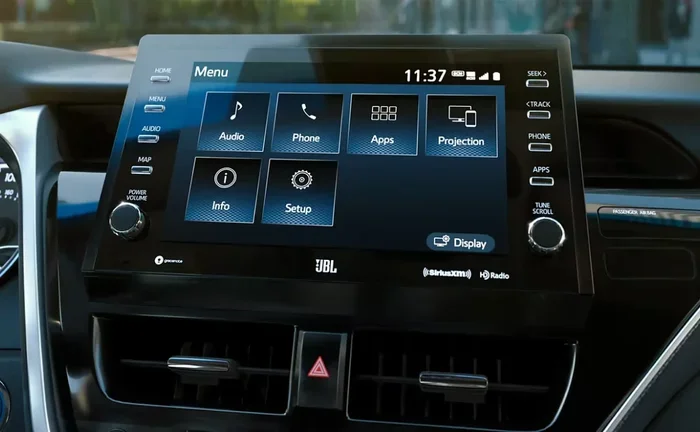
If you need to check your speed, pull over safely first. Better yet, set up speed alerts in the app before you start driving. That way, the app can notify you if you are going too fast without you ever needing to look at the screen. Some Toyota models also display app data on the car’s built-in screen, which is a much safer option than using your phone directly.
Remember, the goal of the Toyota app is to enhance your driving experience, not distract you from it. Use it wisely, and it becomes a genuinely helpful tool in your daily routine.
Final Thoughts
The Toyota app does show speed on your phone screen, and it is a genuinely useful feature for Toyota owners who want more insight into their driving. From real-time speed readings to trip history and driving scores, the app gives you a digital window into your vehicle’s performance. Setup is simple, the features are robust, and the app is free to download.
Of course, no phone-based speed tool is perfect. GPS delays, connection issues, and model compatibility can sometimes get in the way. But with the troubleshooting tips in this guide, you should be able to handle most problems on your own. Keep your app updated, maintain a strong Bluetooth connection, and always prioritize safety over convenience.
If you are curious about other Toyota app features, such as remote starting your car or getting the security indicator light to turn off, there are plenty of resources available. The Toyota ecosystem is designed to make your life easier, and understanding how to use it fully is well worth the effort.
So next time you get in your Toyota, take a moment to open the app and explore what it has to offer. You might be surprised by how much data is right at your fingertips. And when it comes to checking your speed, you now know exactly what to expect and how to make it work for you.
Frequently Asked Questions
Can I see my current speed on the Toyota app while driving?
Yes, you can see your current speed on the Toyota app while driving, as long as your phone is paired with your vehicle and has a strong Bluetooth connection. The speed data comes from your car’s onboard sensors and updates in real time on the app’s driving or trip screen.
Is the speed shown on the Toyota app accurate?
The speed displayed on the Toyota app is generally accurate because it pulls data directly from your vehicle’s speed sensor. However, minor delays can happen due to Bluetooth or GPS issues, so always use your car’s dashboard speedometer as the primary reference while driving.
Do I need a premium subscription to see speed data on the Toyota app?
No, you do not need a premium subscription to see basic speed and driving data. The Toyota connected app offers speed display and trip tracking as standard features at no extra cost. Some advanced features may require a paid plan, but speed monitoring is typically included for free.
Why does the speed not show up on my Toyota app sometimes?
The speed may not show up if your Bluetooth connection is weak, your app is outdated, or your GPS signal is poor. Older Toyota models may also lack the telematics hardware needed for this feature. Try restarting the app, updating to the latest version, or checking your car’s compatibility to resolve the issue.
Can I set speed limit alerts on the Toyota app?
Yes, many Toyota models allow you to set speed limit alerts through the app. You can choose a maximum speed, and the app will notify you if you exceed it. This feature is great for staying within safe driving limits and avoiding speeding tickets.
Can I use the Toyota app to start my car and check speed at the same time?
Yes, the Toyota app allows you to remotely start your car and check your speed simultaneously. Once your vehicle is paired and connected, the app provides both remote start functionality and real-time speed data on the same screen, making it a versatile tool for Toyota owners.
=== CONCLUSION ===
The Toyota app is a powerful tool that brings your vehicle’s data right to your phone. It does show speed on your phone screen, along with a range of other helpful features like trip history, driving scores, and remote start capabilities. Setting it up is simple, and the app is free to use. Whether you want to monitor your driving habits, keep track of your car’s health, or just enjoy the convenience of having your Toyota in your pocket, the app delivers. Just remember to stay safe, keep your app updated, and always let your dashboard be your primary speed reference while on the road.