How Do I Make My iPhone Discoverable Fast and Easy
Making your iPhone discoverable is simple and takes just a few taps. You can turn on Bluetooth, enable CarPlay, or use AirDrop to let your car and other devices find your iPhone instantly. This guide covers every method, from basic Bluetooth pairing to advanced CarKey setup, so you can stay connected on the road.
Have you ever been in your car, ready to go, and realized your iPhone won’t connect? It is frustrating. You want to play music, take calls, or even unlock your car door with your phone. But nothing happens. The reason is often simple. Your iPhone is not discoverable.
Making your iPhone discoverable is something everyone should know how to do. It is not hard. In fact, it takes just a few seconds once you know the steps. Whether you are trying to pair with your car’s Bluetooth system, set up Apple CarPlay, or use AirDrop, the process is the same. You just need to know where to look.
This guide walks you through every way to make your iPhone visible to other devices. We cover Bluetooth, CarPlay, CarKey, and more. By the end, you will never struggle to connect again. Let us get started.
Key Takeaways
- Bluetooth Discovery: Turn on Bluetooth and set your iPhone to visible so your car can find it quickly.
- CarPlay Made Easy: Use CarPlay to connect your iPhone to your car’s infotainment system with minimal effort.
- AirDrop and Hotspot: AirDrop and personal hotspot are great ways to make your iPhone discoverable to nearby devices.
- Apple CarKey: Set up CarKey to use your iPhone as a digital car key for supported vehicles.
- Troubleshooting Tips: Restart devices, update software, and reset network settings to fix common discovery issues.
- Location Services Matter: Keep location services on for features like Find My and CarKey to work properly.
📑 Table of Contents
- What Does It Mean to Make Your iPhone Discoverable?
- How to Make Your iPhone Discoverable via Bluetooth
- How to Make Your iPhone Discoverable with CarPlay
- How to Make Your iPhone Discoverable with AirDrop
- How to Use Apple CarKey to Make Your iPhone a Car Key
- How to Make Your iPhone Discoverable Using Personal Hotspot
- Common Mistakes That Stop Your iPhone from Being Discoverable
- Expert Tips for Keeping Your iPhone Discoverable on the Road
- How to Fix iPhone Discoverable Problems: A Quick Troubleshooting Guide
- Why Staying Discoverable Matters for Modern Driving
- Conclusion
What Does It Mean to Make Your iPhone Discoverable?
When your iPhone is discoverable, it means other devices can see it. Think of it like a signal. Your phone sends out a little “hello” that says, “I am here. Connect to me.” This is how your car finds your phone. This is how your laptop finds your phone. This is how your iPad finds your phone too.
There are different ways to make your iPhone visible. Each one serves a different purpose. Bluetooth is for car connections and headphones. AirDrop is for sharing files. Personal hotspot is for sharing internet. CarKey is for unlocking your car. Let us look at each one in detail.
How to Make Your iPhone Discoverable via Bluetooth
Bluetooth is the most common way to connect your iPhone to your car. Almost every modern vehicle supports Bluetooth pairing. It lets you make hands-free calls, stream music, and use voice commands. But first, your car needs to find your phone. Here is how to make that happen.
Step-by-Step Bluetooth Setup
- Open the Settings app on your iPhone.
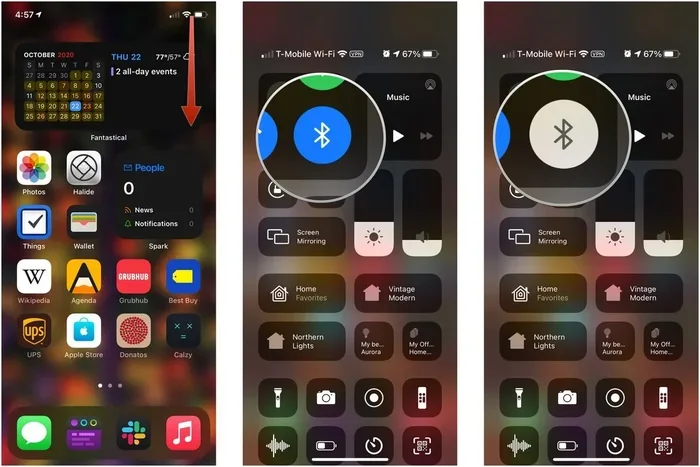
- Tap Bluetooth. You will see the toggle switch at the top.
- Turn Bluetooth on. The switch turns green.
- Wait a few seconds. Your iPhone will start searching for nearby devices.
- On your car’s infotainment screen, go to the Bluetooth or Phone settings.
- Select your iPhone from the list of available devices.
- Tap Pair. You may see a code on both screens. Confirm it matches.
That is it. Your iPhone is now discoverable and connected. You should see a Bluetooth icon at the top of your screen. It looks like a small “B” shape.
Make Your iPhone Visible to All Devices
By default, your iPhone stays discoverable for about two minutes after you turn on Bluetooth. After that, it hides. If you want it to stay visible longer, you can keep the Bluetooth settings open. Another trick is to toggle Bluetooth off and back on. This resets the discoverable window.
Some people also ask, “How do I make my iPhone discoverable all the time?” The honest answer is, iOS does not have a permanent visibility setting. But keeping Bluetooth on and opening the Bluetooth settings often enough keeps it working smoothly.
Quick Tips for Better Bluetooth Connections
- Keep your iPhone close to your car’s antenna. The center console area is best.
- Turn off Bluetooth on other devices nearby. They can cause interference.
- Restart your iPhone if it will not show up in your car’s list.
- Delete old paired devices from your car’s memory. This clears clutter.
- Update your iPhone to the latest iOS version. New updates fix bugs.
How to Make Your iPhone Discoverable with CarPlay
Apple CarPlay is one of the best features for iPhone users. It mirrors your phone onto your car’s screen. You get maps, music, messages, and more. But CarPlay needs your iPhone to be discoverable first. Here is how to set it up.
Wireless CarPlay Setup
Many newer cars support wireless CarPlay. This means no cables needed. Your car and iPhone connect through Bluetooth and Wi-Fi. To make it work, follow these steps.
- Make sure Bluetooth is turned on. We covered this above.
- Go to Settings on your iPhone.
- Tap General and then CarPlay.
- Select your car from the list.
- Follow the on-screen prompts to complete setup.
Wireless CarPlay is a game-changer. You do not have to plug in a cable every time you get in the car. Your iPhone becomes discoverable automatically when you get close.
Wired CarPlay Setup
If your car does not support wireless CarPlay, use a Lightning or USB-C cable. Plug one end into your iPhone and the other into your car’s USB port. Your car screen should light up. It may ask you to trust the connection. Tap Trust on your iPhone.
Wired connections are very reliable. They do not depend on Bluetooth discovery. But they require you to carry a cable. Many drivers keep one in their glove box. It is a simple habit that saves time.
Troubleshooting CarPlay Connection Issues
If CarPlay will not start, do not panic. Try these fixes first.
- Turn Bluetooth off and back on.
- Restart your iPhone.
- Restart your car’s infotainment system.
- Check that CarPlay is enabled in your car’s settings.
- Try a different USB cable or port.
Most CarPlay issues are solved with a simple restart. Both your iPhone and your car benefit from a fresh start.
How to Make Your iPhone Discoverable with AirDrop
AirDrop is Apple’s quick-sharing tool. You can send photos, videos, and files to nearby Apple devices. But for AirDrop to work, your iPhone must be discoverable. Here is how to set that up.
Turning on AirDrop
- Open Control Center. Swipe down from the top-right corner of your screen.
- Press and hold the network settings box. It has the airplane and Wi-Fi icons.
- Tap the AirDrop icon.
- Choose one of three options: Receiving Off, Contacts Only, or Everyone.
Choosing Everyone makes your iPhone fully discoverable. Any nearby Apple device can see you and send you files. This option is great for quick sharing. But it is also the least private. Use it in crowded places with care.
AirDrop and Car Connectivity
AirDrop is not just for sharing files with friends. It can also help with vehicle connectivity. Some cars now support Apple CarPlay with AirDrop-like features. You can mirror your phone screen or transfer data wirelessly. This makes the connection feel seamless and fast.
How to Use Apple CarKey to Make Your iPhone a Car Key
Apple CarKey is one of the coolest iPhone features. It turns your phone into a digital car key. You can unlock your car, start the engine, and even share access with family members. But first, your iPhone needs to be discoverable by the car’s NFC reader.
Setting Up CarKey
CarKey works with the Wallet app. Here is how to set it up.
- Open the Wallet app on your iPhone.
- Tap the Add button. Look for your car’s digital key option.
- Follow the prompts to pair your iPhone with your car.
- Hold your iPhone near the car’s NFC reader. Your phone vibrates when connected.
Once set up, your iPhone is always discoverable by your car. You do not need to open any app or flip a switch. Just hold your phone near the door handle. The car unlocks. It feels like magic.
Which Cars Support CarKey?
CarKey works with select BMW models and is expanding to other brands. Check Apple’s official website for the latest supported vehicles. If your car is compatible, the setup is very easy. If not, you can still use CarPlay or Bluetooth for a great in-car experience.
How to Make Your iPhone Discoverable Using Personal Hotspot
A personal hotspot turns your iPhone into a Wi-Fi router. Other devices can connect to your phone for internet access. This is useful in cars with Wi-Fi hotspots built in. It also helps when you need to share data with a laptop or tablet.
Setting Up a Hotspot
- Go to Settings on your iPhone.
- Tap Personal Hotspot.
- Turn on Allow Others to Join.
- Set a Wi-Fi password. Use something strong but easy to remember.
Now your iPhone is discoverable as a Wi-Fi network. Other devices can find it and connect. This is very handy during road trips when you need internet but have no cell service from your car’s built-in modem.
Hotspot Tips for Car Use
- Keep your phone plugged in. Hotspots drain battery fast.
- Use a short, strong password. This keeps your connection safe.
- Limit the number of connected devices. Too many slows things down.
- Turn off the hotspot when you do not need it. It saves battery and data.
Common Mistakes That Stop Your iPhone from Being Discoverable
Even when you follow the steps, things can go wrong. Most of the time, it is a simple mistake. Here are the most common ones.
Mistake 1: Leaving Location Services Off
Many iPhone features need location services to work. CarPlay, Find My, and CarKey all rely on your phone knowing where you are. If location is off, your iPhone may not show up as discoverable. Go to Settings, then Privacy, then Location Services. Make sure it is turned on.
Mistake 2: Forgetting to Update iOS
Old software causes connection problems. Apple releases updates that fix bugs and improve Bluetooth visibility. Check for updates often. Go to Settings, then General, then Software Update. Install any pending updates.
Mistake 3: Having Too Many Paired Devices
Your iPhone remembers every device you have ever paired with. Over time, this list gets long. It can slow things down and cause conflicts. Go to Bluetooth settings and remove old devices you no longer use. This keeps things clean and fast.
Mistake 4: Ignoring Airplane Mode
Airplane mode turns off all wireless connections. If it is on, your iPhone cannot be discoverable at all. Swipe up to open Control Center. Make sure the airplane icon is not lit. If it is, tap it to turn it off.
Mistake 5: Not Restarting Your Devices
This sounds too simple, but it works. Restarting your iPhone and your car’s infotainment system clears temporary glitches. It resets the connection and often fixes discovery problems instantly. Make it a habit to restart both devices once a week.
Expert Tips for Keeping Your iPhone Discoverable on the Road
Experienced drivers know that staying connected is about more than just turning on Bluetooth. Here are some pro tips that make a big difference.
Keep Your iPhone Charged and Close
Your phone needs power to broadcast its signal. If the battery is low, it may reduce Bluetooth range or turn off discovery features. Use a wireless charging pad in your car. This keeps your phone powered without fumbling with cables.
Use Find My to Locate a Lost iPhone
If your iPhone is not showing up as discoverable, it might be off or out of range. Use the Find My app to locate it. This app works even when your phone is not connected to the internet. It uses Bluetooth signals from nearby Apple devices to help you find yours.
Set Up Proximity Pairing
Some cars support proximity pairing. This means your iPhone connects automatically when you sit in the driver seat. To enable this, go to your car’s Bluetooth settings and look for an option like “Auto-Connect” or “Proximity Pairing.” Once enabled, your phone is always ready to go.
Use Voice Commands for Hands-Free Control
When your iPhone is discoverable and connected, use Siri for hands-free control. Say “Hey Siri, call mom” or “Hey Siri, play my driving playlist.” This keeps your eyes on the road and your hands on the wheel. It is the safest way to use your phone while driving.
How to Fix iPhone Discoverable Problems: A Quick Troubleshooting Guide
Sometimes, despite your best efforts, your iPhone will not connect. Here is a quick guide to fix the most common problems.
| Problem | Solution |
|---|---|
| iPhone not showing in car Bluetooth list | Turn Bluetooth off and on. Restart iPhone. Move closer to the car. |
| CarPlay not launching | Check cable connection. Restart both devices. Update iOS. |
| AirDrop not working | Set AirDrop to Everyone. Turn Wi-Fi and Bluetooth on. Disable Low Power Mode. |
| CarKey not detecting phone | Make sure CarKey is set up in Wallet. Hold phone near NFC reader. Check battery. |
| Hotspot not visible | Turn Personal Hotspot on. Set a password. Restart iPhone. |
| iPhone keeps disconnecting | Forget the device and re-pair. Check for software updates. Reset network settings. |
These fixes cover the vast majority of discovery issues. If none of them work, contact Apple Support or your car manufacturer. There may be a deeper hardware issue at play.
Why Staying Discoverable Matters for Modern Driving
Cars are becoming more connected every year. Today’s vehicles are rolling computers. They need your phone to work together. When your iPhone is discoverable, you get access to maps, music, phone calls, and even car controls. It makes driving safer, more fun, and more convenient.
Think about it. You use your phone for almost everything. Why should driving be any different? Making your iPhone discoverable bridges the gap between your digital life and your car. It is a small step that makes a huge difference every time you get behind the wheel.
Conclusion
Making your iPhone discoverable is easy once you know the steps. Whether you use Bluetooth, CarPlay, AirDrop, CarKey, or a personal hotspot, the process is simple. Keep your Bluetooth on, your software updated, and your location services enabled. Follow the tips in this guide and you will never struggle to connect again.
Take a few minutes today to check your iPhone settings. Make sure everything is set up for your car. A little preparation goes a long way. It saves time, reduces frustration, and keeps you safe on the road. Your iPhone is a powerful tool. Make it work for you.
Now that you know how to make your iPhone discoverable fast and easy, you are ready to go. Drive safe, stay connected, and enjoy the ride.
Frequently Asked Questions
Why can’t my car find my iPhone via Bluetooth?
Your iPhone may not be in discoverable mode. Make sure Bluetooth is turned on and your phone is close to the car. Also check that your car’s infotainment system is set to search for new devices. Restarting both devices often fixes this problem quickly.
How long does my iPhone stay discoverable via Bluetooth?
By default, your iPhone stays discoverable for about two minutes after you turn on Bluetooth. After that, it hides from other devices. To keep it visible, toggle Bluetooth off and back on or leave the Bluetooth settings open.
Do I need an internet connection to make my iPhone discoverable?
No. Bluetooth and NFC discovery work without internet. However, some features like wireless CarPlay and AirDrop use Wi-Fi alongside Bluetooth. Keep Wi-Fi on for the best experience, but it is not required for basic discovery.
Can I make my iPhone discoverable to all nearby devices?
Yes. For AirDrop, you can set it to Everyone in Control Center. For Bluetooth, your iPhone is visible to any device searching for it within range. For security, you can limit AirDrop to Contacts Only.
Why does my iPhone keep disconnecting from my car?
This is often caused by software glitches or too many paired devices. Try forgetting the car in your Bluetooth settings and re-pairing. Also make sure your iPhone is updated to the latest iOS version. A simple restart of both devices can also help.
Is it safe to keep my iPhone discoverable while driving?
Yes. Keeping your iPhone discoverable is safe and necessary for features like CarPlay and hands-free calling. Apple builds strong privacy protections into these features. Your data is not shared unless you explicitly allow it.
=== CONCLUSION ===
Making your iPhone discoverable is a quick and easy process that anyone can learn. Whether you are pairing with your car via Bluetooth, setting up CarPlay, using AirDrop, or exploring Apple CarKey, the steps are straightforward. Keep this guide bookmarked and refer back to it whenever you need help. Stay connected, stay safe, and enjoy the full power of your iPhone on every drive.