How Do I Download My Maps for Offline Use on Any Device
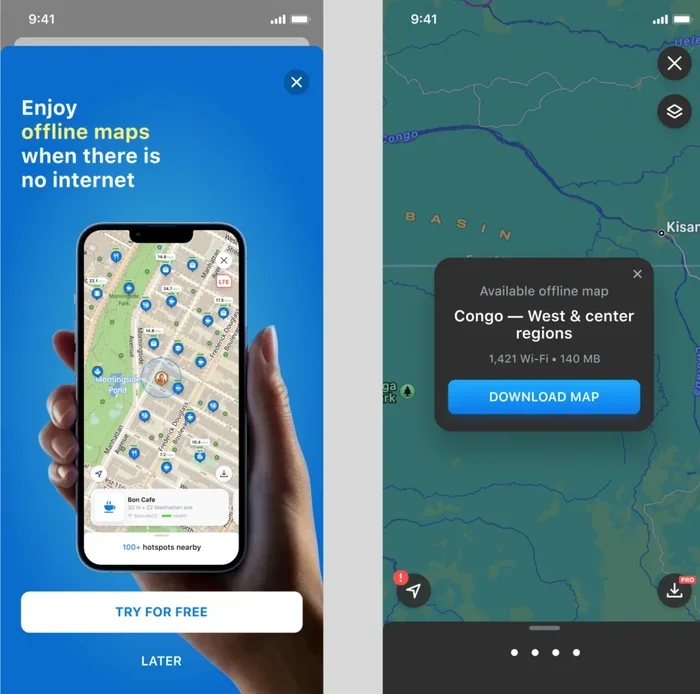
Knowing how do I download my maps is one of the smartest things you can do before any trip. Offline maps keep you on track even when you have no internet connection. This guide walks you through downloading maps on Google Maps Apple Maps and other popular apps. You will learn how to save storage space and update your map data with ease. Follow these simple steps and never lose your way again.
Have you ever been driving through a remote area and suddenly lost your phone signal? It is a scary feeling when your GPS stops working and you do not know where to turn. This is exactly why learning how do I download my maps is so important. Offline maps are a lifesaver for road trips hiking trips and even daily commutes in areas with weak coverage.
In this guide we will show you exactly how to save maps on your phone tablet or any mobile device. We cover Google Maps Apple Maps and several other popular navigation apps. Each step is simple and easy to follow. You do not need to be a tech expert to get this done. Let us walk you through it.
Key Takeaways
- Offline maps work everywhere: You can navigate without wifi or cellular data once your maps are saved.
- Google Maps is the most popular choice: It offers free offline map downloads for any region you need.
- Apple Maps also supports offline use: You can save maps directly from your iPhone or iPad.
- Storage management matters: Offline maps take up space so you should plan and manage your device storage wisely.
- Updates are essential: Road changes and new routes mean you need to refresh your offline maps regularly.
- Multiple apps offer offline features: Waze Here WeGo and OsmAnd all provide solid offline navigation options.
- Preparation prevents problems: Download your maps before you travel to avoid getting lost in areas with poor signal.
📑 Table of Contents
Why Downloading Maps for Offline Use Matters
Many people take their phone signal for granted. But what happens when you drive through a tunnel or visit a rural area? Your GPS app suddenly stops working. This is where offline map downloads save the day. They let you use navigation even when you have zero internet connection.
Here are some real reasons why offline maps matter so much:
- No data needed: Once your map is saved you do not use any cellular data. This is great for saving your data plan.
- Faster loading: Offline maps load instantly because they are stored right on your device. There is no waiting for map tiles to download.
- Better battery life: Your phone uses less power when it does not keep searching for a signal. Your battery lasts longer on long trips.
- Reliable navigation: You get turn by turn directions no matter where you are. Mountains deserts and forests do not stop you.
- Peace of mind: You always know where you are going. This reduces stress and keeps you focused on the road.
Think about your last road trip. Did you drive through any areas with spotty service? If yes then offline maps would have helped you a lot. This is why so many travelers now make offline map downloads a regular habit before every journey.
Who Benefits Most from Offline Maps
Offline maps are not just for hikers or adventurers. Anyone can benefit from them. Here is a quick look at who uses offline maps the most:
- Road trippers: They often drive through areas with no cell coverage like national parks or rural highways.
- Delivery drivers: They need reliable navigation even in dead zones between towns.
- Travelers abroad: Data roaming can be very expensive. Offline maps save money and still provide great directions.
- Commuters: Even daily drivers pass through tunnels or underground parking where signals drop.
- Outdoor enthusiasts: Hikers campers and fishermen rely on offline maps to stay on trail.
How to Download Maps on Google Maps
Google Maps is the most widely used navigation app in the world. The good news is that it offers a built in feature to download maps for offline use. This makes it the go to choice for most people who want to know how do I download my maps the easy way.
Step by Step Guide for Google Maps
Follow these simple steps to save offline maps using Google Maps on your phone or tablet:
- Open the Google Maps app on your device. Make sure you are connected to wifi or mobile data for the initial setup.
- Tap your profile picture or initial in the top right corner of the screen.
- Select Offline Maps from the menu that appears. This option is usually near the bottom.
- Tap Select Your Own Map. You will see a map view that you can pinch and zoom to adjust the area.
- Adjust the map area to cover the region you want to save. You can drag the borders to make the area bigger or smaller.
- Tap Download once you are happy with the selected area. The map will save to your device.
- Wait for the download to finish. The time depends on the size of the area and your internet speed.
That is it! Your map is now saved and ready to use without an internet connection. You can find your offline maps anytime by going back to the Offline Maps section in Google Maps.
How to Manage and Update Google Offline Maps
Offline maps are not permanent. Roads change and new routes get added all the time. Here is how you keep your downloaded maps up to date:
- Open Google Maps and go to Offline Maps.
- Tap the offline map you want to update.
- Tap Update if an update is available. Your device will download the latest map data.
- Delete old maps you no longer need to free up storage space on your device.
Google Maps automatically tries to update your offline maps when you connect to wifi. This is a great feature because it keeps your map data fresh without you having to think about it.
How Much Storage Do Google Offline Maps Use
The storage size depends on the area you download. A small city area might only use 50 to 100 megabytes. A large state or province could use several gigabytes. Here are some rough estimates to help you plan:
- Small city: About 50 to 150 MB
- Medium region: About 200 MB to 500 MB
- Large state or province: About 1 to 3 GB
- Entire country: Could be 10 GB or more
Always check your device storage before downloading large map areas. You do not want to run out of space on your phone right when you need the maps the most.
How to Download Maps on Apple Maps
Apple Maps is the default navigation app on iPhones and iPads. Many iPhone users do not realize that Apple Maps also supports offline map downloads. This feature has improved a lot over the past few years and now works very well for most users.
Step by Step Guide for Apple Maps
Here is how you save maps for offline use on your Apple device:
- Open the Apple Maps app on your iPhone or iPad.
- Search for the city or region you want to save. Type the name in the search bar and tap the result.
- Tap the download icon. This looks like a downward arrow or a cloud with a download arrow depending on your iOS version.
- Wait for the download to complete. The map data will be saved directly to your device.
- Access your offline maps by going to your saved places or recent searches even when you are offline.
Apple Maps also lets you save specific locations and routes. This is handy if you frequently visit certain places and want quick access without using any data.
Tips for Using Apple Maps Offline
- Download maps while on wifi. This saves your cellular data and ensures the download is fast.
- Save maps for your home and work areas. These are the places you use most often.
- Update your maps regularly. Apple releases map updates through iOS updates so keep your device current.
- Check storage usage. Go to Settings then General then iPhone Storage to see how much space your offline maps are taking up.
How to Download Maps on Other Popular Apps
Google Maps and Apple Maps are the big players but they are not the only options. Several other navigation apps also offer offline map features. Here is a look at some popular alternatives.
Waze Offline Features
Waze is a community driven navigation app that provides real time traffic updates. While Waze is mainly designed for online use it does offer some limited offline features. You can save your home and work locations so you can start navigation quickly even without a signal. However full offline map downloads are not as robust as what Google Maps offers.
Here WeGo Offline Maps
Here WeGo is a free navigation app that works great offline. You can download entire country maps or specific regions. It offers turn by turn navigation with voice guidance even when you have no internet. This makes it a solid choice for international travel where data roaming is expensive.
OsmAnd and Open Street Map Apps
OsmAnd is a powerful offline navigation app that uses OpenStreetMap data. It is a favorite among hikers and cyclists because it offers detailed trail maps and points of interest. You can download map tiles for any region in the world. The app is free with optional paid features for advanced navigation.
MapFactor and Organic Maps
MapFactor and Organic Maps are two other excellent options for offline navigation. Both apps are free and use open source map data. They offer clean interfaces and reliable turn by turn directions. Organic Maps is especially popular among privacy conscious users because it does not track your location or collect personal data.
Tips for Managing Offline Map Data
Downloading offline maps is only half the battle. You also need to manage your map data properly to get the best experience. Here are some practical tips that will help you stay organized.
Free Up Storage Space Before Downloading
Offline maps take up real storage space on your device. Before you download new maps make sure you have enough room. Here is what you can do:
- Delete old maps you no longer need. Go to your offline maps section and remove outdated regions.
- Clear your app cache. Navigation apps store temporary files that can add up over time.
- Move photos and videos to cloud storage or an external drive to free up space.
- Use a microSD card if your device supports it. Some apps let you save maps to external storage.
Keep Your Maps Updated
Roads get renamed. New highways get built. Businesses close and open. This is why keeping your offline maps updated is so important. Here is a simple routine you can follow:
- Set a reminder to update your offline maps once a month.
- Connect to wifi before updating. Map downloads can be large and you do not want to use your data allowance.
- Check for app updates in your app store. New versions often include improved map data and better offline features.
- Test your maps after updating by searching for a familiar address to make sure everything looks correct.
Balance Between Map Detail and Storage
You do not need to download every single street and alley if you are just driving between cities. Here is a quick way to balance detail and storage:
- For highway driving: Download the main highways and major cities along your route. You do not need every side street.
- For city navigation: Download the full city map so you can find side streets and local landmarks.
- For hiking or outdoor use: Download topographic maps or trail maps that show terrain and paths in detail.
Save Battery While Using Offline Maps
Navigation apps can drain your battery fast especially when you are using them for hours. Here are some tips to conserve battery life:
- Lower your screen brightness. This is the single biggest battery saver on any mobile device.
- Turn off background app refresh for navigation apps you are not actively using.
- Use battery saver mode on your phone when you are on a long drive.
- Carry a car charger. This ensures your phone stays powered even on the longest road trips.
Common Problems and How to Fix Them
Even with the best planning you might run into some issues when using offline maps. Here are the most common problems and simple fixes for each one.
Offline Map Not Loading
If your offline map will not load try these steps. First make sure the map is actually downloaded and not just cached. Go to your offline maps section and check that the file is there. If it is try restarting the app. Sometimes a simple restart fixes loading issues. If the problem persists try deleting the map and downloading it again.
Missing Search Results Offline
Offline maps do not always include business listings or point of interest data. This means you might not find a specific restaurant or gas station when you are offline. To fix this download the largest map area possible. This increases the chances of having more points of interest saved locally. You can also save your favorite locations as bookmarks before you go offline.
Directions Not Updating in Real Time
Offline maps cannot provide live traffic updates because they do not have a data connection. This is expected behavior. To work around this download your maps right before you travel so the route information is as current as possible. You can also check traffic conditions online before you leave and plan your route accordingly.
Storage Full After Downloading Maps
If your device storage is full after downloading maps here is what to do. Delete maps for regions you will not visit again. Clear the app cache in your device settings. Move the app to an external SD card if your device supports it. You can also use a file manager to find and delete old map cache files that the app did not clean up automatically.
GPS Signal Lost in Offline Mode
Your GPS receiver works independently of your internet connection. This means you should still get a GPS signal even without data. If you lose your GPS signal try these steps. Make sure you have a clear view of the sky. Stay away from tall buildings or dense tree cover if possible. Restart your phone which often resets the GPS receiver. Wait a minute or two for the signal to reconnect.
Expert Tips for the Best Offline Navigation Experience
After helping hundreds of travelers set up their offline maps here are a few pro tips that make a big difference.
Download maps the night before your trip. Do not wait until you are on the road. You want to make sure the download completes properly and you have time to test the maps before you need them.
Save key locations as bookmarks. Before you go offline save your hotel rental car location and any important stops. This way you can find them quickly even without an internet connection.
Use multiple apps for backup. If Google Maps fails you can fall back on Apple Maps or another offline navigation app. Having a backup plan keeps you from getting stranded.
Share your route with someone. Before you head out on a long drive share your planned route with a friend or family member. This adds an extra layer of safety in case you do run into navigation problems.
Keep your phone plugged in. Navigation apps use a lot of power. A car charger with a long cable lets you keep your phone charged and your maps running throughout the entire drive.
Conclusion
Learning how do I download my maps for offline use is one of the simplest and most valuable skills you can add to your travel toolkit. Whether you use Google Maps Apple Maps or another navigation app the process is quick and easy. Offline maps keep you on track when you have no internet signal. They save your data and your battery. And most importantly they give you peace of mind on every journey.
Take a few minutes today to download the maps you need. You will be glad you did the next time you find yourself in an area with no cell service. Stay prepared stay navigable and enjoy every trip with confidence. Your offline maps are just a few taps away.
Frequently Asked Questions
Can I use offline maps for turn by turn navigation?
Yes absolutely. Both Google Maps and Apple Maps offer turn by turn directions using offline maps. You do not need an internet connection to get spoken navigation guidance. Just make sure you have downloaded the map area before you lose your signal.
How much storage space do offline maps take up?
The storage size depends on the area you download. A small city might use 50 to 150 megabytes while a large region could use several gigabytes. You can check the size before downloading in the Google Maps offline section. Always make sure you have enough free space on your device first.
Can I download maps for multiple countries on one device?
Yes you can download maps for multiple countries and regions on a single device. Google Maps lets you save several offline map areas at once. Just keep in mind that each map area uses storage space so plan accordingly based on your device capacity.
Do offline maps update automatically?
Google Maps tries to update your offline maps automatically when you connect to wifi. Apple Maps updates through regular iOS updates. You should also manually check for updates once a month to make sure your map data is current and accurate.
Can I still get traffic information when using offline maps?
No offline maps cannot provide live traffic updates because they do not use an internet connection. To get the best results check traffic conditions online before you start driving. Then download the offline map so you have reliable directions even in areas with no signal.
Which app has the best offline maps for international travel?
Google Maps and Here WeGo are both excellent choices for international travel. Google Maps covers most countries with detailed offline map data. Here WeGo is also a strong option especially for regions where Google Maps coverage is limited. Both apps are free to use.