How to Mirror iPhone to Car Screen with Apple CarPlay
Mirroring your iPhone to your car screen with Apple CarPlay is one of the simplest ways to stay connected while driving. You can access maps, music, messages, and calls on a bigger display without touching your phone. Whether you use a USB cable or go wireless, this guide walks you through every step. Apple CarPlay makes your car’s infotainment system feel like a natural extension of your iPhone.
Have you ever wished you could see your iPhone screen right on your car’s display? Maybe you want to use Google Maps on a bigger screen, or you just want to answer calls without fumbling with your phone. Apple CarPlay makes all of this possible, and it is easier than you think.
In this guide, I will show you exactly how to mirror iPhone to car screen using Apple CarPlay. We will cover wired connections, wireless setups, troubleshooting tips, and everything in between. By the end, you will know exactly what to do no matter what car you drive.
## What Is Apple CarPlay and Why Should You Use It?
Apple CarPlay is Apple’s built-in system that lets you connect your iPhone to your car’s infotainment display. Once connected, your car screen shows a simplified version of your iPhone interface. You get access to maps, music, phone calls, messages, and more.
The best part? CarPlay is designed to keep your eyes on the road. It uses Siri voice commands so you can stay hands-free. You do not need to download any special apps either. CarPlay comes built into your iPhone, and many newer cars support it right out of the box.
### How CarPlay Differs from Regular Screen Mirroring
Some people confuse CarPlay with generic screen mirroring. Here is the difference. Regular screen mirroring copies everything on your iPhone exactly as it appears. CarPlay, on the other hand, creates a tailored interface for driving. It shows only safe and useful apps like Phone, Messages, Maps, and Music.
This means CarPlay is safer and more practical for driving. You get a clean, distraction-free experience every time you get behind the wheel.
## What You Need to Mirror iPhone to Car Screen
Before you start, let us go over what you need. The requirements are pretty simple, but they do vary depending on your setup.
### For Wired CarPlay Connection
– An iPhone 5 or later running iOS 7.1 or newer
– A Lightning to USB cable (the one that came with your iPhone works best)
– A car with a USB port that supports CarPlay
– Your car’s infotainment system must be CarPlay compatible
### For Wireless CarPlay Connection
– An iPhone 8 or later running iOS 13 or newer
– A car with built-in wireless CarPlay support
– A stable Wi-Fi and Bluetooth connection
– Both your iPhone and car must be on the same Wi-Fi network
### Checking If Your Car Supports CarPlay
Not sure if your car supports CarPlay? Check your car’s user manual or look for the CarPlay logo on your infotainment screen. You can also visit your car manufacturer’s website. Many popular brands like Toyota, Honda, Ford, BMW, and Hyundai offer CarPlay in most of their models from 2017 onward.
If your car does not support CarPlay natively, do not worry. You can still use it with an aftermarket CarPlay adapter. These devices plug into your car’s USB port and add CarPlay support to older systems.
## Step-by-Step: How to Connect iPhone to Car Screen via USB
This is the most common and reliable method. Let me walk you through it step by step.
### Step 1: Prepare Your iPhone
First, make sure your iPhone is updated to the latest iOS version. Go to Settings, then General, then Software Update. If an update is available, install it before you start. This ensures smooth compatibility with your car’s system.
Also, unlock your iPhone before plugging it in. Some cars will not recognize a locked device.
### Step 2: Plug In the Cable
Take your Lightning to USB cable and plug one end into your iPhone. Plug the other end into your car’s USB port. Some cars have a dedicated CarPlay USB port, often marked with a CarPlay or smartphone icon. If your car has multiple USB ports, try each one until you find the right one.
Tip: If your car has a 12V power socket, you can also use a Lightning to USB adapter to charge your phone while using CarPlay. This is especially helpful on long drives.
### Step 3: Trust the Connection
Your iPhone will show a prompt asking if you trust the car. Tap “Trust” and enter your passcode if needed. This allows the car to communicate with your iPhone securely.
### Step 4: Select CarPlay on Your Car Display
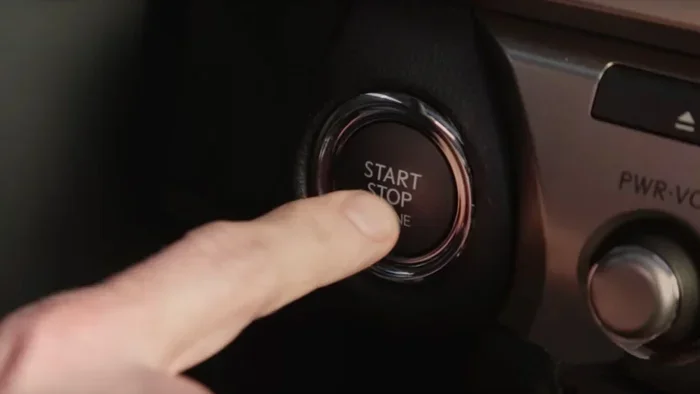
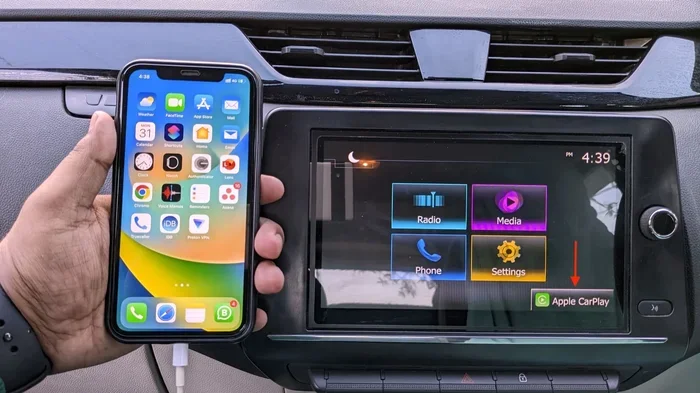
Now, switch your car’s infotainment system to CarPlay mode. On most cars, you can do this by pressing the Source, Media, or CarPlay button on your dashboard or steering wheel. The CarPlay interface should appear on your screen within a few seconds.
### Step 5: Start Using CarPlay
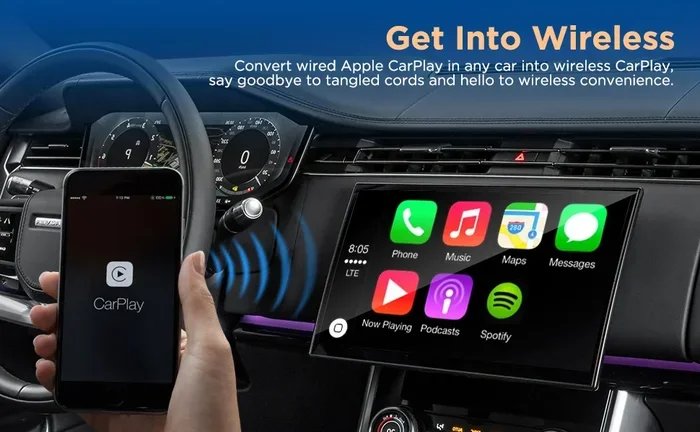
Once connected, you will see a home screen with your favorite apps. You can tap to open Maps, Music, Podcasts, Phone, and Messages. Use Siri by holding down the voice command button on your steering wheel for hands-free control.
## Step-by-Step: How to Connect iPhone to Car Screen Wirelessly
Wireless CarPlay is becoming more common in newer vehicles. It lets you connect without any cables, which is incredibly convenient. Here is how to set it up.
### Step 1: Enable Wireless CarPlay on Your iPhone
Go to Settings on your iPhone, then General, then CarPlay. Tap “Add Car” and select your vehicle from the list. Make sure both Bluetooth and Wi-Fi are turned on.
### Step 2: Enable Wireless CarPlay on Your Car
Go to your car’s infotainment settings and look for Wireless CarPlay or Bluetooth settings. Enable wireless CarPlay if it is available. Some cars may require you to first connect via USB before they allow wireless pairing.
### Step 3: Pair the Devices
Your iPhone and car will now search for each other. Once they find each other, tap “Connect” on your iPhone. The CarPlay interface should appear on your car screen automatically.
### Step 4: Set It as Default
After the first successful connection, your iPhone should remember your car. Next time you get in and start the engine, CarPlay should connect automatically without any cables.
Quick Tip: If wireless CarPlay keeps disconnecting, try restarting both your iPhone and your car’s infotainment system. Also, make sure your car is parked and stationary during the initial pairing process.
## Best Apps for Apple CarPlay
One of the best things about CarPlay is the wide range of apps it supports. Here are some of the most useful ones.
### Navigation Apps
– Apple Maps – Built into CarPlay and works flawlessly
– Google Maps – Great for real-time traffic updates
– Waze – Community-driven traffic alerts
– Citymapper – Excellent for public transport and walking directions
### Music and Podcasts
– Apple Music – Native integration with Siri
– Spotify – Stream millions of songs and playlists
– Podcasts – Apple’s own app with CarPlay support
– Pandora – Great for personalized radio stations
### Communication
– Phone – Make and receive calls on the big screen
– Messages – Read and reply to texts using Siri
– WhatsApp – Voice message and call support
## Troubleshooting Common CarPlay Connection Issues
Sometimes things do not go as smoothly as we hope. Here are the most common issues and how to fix them.
### CarPlay Does Not Appear on My Car Screen
This is the most common complaint. Try these fixes:
- Unplug and replug the cable. Sometimes a loose connection is all it takes.
- Try a different USB port. Not all USB ports in your car support CarPlay.
- Use an Apple-certified cable. Cheap or damaged cables often cause connection problems.
- Restart your iPhone. A simple reboot can fix many software glitches.
- Restart your car’s infotainment system. Turn it off, wait 10 seconds, and turn it back on.
### CarPlay Disconnects Frequently
If your connection keeps dropping, here is what you can do.
- Check your cable for any visible damage or fraying.
- Clean the USB port on both your iPhone and your car. Dust and debris can interfere with the connection.
- Update your iPhone to the latest iOS version.
- Update your car’s firmware if a software update is available from the manufacturer.
- For wireless CarPlay, make sure nothing is blocking the Wi-Fi signal between your phone and car.
### Siri Does Not Respond
If Siri is not working through CarPlay, check your iPhone settings. Go to Settings, then Siri & Search, and make sure “Listen for Hey Siri” and “Press Side Button for Siri” are both enabled. Also, check that your car’s steering wheel voice command button is properly paired.
## CarPlay Safety Tips for Drivers
Apple designed CarPlay with safety in mind, but you still need to follow some basic rules.
First, always use Siri for hands-free control. Do not tap your screen while driving. Let Siri handle calls, texts, and navigation directions for you.
Second, set up your route before you start driving. Enter your destination while you are still parked. This keeps your eyes on the road where they belong.
Third, adjust your display brightness to match the lighting conditions. A screen that is too bright at night can be distracting and strain your eyes.
Fourth, keep your phone charged. Use a quality cable and consider a car inverter if you need to charge multiple devices at once. A low battery can cause CarPlay to disconnect unexpectedly.
## Does Every Car Work with CarPlay?
Apple CarPlay is supported by hundreds of car brands and thousands of models. However, it is not available in every vehicle. Here is a quick breakdown.
| Car Age | CarPlay Support |
|—|—|
| 2020 and newer | Most models support both wired and wireless CarPlay |
| 2016-2019 | Many models support wired CarPlay, wireless varies |
| 2010-2015 | Limited support, usually requires aftermarket adapter |
| Before 2010 | Very limited, aftermarket solutions are a must |
If you own an older vehicle, you can still enjoy CarPlay. Aftermarket head units from brands like Pioneer, Kenwood, and Sony offer CarPlay support at affordable prices. You can also find standalone CarPlay adapters that work with your existing car stereo.
## How to Mirror iPhone to Car Screen Without CarPlay
What if your car does not support CarPlay at all? You still have options. Screen mirroring apps like Replica and AirScreen can cast your iPhone screen to your car display via Bluetooth or Wi-Fi. However, these solutions are not as polished or safe as CarPlay.
For a better experience, consider installing an aftermarket head unit with CarPlay support. It is a one-time investment that transforms your driving experience. You get navigation, music, calls, and messaging all on a big, clear display.
## Expert Tips for the Best CarPlay Experience
Here are some pro tips that will make your CarPlay experience even better.
- Organize your CarPlay home screen. Go to Settings, then General, then CarPlay, and customize which apps appear on your car screen. Put the apps you use most front and center.
- Use a high-quality braided USB cable. These cables last longer and provide a more stable connection than standard cables.
- Enable “Do Not Disturb While Driving” in your iPhone settings. This reduces notifications and keeps you focused on the road.
- Update your car’s firmware regularly. Manufacturers often release updates that improve CarPlay performance and fix bugs.
- Pair your iPhone with your car every time you start the engine. This ensures the fastest and most reliable connection.
## Final Thoughts
Mirroring your iPhone to your car screen with Apple CarPlay is one of the most useful upgrades you can make to your daily drive. It keeps you connected, entertained, and informed without compromising safety. Whether you use a cable or go wireless, the setup takes only a few minutes and works beautifully once it is running.
If your car does not support CarPlay natively, an aftermarket solution can still bring this experience to your vehicle. The investment is well worth the convenience and safety benefits.
Start by trying the wired connection method first, as it works with almost every CarPlay-compatible car. Once you get comfortable, explore wireless CarPlay for an even smoother experience. You will wonder how you ever drove without it.
Happy driving, and enjoy the ride with your iPhone right on your car screen!
Key Takeaways
- Apple CarPlay is the official Apple solution for mirroring your iPhone to your car screen safely.
- You can connect via USB cable or wirelessly, depending on your car model and year.
- Setting up CarPlay takes less than 5 minutes and requires no extra apps in most cases.
- Wireless CarPlay uses Bluetooth and Wi-Fi for a cable-free experience.
- Troubleshooting common issues like disconnections is straightforward with a few simple steps.
- Not all cars support CarPlay natively, but aftermarket adapters can help older vehicles.
- Siri integration allows hands-free control of calls, messages, and navigation.
Frequently Asked Questions
Can I mirror my iPhone to any car screen?
Not every car supports Apple CarPlay natively. However, most cars made after 2017 have at least wired CarPlay support. For older vehicles, you can use an aftermarket CarPlay adapter or head unit to add this feature to your car.
Do I need an internet connection to use Apple CarPlay?
For most features like music and phone calls, you do not need the internet. However, navigation apps like Google Maps and Apple Maps work best with an active data connection for real-time traffic updates and route changes.
Can I use CarPlay while charging my iPhone?
Yes, using a USB cable to connect CarPlay also charges your iPhone. This is one of the biggest advantages of wired CarPlay. If you use wireless CarPlay, you may want to keep a charger plugged in to maintain your battery level during long drives.
Why does my CarPlay keep disconnecting from my car?
Frequent disconnections are usually caused by a damaged cable, a dirty USB port, or outdated software. Try using a different Apple-certified cable, clean the ports, and make sure both your iPhone and car firmware are up to date.
Is wireless CarPlay as reliable as wired CarPlay?
Wireless CarPlay is very convenient, but wired connections tend to be more stable and reliable. Wireless CarPlay can occasionally disconnect if the Wi-Fi signal is weak. For the best experience, use wired CarPlay for critical tasks like navigation.
Can I use Apple CarPlay with an Android phone?
No, Apple CarPlay is exclusive to iPhones. Android users have a similar system called Android Auto, which offers many of the same features. If you drive a mixed-fleet vehicle or share a car with an Android user, you may want to check if your car supports both systems.