How Do I Reconnect My Phone to Bluetooth in My Car
Reconnecting your phone to Bluetooth in your car is easier than you think. This guide walks you through the entire process, from basic pairing to advanced troubleshooting, so you can enjoy wireless music and hands-free calls without frustration. Whether you drive a sedan or a 7 seater car hire, these tips work across all vehicle types.
You hop into your car, start the engine, and reach for your phone. You want to play your favorite playlist or take a call hands-free. But the Bluetooth connection just won’t come back. It happens to everyone. The good news is that fixing a Bluetooth connection issue in your car is usually quick and painless. In this guide, we will walk you through every step to get your phone paired again.
Whether you drive a compact sedan or a spacious SUV, the process is similar. You will learn how to pair your phone, why connections drop, and how to fix them fast. We also cover common mistakes that keep people stuck. By the end, you will be back to wireless streaming music and making hands-free calls without a second thought.
A working car Bluetooth system makes every drive better. You get safer calls, cleaner audio, and zero tangled wires. Let us dive right in and get your connection back.
Key Takeaways
- Turn Bluetooth off and on again: This simple reset fixes most connection issues quickly.
- Delete old pairings: Removing previous connections often resolves stubborn Bluetooth problems.
- Check your car stereo settings: Your infotainment system may need manual input to find your phone.
- Keep your phone close: Bluetooth range matters, especially in larger vehicles.
- Update your software: Outdated phone or car software can block Bluetooth connections.
- Reset network settings as a last resort: This clears all Bluetooth history and starts fresh.
- Use a 12V power source: A stable power supply keeps your Bluetooth module working properly.
📑 Table of Contents
Why Does Bluetooth Disconnect in Cars?
Before we fix the problem, it helps to understand why it happens. Bluetooth connections are wireless and rely on radio signals. Many things can interfere with those signals. Here are the most common reasons your phone connectivity drops:
- Distance: Bluetooth has a limited range, usually around 30 feet. If your phone is in the back seat or the trunk, the signal weakens.
- Interference: Other wireless devices, USB cables, or even microwave ovens can disrupt the Bluetooth signal.
- Software glitches: Sometimes the Bluetooth module in your car or phone simply needs a restart.
- Outdated software: Old phone operating systems or car firmware may not communicate well together.
- Memory full: Your car stereo can only store a limited number of paired devices. When the list is full, new connections fail.
- Low battery: A phone with very low battery may disable Bluetooth to save power.
- Accidental unpairing: A simple settings change can remove a device from the paired list without you noticing.
Understanding the root cause helps you pick the right fix. Most of the time, it is something simple you can solve in under five minutes.
Step-by-Step Guide to Reconnect Your Phone
Follow these steps in order. Each one addresses a different part of the Bluetooth pairing process. Start from the top and work your way down.
Step 1: Toggle Bluetooth Off and On
This is the easiest fix and it works more often than you would expect. Swipe down from the top of your phone screen to open the quick settings panel. Tap the Bluetooth icon to turn it off. Wait about 10 seconds. Then tap it again to turn it back on.
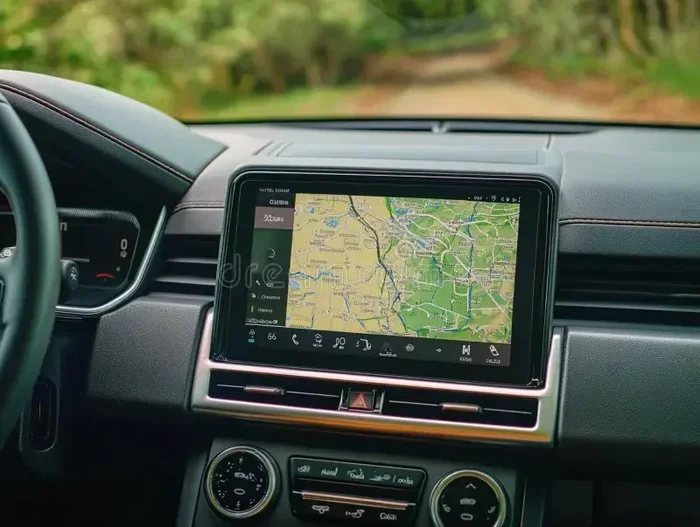
On your car side, go to the infotainment screen. Find the Bluetooth settings menu. Look for your phone name in the list of available devices. Tap on it to reconnect. This simple reset refreshes the wireless link between your devices.
Step 2: Delete Old Pairings
If toggling does not work, the next step is to clear old connections. On your phone, go to Settings > Bluetooth. Find your car stereo in the list of paired devices. Tap the gear icon or settings button next to it. Choose Unpair or Forget Device.
Now do the same on your car stereo. Go to the Bluetooth menu and remove your phone from the paired list. This clears any corrupted data that might be blocking the connection. Once both sides are clean, start the pairing process fresh from Step 1.
Step 3: Make Your Phone Visible
Sometimes your phone hides itself from other devices. To fix this, go to Bluetooth settings on your phone and look for an option called Visible to All Devices or Discoverable Mode. Turn it on. Your phone will now broadcast its presence to nearby devices, including your car stereo.
On the car side, go to the Bluetooth menu and select Search for Devices or Scan. Your phone should appear in the list. Tap it and enter the PIN if prompted. Most cars use a default PIN like 0000 or 1234.
Step 4: Restart Both Devices
If the connection still fails, a full restart can work wonders. Turn off your car engine and remove the key or press the start button to power down the infotainment system. On your phone, hold down the power button and select Restart.
Wait about 30 seconds for both devices to fully power back on. Start the car and look for the Bluetooth option on the infotainment screen. Try pairing again. Restarting clears temporary bugs and refreshes the wireless modules on both ends.
Step 5: Check for Software Updates
Outdated software is a hidden cause of Bluetooth problems. On your phone, go to Settings > Software Update or System Updates. Install any pending updates. These often include fixes for wireless connection bugs.
For your car, check the owner manual or visit the manufacturer website. Some vehicles support over-the-air updates through the infotainment system. Others require a visit to the dealership. Keeping both devices updated ensures they use the latest Bluetooth version protocols.
Advanced Troubleshooting Tips
If the basic steps above did not solve your problem, do not worry. There are deeper fixes that address more complex issues. These tips work especially well for older cars or vehicles with aftermarket stereos.
Reset Network Settings on Your Phone
This is a powerful fix that clears all saved Wi-Fi networks, Bluetooth pairings, and cellular settings. On iPhone, go to Settings > General > Transfer or Reset iPhone > Reset > Reset Network Settings. On Android, go to Settings > System > Reset Options > Reset Wi-Fi, Mobile & Bluetooth.
Warning: This will erase all saved networks and paired devices. You will need to reconnect to your Wi-Fi and pair your phone again. But it often fixes stubborn Bluetooth troubleshooting issues that nothing else can touch.
Check the 12V Power Socket
Your car Bluetooth module needs stable power to work. If your car uses a 12V car socket for the stereo or has a separate power input, a loose connection can cause Bluetooth dropouts. Check that all cables are firmly plugged in.
If you have aftermarket devices connected through a 12V car socket to 3 pin adapter, make sure the adapter is not faulty. A bad adapter can cause power fluctuations that interrupt the Bluetooth module. Try disconnecting other devices from the same power source and see if the connection improves.
Clear the Car Stereo Bluetooth Memory
Car stereos have limited memory for paired devices. If you have paired many phones or devices over the years, the list may be full. Go to your car stereo Bluetooth settings and delete all old pairings you no longer need. Keep only the devices you use regularly.
After clearing the memory, try pairing your phone again. You will often find that a clean slate solves the problem instantly.
Check for Interference from Other Devices
USB cables, dash cams, phone chargers, and other accessories plugged into your car can create electromagnetic interference. This interference can weaken or block the Bluetooth signal between your phone and car stereo.
Try unplugging all non-essential devices from your car. Keep your phone at least 3 feet away from USB cables and power adapters. Then try reconnecting. If the Bluetooth works with all other devices unplugged, plug them back in one by one to find the culprit.
Factory Reset the Car Infotainment System
As a last resort, you can factory reset your car stereo. This wipes all settings, including Bluetooth pairings, back to default. The process varies by car brand. Check your owner manual or search online for your specific model. On many systems, you can find the reset option under Settings > System > Factory Reset.
After the reset, you will need to re-pair all your devices. This is a thorough fix that resolves nearly all Bluetooth issues. Just make sure you know your radio code before you reset, as some cars require it after a factory reset.
Preventing Future Bluetooth Problems
Once you get your Bluetooth working again, you want to keep it that way. Here are simple habits that prevent most connection issues:
- Keep your phone software updated: Updates often include Bluetooth fixes that improve stability.
- Restart your phone weekly: A regular restart clears temporary bugs that can affect wireless connections.
- Limit paired devices: Only keep devices you actually use in your car stereo memory.
- Use quality cables: If you use USB cables, choose certified ones that do not cause interference.
- Keep your phone charged: Low battery can cause Bluetooth to disconnect or fail to pair.
- Avoid extreme temperatures: Hot or cold weather can affect Bluetooth hardware performance.
- Park with care: If your phone is in the glovebox or under a seat, it may be too far from the car antenna.
These small habits go a long way. They keep your car audio system running smoothly and your wireless streaming experience uninterrupted. Think of them as basic car care just like checking your oil or tire pressure.
When to Seek Professional Help
Most Bluetooth issues are fixable at home. But sometimes the problem is hardware-related. Here are signs that you need professional help:
- The Bluetooth option is missing from your car infotainment screen entirely.
- You hear static or crackling even when the connection seems active.
- The Bluetooth works for calls but not for music, or vice versa.
- Your car stereo freezes or crashes every time you try to pair a device.
- None of the troubleshooting steps above have worked after multiple attempts.
In these cases, visit a car audio specialist or your dealership. The Bluetooth module itself may need replacement. This is a simple and affordable fix for most vehicles. If you frequently rent cars or use a 7 seater car hire, knowing these basics helps you quickly adapt to any vehicle’s Bluetooth system.
Also, if you have an older car without built-in Bluetooth, consider a Bluetooth adapter or an FM transmitter. These affordable devices plug into your 12V power socket or cigarette lighter and add wireless capability to any car. A 12V power socket car adapter can also help keep your devices charged while maintaining a stable Bluetooth connection.
Quick Tips for a Seamless Bluetooth Experience
Here are some bonus tips that make Bluetooth use in your car smoother every day:
- Name your phone clearly: Use a recognizable name like “My iPhone” or “Samsung Galaxy” so you can easily identify it on the car stereo.
- Pair in a parked car: Always pair devices when the car is stationary for a stronger initial connection.
- Keep one hand on the wheel: Use voice commands to accept Bluetooth calls instead of touching your phone.
- Test before you drive: Connect your phone before starting a long trip to avoid mid-drive connection issues.
- Use a phone mount: A mount keeps your phone in the optimal position for Bluetooth reception, near the car antenna.
These tips take seconds to follow but save you a lot of frustration on the road. They work whether you drive your own car or a 12V car socket to 3 pin equipped rental vehicle.
Final Thoughts
Reconnecting your phone to Bluetooth in your car does not have to be stressful. Most issues resolve with a simple toggle, a restart, or by forgetting and re-pairing the device. The steps in this guide cover everything from basic fixes to advanced solutions.
Remember to keep your software updated, limit paired devices, and maintain clean power connections. These habits prevent most Bluetooth problems before they start. If you ever face a stubborn issue, the advanced troubleshooting section has you covered.
Now that you know how to fix Bluetooth connection issues, you can enjoy every drive with your favorite music, podcasts, and hands-free calls. Stay connected, stay safe, and keep streaming.
Frequently Asked Questions
Why won’t my phone connect to my car Bluetooth even after pairing?
Try deleting the old pairing on both your phone and car stereo, then pair fresh. Also make sure your phone is set to visible or discoverable mode. Restarting both devices often resolves this issue quickly.
How far can Bluetooth reach inside a car?
Bluetooth typically works within 30 feet. If your phone is in the back seat or trunk, move it closer to the front. The signal strength depends on your car’s antenna placement and any interference from other electronics.
Can I connect multiple phones to my car Bluetooth at once?
Most car stereos can store several paired devices but only connect to one at a time. When a second phone enters the car, the stereo may automatically switch to it if the first phone is out of range. You can manually select which device to use in the Bluetooth settings.
Why does my Bluetooth keep disconnecting during a call?
This is often caused by interference from USB cables or other devices plugged into the car. Try unplugging unnecessary accessories. Also check that your phone battery is not too low, as low power can cause Bluetooth dropouts.
Do I need an adapter to use Bluetooth in an older car?
Yes, if your older car does not have built-in Bluetooth. A Bluetooth FM transmitter or a Bluetooth adapter that plugs into your 12V power socket works great. These devices are affordable and easy to install without any professional help.
Will resetting network settings delete my photos and contacts?
No, resetting network settings only clears Wi-Fi networks, Bluetooth pairings, and cellular settings. Your photos, contacts, apps, and personal data remain completely safe. It is a safe and effective fix for stubborn Bluetooth issues.