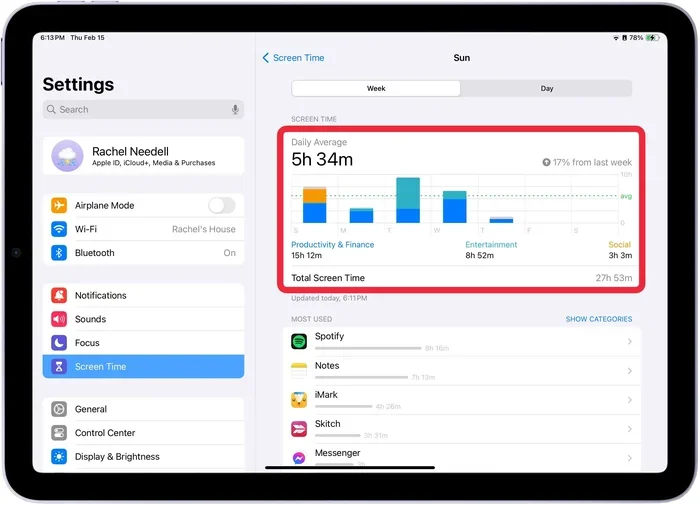
How Do I Change the Date and Time on My Screen Time Settings
Changing the date and time on your screen time settings is simple and quick. Whether you use an iPhone, Android, or car infotainment system, a few taps can fix sync issues and keep your screen time tracking accurate. This guide walks you through every method step by step.
Have you ever looked at your screen time report and thought something just looked off? Maybe the usage numbers seem too high or too low. Or perhaps your car infotainment display shows the wrong time and throws off your daily tracking. Whatever the reason, knowing how to change the date and time on your screen time settings can make a big difference.
This guide covers everything you need to know. We will walk through simple steps for phones, tablets, and even car displays. You will learn why correct clock settings matter for screen time tracking. And you will discover quick fixes for common problems. Let us get started.
Key Takeaways
- Easy Access: You can change date and time settings directly from your device settings app in just a few taps.
- Auto vs. Manual: Automatic time zone updates work great, but manual changes give you full control when needed.
- Screen Time Accuracy: Correct date and time settings ensure your screen time tracking reflects real usage data.
- Car Infotainment: Vehicles with digital displays also need proper clock sync for accurate screen time logs.
- Restart Fixes: A simple device restart often resolves time sync issues that affect screen time reports.
- Parental Controls: Accurate time settings are essential for parental controls and screen time limits to work properly.
📑 Table of Contents
- Why Date and Time Settings Matter for Screen Time
- How to Change Date and Time on iPhone Screen Time
- How to Change Date and Time on Android Screen Time
- Changing Date and Time on Car Infotainment Systems
- Fixing Screen Time Sync Issues After Changing the Clock
- Best Practices for Managing Date, Time, and Screen Time
- Expert Insights on Time Settings and Screen Tracking
- Common Mistakes to Avoid When Changing Date and Time
- Conclusion
Why Date and Time Settings Matter for Screen Time
Your device uses its internal clock to track how long you spend on apps and screens. When the date or time is wrong, your screen time data can become inaccurate. This matters more than most people realize.
How Screen Time Tracking Works
Screen time tools record activity based on timestamps. Each time you open an app, the system logs the start time. When you close it, it records the end time. If your device clock is off by even a few minutes, your daily totals can shift. Over a week, these small errors add up.
For car infotainment systems, the same principle applies. Your vehicle display tracks usage of navigation, music, and phone features. A wrong clock means your usage reports do not reflect reality.
Common Problems Caused by Incorrect Time
- Inaccurate daily limits: Screen time limits may trigger at the wrong moment.
- Wrong weekly reports: Your weekly summary shows data for the wrong days.
- App limits not working: Some apps enforce limits based on the device clock.
- Parental control errors: If you manage a child device, wrong time breaks the controls.
- Car display confusion: Your infotainment system may show incorrect session times.
Fixing your date and time settings solves all of these issues. It is one of the simplest things you can do to improve your digital habits.
How to Change Date and Time on iPhone Screen Time
If you use an iPhone, changing the clock settings is straightforward. Follow these steps to adjust your date and time and keep your screen time data accurate.
Step-by-Step Guide for iPhone
- Open the Settings app. Find the gear icon on your home screen and tap it.
- Tap General. This section holds all your core device settings.
- Select Date & Time. You will see options for clock, time zone, and format.
- Turn off Set Automatically. This gives you manual control over the clock.
- Adjust the date and time. Use the dials to set the correct values.
- Check your time zone. Make sure it matches your current location.
- Return to the home screen. Your screen time settings will now reflect the updated clock.
Tips for iPhone Users
- Use 24-hour format if needed: Some people prefer military time for clarity.
- Enable automatic time zone: This works well when you travel frequently.
- Restart after changes: A quick reboot helps your device apply new settings fully.
- Check your lock screen: Confirm the time displayed matches your settings.
Once you make these changes, open your screen time settings to verify the data looks correct. You should see more accurate app usage numbers within a few hours.
How to Change Date and Time on Android Screen Time
Android devices offer similar options but with slightly different steps. Here is how to adjust your clock and keep your screen time tracking on point.
Step-by-Step Guide for Android
- Open the Settings app. Look for the gear icon in your app drawer.
- Tap System or Connections. The exact label depends on your phone brand.
- Select Date and Time. You will find this under general management on most models.
- Disable automatic date and time. Toggle off the auto-setting feature.
- Set the correct date. Use the calendar picker to choose today’s date.
- Set the correct time. Adjust the hour and minute sliders.
- Sync with your time zone. Make sure your zone matches your real-world location.
Android-Specific Tips
- Brand differences: Samsung, Google Pixel, and OnePlus may organize settings slightly differently.
- Use internet time: If you prefer, you can let your phone sync with network servers.
- Check work profile: Some Android phones have separate work clocks. Make sure both are correct.
- Screen Time apps: Many Android users use third-party tools. Check if those apps need a restart after clock changes.
After adjusting your Android clock, go to your digital wellbeing or screen time settings. Confirm that your usage data now lines up with your actual habits.
Changing Date and Time on Car Infotainment Systems
Modern vehicles come packed with digital displays. These infotainment systems track your usage of navigation, Bluetooth calls, media, and more. When the clock on your car display is wrong, your screen time data suffers too.
Why Car Displays Need Correct Time
Your car infotainment system uses timestamps to log every interaction. When you use GPS navigation, the system records session length. When you stream music through Bluetooth, it tracks play time. If the clock is off, all of these logs become unreliable.
For drivers who monitor their phone usage while on the road, accurate time is essential. It helps you understand how much you really interact with your device behind the wheel.
How to Adjust the Clock in Your Vehicle
- Access the settings menu. Tap the gear icon on your car display.
- Find the clock or time settings. This is usually under general or system settings.
- Turn off auto time if needed. Some vehicles sync with your phone clock automatically.
- Set the correct date and time. Use the on-screen controls to adjust values.
- Save and exit. Your car display will now use the updated clock for all tracking.
Quick Tips for Car Clock Sync
- Link to your phone: Many cars pull time from your connected device. Keep your phone clock accurate.
- Use GPS time: Some vehicles sync with satellite clocks for perfect accuracy.
- Check after daylight saving: Spring forward and fall back can throw off car clocks.
- Consult your manual: Each car brand has slightly different menu paths.
Once your car display clock is correct, your screen time reports for driving sessions will be much more trustworthy.
Fixing Screen Time Sync Issues After Changing the Clock
Sometimes changing the date and time causes temporary sync problems. Your screen time data might not update right away. Here is how to fix common issues.
Restart Your Device
A simple restart works wonders. It forces your device to re-read all system settings, including the updated clock. For phones, hold the power button and select restart. For car infotainment systems, turn the ignition off and on again.
Check Your Screen Time Settings
After a restart, open your screen time settings and review the data. Look at the last few days. Do the numbers look more reasonable now? If not, try these extra steps:
- Toggle screen time off and on: This refreshes the tracking system.
- Reset screen time data: You can clear old data and start fresh.
- Update your device software: Outdated software sometimes causes clock sync bugs.
When to Contact Support
If none of these fixes work, there may be a deeper issue. Contact your device manufacturer or car dealer for help. Persistent clock problems can sometimes signal a hardware fault.
Best Practices for Managing Date, Time, and Screen Time
Now that you know how to make changes, let us talk about keeping things running smoothly. A few best practices go a long way.
Keep Automatic Settings On When Possible
Automatic date and time is the easiest way to stay accurate. Your device pulls the correct time from internet servers or GPS satellites. You never have to think about it. This works great for daily use and keeps your screen time tracking consistent.
Review Your Screen Time Reports Weekly
Make it a habit to check your screen time data every week. Look for patterns. Notice if any days show unusual spikes. If you spot something odd, check your clock settings first. A quick adjustment often solves the mystery.
Prepare for Time Zone Changes
If you travel often, your time zone changes frequently. Before a trip, review your device settings. Make sure automatic time zone is enabled. After arriving, check that your screen time reports reflect the correct local time.
Teach Family Members About Clock Settings
If you manage screen time for children or other family members, share this knowledge. Make sure everyone knows how to check their clock settings. This prevents confusion and keeps all devices tracking accurately.
Expert Insights on Time Settings and Screen Tracking
Digital wellness experts agree that accurate clock settings form the foundation of good screen time management. When your device tracks time correctly, you get honest data about your habits. This honesty empowers you to make better choices.
Many people overlook the clock and blame screen time tools for bad data. In reality, the tools work perfectly. The problem almost always lies in the device settings. A five-minute fix can transform your tracking accuracy.
For automotive use, the same logic applies. Drivers who monitor their phone usage in the car need reliable data. A misaligned clock creates false reports that lead to wrong conclusions. Keeping your car display and phone synchronized is the key to trustworthy insights.
Common Mistakes to Avoid When Changing Date and Time
- Forgetting to turn off auto settings first: Manual changes will not stick if auto mode is still on.
- Ignoring the time zone: Setting the right time but wrong zone still breaks your data.
- Not restarting after changes: Your device needs a fresh start to apply new clock settings.
- Changing the date far ahead or back: This can confuse app tracking and cause data gaps.
- Skipping the car display: If you drive, your infotainment clock matters too.
Avoiding these mistakes saves you time and frustration. It keeps your screen time reports clean and useful.
Conclusion
Changing the date and time on your screen time settings is easier than you think. Whether you use an iPhone, Android device, or car infotainment system, the process takes just a few minutes. Correct clock settings ensure your screen time tracking reflects your real habits. They fix inaccurate reports, broken limits, and confusing data.
Start by following the steps in this guide. Check your date and time settings today. Restart your device. Then review your screen time data to see the improvement. Small changes like this lead to better digital awareness and healthier habits.
Take control of your screen time tracking now. A correct clock is the first step toward understanding how you really use your devices. Make the change and feel confident in your data.
Frequently Asked Questions
Can I change the date and time on my screen time settings without affecting my apps?
Yes, adjusting your clock settings does not harm or alter your apps. Your apps will continue working normally. The only change is that your screen time tracking will now use the correct timestamps for accurate reporting.
Why does my screen time show wrong data after I change the clock?
This usually happens because your device needs a restart to fully apply new time settings. After changing the date or time, reboot your phone or car display. Your screen time data should normalize within a few hours.
Does changing the date and time affect my screen time limits?
Yes, it can. Screen time limits use your device clock to determine when limits start and end. If your clock is wrong, limits may activate at the wrong times. Keeping your clock accurate ensures limits work exactly as you set them.
How do I fix the clock on my car infotainment screen?
Go to your car display settings menu, find the clock or time option, and adjust the date and time manually. If your car syncs with your phone, make sure your phone clock is correct first. A quick restart of the infotainment system often helps too.
Should I use automatic or manual date and time settings?
Automatic settings are best for most people. They keep your clock accurate without any effort. However, manual control is useful when you need to fix sync issues or when your auto settings are not working correctly.
Can incorrect time settings cause screen time data to disappear?
In some cases, yes. When the date is far off from reality, your screen time history can show gaps or disappear entirely. Correcting the clock and restarting your device usually restores missing data within a day or two.