How Do I Change My Time on Windows and Mac Devices
Changing your computer’s time is quick and easy once you know where to look. Whether you use a Windows PC or a Mac, this guide walks you through every step to fix an incorrect clock, adjust your time zone, and keep your system synced automatically. You will learn simple methods for both operating systems, troubleshoot common time issues, and avoid mistakes that cause your system clock to drift.
Have you ever looked at your computer screen and noticed the time is completely off? Maybe your clock says 3:00 PM when it is actually 6:00 PM. Or perhaps your system keeps losing time every time you restart. Whatever the reason, learning how do I change my time on your computer is an essential skill. It takes only a few minutes, and once you know the steps, you will never have to wonder again.
Your computer’s clock does more than just tell you the hour. It controls file timestamps, schedule tasks, syncs with online services, and even affects how your emails are organized. When the clock is wrong, small things start to feel off. Meetings get missed. Files show incorrect dates. Automated tasks run at the wrong time. This guide covers everything you need to know about adjusting your clock on both Windows and Mac devices. We will walk through each step, explain why things go wrong, and share tips to keep your time accurate forever.
Whether you are a complete beginner or someone who just needs a quick refresher, this article has you covered. We break things down into simple, easy-to-follow sections. No jargon. No confusing steps. Just clear instructions that work every time.
Key Takeaways
- Windows users can change their time through Settings > Time & Language with just a few clicks.
- Mac users can adjust their clock in System Settings > General > Date & Time on newer macOS versions.
- Automatic time sync keeps your clock accurate without any manual effort on both platforms.
- Time zone settings are crucial — if they are wrong, your clock will always display the wrong time.
- Dual boot users often face time conflicts between Windows and Linux, and a simple registry fix solves it.
- Daylight saving time changes can throw off your clock, but enabling auto-adjust prevents this.
- BIOS/UEFI time issues can cause your computer to reset the clock every time you restart.
📑 Table of Contents
- How Do I Change My Time on Windows?
- How Do I Change My Time on a Mac?
- Why Does My Computer Clock Keep Changing?
- How Do I Change the Time Format on My Computer?
- Troubleshooting Common Time Issues
- Quick Tips to Keep Your Computer Clock Accurate
- Expert Insights: Why Accurate Time Matters More Than You Think
- Frequently Asked Questions
- Conclusion
How Do I Change My Time on Windows?
Changing the time on a Windows computer is straightforward. The process is nearly identical across Windows 10 and Windows 11, so you can follow along no matter which version you use. Let us walk through it step by step.
Method 1: Change Time Through Settings
This is the easiest and most common way to adjust your clock on Windows. Here is what you need to do:
- Click the Start button in the bottom-left corner of your screen.
- Select Settings (the gear icon).
- Click on Time & Language in the left sidebar.
- Select Date & Time from the menu.
- Toggle off “Set time automatically” if you want to change the time manually.
- Click the “Change” button next to “Set the date and time manually.”
- Enter the correct date and time, then click “Change.”
That is it. Your system clock will now reflect the correct time. You can also toggle the automatic setting back on after you are done, and Windows will keep the time synced from the internet.
Method 2: Adjust Time Through the Taskbar
If you just need to make a quick adjustment, you can use the taskbar clock:
- Right-click on the clock in the bottom-right corner of your taskbar.
- Select “Adjust date/time” from the menu.
- This opens the same settings page described above, so you can make your changes right away.
This shortcut saves you a few clicks and gets you to the date and time settings faster. It is perfect when you are in a hurry.
Changing Your Time Zone on Windows
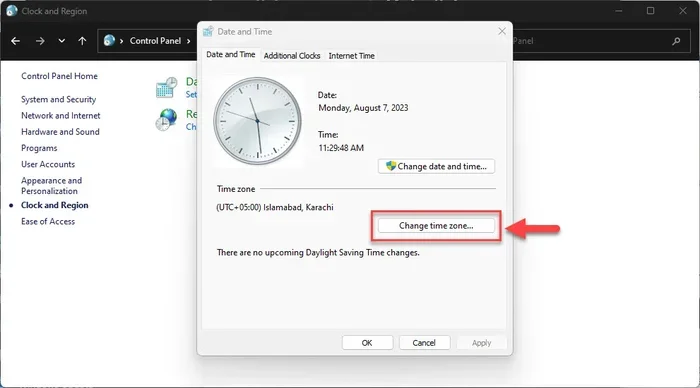
Sometimes the problem is not the time itself but the time zone settings. If you travel or just moved to a new area, your computer might still be set to the wrong zone. Here is how to fix it:
- Go to Settings > Time & Language > Date & Time.
- Toggle on “Set time zone automatically” to let Windows detect your location.
- Or, choose your time zone manually from the dropdown menu.
Making sure your time zone is correct is one of the most important steps. Many people change the clock but leave the time zone wrong, which causes the problem to come back.
Enable Automatic Time Sync on Windows
The best way to keep time accurate is to let Windows sync with an internet time server. This happens automatically, so you never have to think about it again.
- Go to Settings > Time & Language > Date & Time.
- Turn on “Set time automatically.”
- Make sure “Set time zone automatically” is also on.
- Click “Sync now” under the “Synchronize your clock” section to force an immediate sync.
Windows uses a time server to stay in sync with global clocks. This feature is especially helpful because it adjusts automatically for daylight saving time changes. You never have to remember to spring forward or fall back.
How Do I Change My Time on a Mac?
If you are using a Mac, the process is just as simple. Apple makes it easy to change your clock and time settings, whether you are on a MacBook, iMac, or Mac Mini. The steps vary slightly depending on your macOS version, but we cover the most common method below.
Changing Time and Date on macOS
Here is how to manually adjust your clock on a Mac:
- Click the Apple menu in the top-left corner of your screen.
- Select “System Settings” (or “System Preferences” on older macOS versions).
- Click on “General,” then select “Date & Time.”
- Click the lock icon in the bottom-left corner and enter your password to make changes.
- Toggle off “Set date and time automatically” if you want to change the time manually.
- Click the date and time fields to enter the correct values.
- Close the window when you are done.
Your Mac will now display the correct time. When you are ready, you can turn the automatic setting back on, and your Mac will stay synced without any effort.
Adjusting Time Zone on macOS
Just like with Windows, your time zone plays a big role in what time your Mac shows. Here is how to check or change it:
- Go to System Settings > General > Date & Time.
- Turn on “Set time zone automatically using your current location.”
- Or, click on the time zone map and select your current location manually.
Apple also lets you see the time in multiple cities at once. This feature is great if you work with teams across different regions. You can add as many world clock locations as you want under the Date & Time settings.
Enable Internet Time Sync on Mac
Macs use Apple’s time servers to stay accurate. Here is how to make sure it is enabled:
- Go to System Settings > General > Date & Time.
- Turn on “Set date and time automatically.”
- The default time server is time.apple.com.
Your Mac will now stay in sync with Apple’s servers. This ensures your clock stays accurate and adjusts properly for daylight saving time.
Why Does My Computer Clock Keep Changing?
If you have ever set your clock correctly only to find it wrong again the next day, you are not alone. This is a common issue, and there are a few clear reasons why it happens.
Dead or Failing CMOS Battery
Your computer has a small battery on the motherboard called the CMOS battery. It keeps the clock running when your PC is turned off. When this battery dies, your computer loses the correct time every time you restart. On most desktops, replacing this battery is cheap and easy. Look for a CR2032 battery, which you can find at any electronics store.
Wrong Time Zone Setting
This is the number one cause of a computer clock being wrong. If your time zone is set incorrectly, your clock will always show the wrong time, even if the clock itself is technically correct for that zone. Double-check your time zone settings on both Windows and Mac to rule this out.
Missing Daylight Saving Time Updates
Operating systems need regular updates to stay current with daylight saving time rules. If your system has not been updated in a while, it might not adjust correctly when the clocks change. Keeping your OS updated solves this problem automatically.
Dual Boot Time Conflicts
If you run both Windows and Linux on the same computer, you might notice the time is wrong every time you switch between the two. This happens because Windows uses local time for the hardware clock, while Linux uses UTC (Coordinated Universal Time). The fix is to make Windows use UTC as well. You can do this by running a command in the Windows Command Prompt:
- Open Command Prompt as Administrator.
- Type: reg add “HKEY_LOCAL_MACHINE\SYSTEM\CurrentControlSet\Control\TimeZoneInformation” /v RealTimeIsUniversal /t REG_DWORD /d 1 /f
- Press Enter.
This registry fix tells Windows to store the hardware clock in UTC, which matches how Linux handles it. It eliminates the time conflict in dual boot setups.
How Do I Change the Time Format on My Computer?
Some people prefer a 12-hour clock with AM and PM, while others like the 24-hour format. You can change this on both Windows and Mac to match your preference.
Change Time Format on Windows
- Go to Settings > Time & Language > Date & Time.
- Click on “Change date and time formats.”
- Under the “Short time” or “Long time” dropdown, choose your preferred format.
- Select a 12-hour or 24-hour format from the options available.
Changing the time format is a quick way to make your clock easier to read. The 24-hour format is especially popular in many countries and in professional settings.
Change Time Format on Mac
- Go to System Settings > General > Date & Time.
- Click on the “Clock” tab.
- Choose your preferred time format from the options provided.
- You can also toggle the display of seconds if you want a more precise clock.
Mac users also get the option to show the time in the menu bar with seconds displayed. This is handy if you need precise timing for work or personal tasks.
Troubleshooting Common Time Issues
Even after following all the steps, you might run into some issues. Here are the most common problems and how to fix them.
The Clock Resets After Every Restart
This almost always points to a dead CMOS battery. Replace the battery on your motherboard, and the problem should go away immediately. It is a five-minute fix that costs about five dollars.
My Clock Is Off by Exactly One Hour
This means your time zone is wrong or daylight saving time is not set correctly. Go back to your date and time settings and double-check both the time zone and the daylight saving toggle.
Time Sync Keeps Failing
If your computer cannot sync with the internet time server, check your internet connection first. If the connection is fine, try changing the time server. On Windows, you can do this by going to Date & Time > Internet Time > Change settings and selecting a different server. On Mac, go to Date & Time > Time Zone and check your network settings.
The Clock Is Ahead or Behind by Several Minutes
A small drift is normal, but a large difference means your automatic sync is not working. Force a sync by clicking “Sync now” on Windows or restarting your time sync service on Mac. If the problem persists, manually set the correct time and then turn automatic sync back on.
My Laptop Clock Is Wrong When I Wake from Sleep
This is usually caused by a power management issue or a failing CMOS battery. Try updating your BIOS and checking the battery. If you are on a laptop, the CMOS battery is typically soldered onto the motherboard, so you may need professional help to replace it.
Quick Tips to Keep Your Computer Clock Accurate
Keeping your clock accurate does not have to be a constant battle. Here are some simple habits that make a big difference:
- Always keep automatic time sync turned on. This is the single best thing you can do for accuracy.
- Keep your operating system updated. Updates often include daylight saving time rule changes and clock fixes.
- Check your time zone after moving or traveling. A wrong time zone is the most common cause of clock problems.
- Replace your CMOS battery every 3-5 years. This prevents the clock from resetting on startup.
- Restart your computer regularly. This allows the system to sync with internet time servers more frequently.
- Use a reliable internet connection. Time sync requires a stable connection to work properly.
These tips take almost no time but save you from a lot of frustration down the road. A correct and accurate clock might seem like a small thing, but it affects more parts of your computer than you might realize.
Expert Insights: Why Accurate Time Matters More Than You Think
It is easy to think of your computer clock as just a display. But it does so much more behind the scenes. When your clock is off, it can cause problems with online accounts, secure connections, and even file backups.
Many websites and services use your computer’s clock to verify your identity. If the clock is too far off, you might get locked out of your accounts or see security warnings. SSL certificates and secure connections rely on accurate time to function properly. When your clock drifts too far, secure websites may refuse to load.
Automated backups and scheduled tasks also depend on your system clock. If your clock is wrong, a backup scheduled for 2:00 AM might run at the wrong time or not run at all. This can put your important files at risk.
Even email timestamps depend on your computer’s clock. If you send an email and your clock is off, the timestamp might be confusing to the person receiving it. In professional settings, this can cause real misunderstandings.
The bottom line is that keeping your system clock accurate is not just about seeing the right time on your screen. It protects your security, keeps your files organized, and ensures your automated tasks run when they should.
Frequently Asked Questions
Why does my computer clock keep resetting to the wrong time?
This is most likely caused by a dead CMOS battery or incorrect time zone settings. Replace the battery on your motherboard if your computer is older, and double-check that your time zone is set correctly in your date and time settings.
How do I fix the clock on my Windows 11 computer?
Go to Settings > Time & Language > Date & Time, turn off automatic time setting, click “Change,” and enter the correct time. Then turn automatic sync back on so your clock stays accurate going forward.
Can I change my Mac’s clock to show seconds?
Yes. Go to System Settings > General > Date & Time on macOS Ventura or later, and toggle on “Show seconds” under the clock display options. This gives you a more precise clock on your screen.
What should I do if my clock is wrong after dual booting Windows and Linux?
This is a common issue caused by different time standards used by each operating system. Run the registry command to set Windows to use UTC for the hardware clock, which matches how Linux handles it and eliminates the conflict.
How often should I sync my computer clock with internet time?
If you have automatic time sync enabled, your computer syncs regularly without any action from you. If you notice the clock drifting, force a manual sync by clicking “Sync now” in your date and time settings on Windows or restarting the time service on Mac.
Does changing my time zone affect my files or settings?
No, changing your time zone only affects how the time is displayed. Your files, applications, and system settings remain unchanged. However, file timestamps will reflect the new time zone, which can be useful if you are working across different regions.
Conclusion
Knowing how do I change my time on both Windows and Mac devices is a simple but valuable skill. Your computer clock affects more than just what you see on your screen. It impacts your security, your scheduled tasks, and your daily workflow. The steps in this guide make it easy to fix your clock, adjust your time zone, and set up automatic syncing so you never have to worry about it again.
Remember to keep your automatic time sync turned on, update your operating system regularly, and replace your CMOS battery when needed. These small habits go a long way in keeping your system clock accurate and reliable. If you ever run into issues, the troubleshooting tips in this article should help you get back on track quickly.
Take a few minutes right now to check your computer’s time settings. It takes less than five minutes, and it could save you from a lot of headaches down the road. Your future self will thank you every time your clock shows the right time without you having to think about it.