How Do I Get My iPhone to Read Messages in My Car Now
Getting your iPhone to read messages in your car is easier than you think. You can use Siri, CarPlay, and built-in iOS features to stay safe and connected. This guide walks you through every method step by step. Whether you drive a newer or older car, there is a solution that works for you. Keep reading to find the best setup for your vehicle.
Have you ever been driving and suddenly heard your phone buzz with a new message? You want to check it but you know looking at your screen is dangerous. That is where getting your iPhone to read messages in your car becomes a game changer. This simple setup can keep you connected without taking your eyes off the road. In this article, we will show you exactly how to make it work.
Modern iPhones come packed with features designed for drivers. Apple has built tools like Siri, CarPlay, and Do Not Disturb While Driving specifically for this purpose. The good news is that you do not need to be a tech expert to set them up. A few taps and voice commands are all it takes. By the end of this guide, you will know every method available to you.
Key Takeaways
- Siri is your best friend: It can read messages aloud through your car speakers with just a voice command.
- CarPlay makes it seamless: Apple CarPlay offers a built-in messaging experience that reads notifications automatically.
- Do Not Disturb While Driving helps: This feature reduces distractions while still allowing important messages to come through.
- Bluetooth pairing is key: A proper Bluetooth connection ensures your iPhone routes audio correctly to your car.
- Customization is possible: You can tweak settings to control exactly when and how messages are read aloud.
- Third-party apps add options: Apps like WhatsApp and Telegram also support read-aloud features while driving.
- Safety comes first: Always set up these features before you start driving to stay focused on the road.
📑 Table of Contents
- Why Your iPhone Should Read Messages While Driving
- How to Set Up Siri to Read Messages in Your Car
- Using Apple CarPlay for Message Reading
- Configuring Do Not Disturb While Driving
- Troubleshooting Common iPhone Message Reading Issues
- Third-Party Apps That Enhance iPhone Message Reading
- Safety Tips for Using iPhone Message Reading While Driving
- Frequently Asked Questions
- Conclusion
Why Your iPhone Should Read Messages While Driving
Texting while driving is one of the leading causes of accidents on the road. Even glancing at your phone for a couple of seconds can be deadly. The iPhone read messages car feature lets you stay informed without looking at your screen. It uses text-to-speech technology to announce incoming messages out loud. This means you can keep your eyes on the road and your hands on the wheel.
Beyond safety, there is also convenience. You do not have to pull over just to read a quick text. Your car becomes a hands-free communication hub. Whether it is a text from your spouse or a navigation update, your iPhone handles it all. The best part is that these features work with most modern vehicles through Bluetooth or Apple CarPlay.
Understanding Text-to-Speech on iPhone
Text-to-speech is the technology that makes this all possible. Your iPhone can convert written text into spoken words. This feature is built right into iOS and works across many apps. When you set up message reading in your car, you are essentially activating this technology for driving use. The iPhone reads the message content aloud through your car speakers or Bluetooth headset.
Apple has made this technology very accessible. You do not need to download anything special in most cases. The built-in tools are powerful and reliable. They work smoothly with your car audio system. Once configured, your iPhone will automatically announce when a new message arrives and read it aloud for you.
How to Set Up Siri to Read Messages in Your Car
Siri is Apple’s voice assistant and it is the most powerful tool for reading messages while driving. When you ask Siri to read your messages, it pulls up new notifications and speaks them out loud. This works through your car speakers if your iPhone is connected properly. Setting this up takes just a few minutes.
Step-by-Step Siri Setup
First, make sure Siri is enabled on your iPhone. Go to Settings and tap Siri. Turn on Listen for Hey Siri. This lets you activate Siri without touching your phone. Next, go to Settings and tap Notifications. Make sure Show Previews is set to Always. This allows Siri to read the full content of your messages.
Now you need to connect your iPhone to your car. Use Bluetooth or plug in a Lightning cable if your car supports wired CarPlay. Once connected, say Hey Siri and then tell it to read your messages. Siri will announce any new texts and read them to you. You can also set it up so Siri automatically reads messages when you start driving.
Useful Siri Commands for Driving
Here are some commands you can use while on the road:
- Hey Siri, read my new messages
- Hey Siri, who just texted me
- Hey Siri, reply to John that I am on my way
- Hey Siri, read my last message
- Hey Siri, turn on message reading
These commands make it very easy to stay connected without distraction. You can even set up custom Siri shortcuts for even faster access. For example, you could create a shortcut that says I am driving and have it automatically enable message reading. This saves you time and keeps your focus on the road.
Using Apple CarPlay for Message Reading
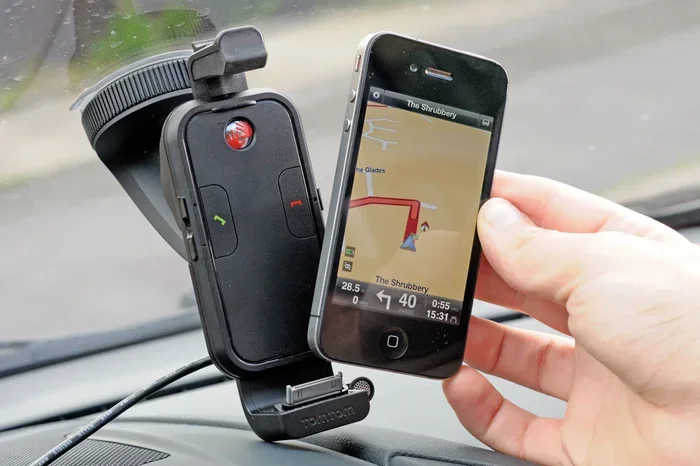
Apple CarPlay is one of the best ways to get your iPhone to read messages in your car. CarPlay mirrors your iPhone interface onto your car’s display screen. It also routes audio through your car speakers. This means Siri can read your messages through your car’s sound system seamlessly. CarPlay is available in most cars made after 2016.
To use CarPlay, you need a compatible vehicle or a CarPlay-compatible aftermarket stereo. You also need a Lightning or USB-C cable for wired connection. Wireless CarPlay is available on newer iPhones and car models. Once CarPlay is active, your iPhone screen locks and Siri takes over message handling. This creates a much safer driving experience.
Setting Up CarPlay Message Announcements
Open the Settings app on your iPhone and tap General. Then tap CarPlay. Select your car from the list. Now go back to Settings and tap Notifications. Look for CarPlay options and make sure Allow Notifications is turned on. Under Announcements, you can choose which apps send notifications through CarPlay.
You should also check your Messages settings. Go to Settings and tap Messages. Make sure Send Read Receipts is on if you want people to know you saw their message. You can also set up auto-reply messages here. This tells people you are driving and will respond when you arrive. It is a great way to manage expectations while staying safe.
CarPlay vs Bluetooth: Which Is Better for Message Reading?
Both CarPlay and Bluetooth can read your messages aloud. But CarPlay offers a much richer experience. Here is a quick comparison:
| Feature | CarPlay | Bluetooth |
|---|---|---|
| Message Reading | Yes, with Siri | Yes, with Siri |
| Screen Display | Full iPhone interface on car screen | No display on car screen |
| Voice Control | Full Siri integration | Basic Siri support |
| App Support | Messaging, Maps, Music | Basic audio streaming |
| Setup | Plug in or connect wirelessly | Pair in Bluetooth settings |
| Auto-Reply | Yes | No |
As you can see, CarPlay is the better option if your car supports it. It provides a more integrated and safer experience. Bluetooth works as a backup but it does not offer the same level of functionality.
Configuring Do Not Disturb While Driving
The Do Not Disturb While Driving feature is a smart way to manage notifications on the road. It silences most alerts so you are not distracted. But it also has a feature that auto-replies to messages. This tells people you are driving. You can also set it to allow certain contacts through. This ensures important messages still get your attention.
How to Enable Do Not Disturb While Driving
Go to Settings and tap Focus. Then tap Do Not Disturb While Driving. Toggle it on. You can choose when it activates automatically. The option called Automatic uses your phone’s motion sensors to detect when you are driving. You can also set it to activate when you connect to your car Bluetooth.
Under Auto-Reply, you can write a custom message. Something like I am driving right now and will reply when I arrive works great. You can also choose which contacts can break through the silence. Favorites and all contacts are both good options depending on your needs.
Combining Do Not Disturb With Message Reading
Here is a great tip. You can use Do Not Disturb While Driving together with Siri message reading. Set Do Not Disturb to silence regular notifications. Then allow Messages through with Siri announcements. This way, only important messages are read aloud. You avoid the noise of every app notification while still staying connected to the people who matter most.
This combination is especially useful if you get a lot of messages from work or group chats. You can whitelist specific contacts and let Siri handle the rest. It is a balanced approach that keeps you informed without overwhelming you.
Troubleshooting Common iPhone Message Reading Issues
Sometimes things do not work as expected. Your iPhone might not read messages through your car speakers or Siri might not respond. This section covers the most common problems and how to fix them quickly.
iPhone Not Reading Messages Through Car Speakers
If your iPhone is not reading messages through your car speakers, check your Bluetooth connection first. Go to Settings and tap Bluetooth. Make sure your car is connected. If it shows as connected but there is no sound, try disconnecting and reconnecting. This often fixes audio routing issues.
Another common cause is the audio output setting. When you play music, your iPhone might be routing audio to headphones instead of the car. Check the Control Center and make sure the audio output is set to your car. You can do this by tapping the audio icon and selecting your car from the list.
Siri Not Responding to Message Commands
If Siri is not reading your messages, make sure it is enabled. Go to Settings and tap Siri. Turn on Listen for Hey Siri and Press Side Button for Siri. Also check that Increase Voice Output is turned up in your car settings. Sometimes the volume of Siri announcements is too low to hear over road noise.
Restart your iPhone if problems persist. A simple reboot fixes most software glitches. Also make sure your iOS is up to date. Apple regularly releases updates that improve CarPlay and Siri performance. Keeping your phone updated ensures the best experience.
Message Previews Not Showing
If Siri reads your messages but does not show the content, check your notification settings. Go to Settings and tap Notifications. Tap Messages. Make sure Show Previews is set to Always. If it is set to When Unlocked, Siri might not be able to read the full message content while your phone is locked.
This is a very common issue that many people overlook. The preview setting controls what Siri can access. Setting it to Always gives Siri full access to read your messages out loud. This small change can make a big difference in your driving experience.
Third-Party Apps That Enhance iPhone Message Reading
While Apple’s built-in tools are excellent, third-party apps can add extra features. Apps like WhatsApp, Telegram, and Slack all support read-aloud features. These apps use the same iOS text-to-speech engine. They work seamlessly with CarPlay and Siri to read your messages while driving.
WhatsApp and Messaging Apps
WhatsApp is one of the most popular messaging apps in the world. It supports CarPlay and Siri integration. When you receive a WhatsApp message, Siri can read it aloud just like a regular text. To make this work, go to WhatsApp settings and enable notifications for CarPlay. You can also set up voice replies through Siri.
Telegram works similarly. It has a dedicated CarPlay interface that supports message reading. Signal and other privacy-focused messaging apps also support Siri read-aloud features. The key is to make sure notifications are enabled for each app in your iPhone settings.
Dedicated Text-to-Speech Apps
If you want more control, consider a dedicated text-to-speech app. Apps like Speechify and T2S can read any text aloud. They work with your car audio system through Bluetooth. These apps give you more customization options like voice speed and pitch. They are great if you receive a lot of long messages or emails while driving.
However, for most people, the built-in iOS tools are more than enough. Siri and CarPlay cover all the essential features you need. Third-party apps are a nice bonus but not a necessity. Focus on mastering the built-in tools first before exploring additional apps.
Safety Tips for Using iPhone Message Reading While Driving
Technology is meant to make your life easier, not more dangerous. Always remember that safety comes first when you are behind the wheel. Here are some important tips to keep in mind.
- Set up before you drive: Configure all your message reading settings before you start the engine. Adjusting settings while driving is a distraction.
- Use voice commands only: Never touch your phone while driving. Use Hey Siri to interact with your messages. Keep your hands on the wheel at all times.
- Keep volume at a safe level: Your Siri announcements should be loud enough to hear but not so loud that they drown out traffic sounds. Find the right balance.
- Pull over for complex replies: If you need to send a long or complex reply, pull over safely first. Even voice typing can be distracting in heavy traffic.
- Use Do Not Disturb While Driving: This feature helps minimize distractions. It silences non-essential notifications so you can focus on the road.
- Keep your phone charged: A dead phone means no message reading. Use a car charger to keep your iPhone powered throughout your trip.
- Practice makes perfect: Spend some time in a parked car practicing the commands. Once you are comfortable, using them while driving becomes second nature.
These tips will help you get the most out of your iPhone’s message reading features. More importantly, they will keep you and others safe on the road. Technology should always serve you, not endanger you.
Frequently Asked Questions
Can I get my iPhone to read messages in my car without CarPlay?
Yes, you absolutely can. Bluetooth connection alone allows Siri to read your messages through your car speakers. Just make sure Bluetooth is paired and message previews are enabled in your notification settings. Siri will read incoming messages aloud even without CarPlay.
Why does Siri not read my messages when I am driving?
This usually happens because of a few common reasons. Check that Show Previews is set to Always in your notification settings. Also make sure Bluetooth is connected and Siri is enabled. Sometimes restarting your iPhone fixes the issue quickly.
Can I set up auto-reply messages when I am driving?
Yes, you can. Go to Settings and tap Focus. Then tap Do Not Disturb While Driving. Under Auto-Reply, you can write a custom message. You can also choose which contacts receive the auto-reply. This is a great way to let people know you are driving.
Does message reading work with WhatsApp and other apps?
Yes, it does. WhatsApp, Telegram, and most other messaging apps support Siri read-aloud features. Make sure notifications are enabled for each app in your iPhone settings. CarPlay also supports many third-party messaging apps for a seamless experience.
Is it safe to use Siri to read messages while driving?
It is much safer than looking at your phone screen. Siri allows you to keep your eyes on the road and hands on the wheel. However, even voice interactions can be distracting. Keep conversations brief and focus primarily on driving at all times.
What should I do if my car does not support CarPlay?
You can still use Bluetooth to connect your iPhone to your car. Siri will read messages through your car speakers using Bluetooth audio. You can also consider an aftermarket CarPlay receiver if you want the full experience. These devices are relatively affordable and easy to install.
Conclusion
Getting your iPhone to read messages in your car is one of the best things you can do for safety and convenience. Whether you use Siri, CarPlay, or Bluetooth, the setup is simple and works reliably. The iPhone read messages car feature keeps you connected without taking your eyes off the road. You can use built-in tools like Do Not Disturb While Driving and Siri announcements to create a personalized experience that fits your needs.
Remember to set everything up before you start driving. Use voice commands to interact with your messages. And always prioritize safety over convenience. With the right settings, your iPhone becomes a helpful driving companion rather than a distraction. Try these steps today and enjoy a safer, smarter driving experience every time you hit the road.