How Do I Set Date and Time in Settings on Any Device
Setting the date and time in settings is easy once you know where to look. Whether you are adjusting the clock in your car’s infotainment system or syncing your phone, this guide walks you through every step. You will learn how to change the date and time on vehicles, smartphones, tablets, and computers with simple menu taps. Auto-sync features and manual adjustments are both covered so you can pick what works best for you.
Have you ever glanced at your car dashboard and thought the clock was wrong? You are not alone. Many drivers deal with incorrect date and time settings on their vehicles. It happens after a battery change, a software update, or when you cross time zones on a road trip. The good news is that fixing this is quick and simple. You just need to know where to look.
This guide shows you exactly how to set date and time in settings on any device, with a special focus on car infotainment systems. Whether you drive a sedan, SUV, or truck, the steps are similar. We also cover phones, tablets, and computers so you can keep every screen in sync. Let us get started.
Key Takeaways
- Car infotainment systems: You can set date and time in settings through your vehicle’s display menu in just a few taps.
- Auto-sync saves time: Most modern cars and devices can sync with GPS or network time automatically.
- Manual override is always an option: If auto-sync fails, you can still change the date and time by hand.
- 12-hour and 24-hour formats: You can switch between them in your car and device settings.
- Time zone matters: Setting the correct time zone keeps all your clocks accurate across devices.
- Daylight saving toggle: Many vehicles and devices let you auto-adjust for daylight saving time.
📑 Table of Contents
- Why Getting the Date and Time Right in Your Vehicle Matters
- How to Set Date and Time in Your Car’s Infotainment System
- Setting Date and Time on Other Common Devices
- Understanding Auto-Sync and Manual Settings
- Troubleshooting Common Date and Time Problems
- Expert Tips for Managing Date and Time Across All Your Devices
- Conclusion
Why Getting the Date and Time Right in Your Vehicle Matters
You might think the car clock is a small detail. But it actually affects more than you would expect. Your navigation system uses time data to calculate arrival estimates. Your phone syncs with the car clock for call logs and media timestamps. Even your dashcam records events based on the current time. An incorrect clock can mess up all of these features.
Beyond convenience, there are safety and legal reasons too. If you are involved in an accident, dashcam footage with the wrong timestamp can cause problems with insurance claims. Your trip logs and maintenance reminders also rely on accurate time tracking. So taking a few minutes to set date and time in settings is worth it.
When Your Car Clock Goes Wrong
Several things can cause your vehicle clock to reset or display the wrong time:
- Battery replacement: Disconnecting the car battery often resets the clock to a default value.
- Software updates: Infotainment system updates can sometimes reset your preferences.
- Time zone changes: Driving across state or country borders can throw off your clock.
- GPS signal loss: If your car relies on GPS for time sync, a weak signal can cause errors.
- Factory reset: A full system reset wipes all custom settings including the clock.
Knowing these triggers helps you stay proactive. You can check your clock after any of these events and adjust it quickly.
How to Set Date and Time in Your Car’s Infotainment System
Every car brand has a slightly different menu layout. But the general path to change the clock is very similar across most vehicles. Here is a step-by-step walkthrough that works for most makes and models.
Step-by-Step Guide for Most Vehicles
Follow these steps to adjust the clock in your car:
- Tap the Settings icon. This usually looks like a gear symbol on your infotainment home screen.
- Look for “General” or “System.” Many manufacturers group clock settings under a general or system menu.
- Select “Date and Time” or “Clock.” This opens the main clock adjustment screen.
- Turn off auto-sync if you want to set it manually. Toggle off the option that says “Auto” or “Sync with GPS.”
- Tap the date or time field. Use the on-screen keypad or scroll wheels to enter the correct values.
- Choose your time format. Pick between 12-hour and 24-hour display based on your preference.
- Set your time zone. Select the correct zone from the list so your clock stays accurate.
- Tap “Save” or “Done.” Your new settings are now applied.
That is all it takes. The whole process usually takes under two minutes once you know the path. If you are not sure where the settings menu is, check your owner’s manual. Most automakers also have the steps listed online in their support section.
Brand-Specific Tips for Popular Car Makers
Here are some quick tips for popular car brands:
- Toyota and Lexus: Press the “Settings” button on the display, then go to “General Setup” and select “Clock.”
- Ford: Tap the “Settings” icon, choose “System,” and then “Date and Time.”
- Chevrolet: Go to “Settings,” tap “Vehicle,” and find the “Clock” option.
- Honda: Press the “Settings” button, scroll to “System,” and select “Time Zone” or “Clock.”
- BMW and Mercedes: Use the iDrive or MBUX controller to navigate to “Settings” then “System” and “Time/Date.”
These paths may vary slightly depending on your model year. But the general structure remains the same across most vehicles from these brands.
Setting Date and Time on Other Common Devices
Your car is not the only device that needs accurate time. You likely carry a phone, maybe a tablet, and you use a computer too. Keeping all of these in sync makes your digital life much smoother. Here is how to set date and time in settings on the most common devices.
Smartphones: iPhone and Android
Both iPhones and Android phones make it easy to manage their clocks:
- iPhone: Open “Settings,” tap “General,” then “Date & Time.” Toggle on “Set Automatically” to use network time, or turn it off to adjust manually.
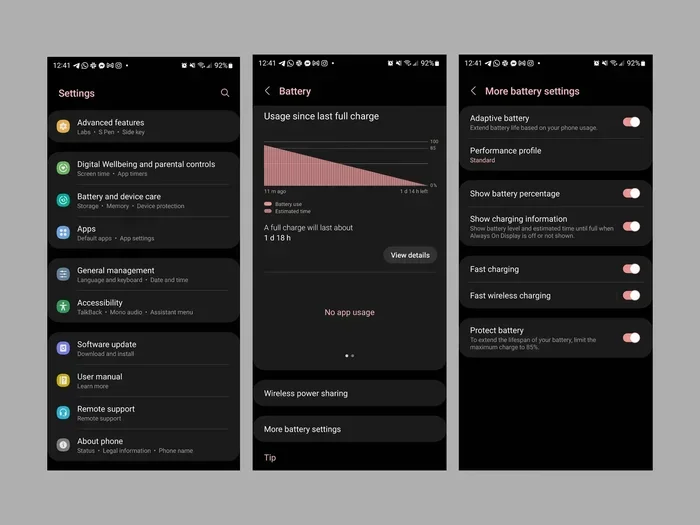
- Android: Go to “Settings,” tap “System,” then “Date and Time.” Enable “Automatic date and time” for sync, or disable it to set your own values.
If you travel often, the automatic setting is the best choice. It adjusts your clock based on your current location using your phone’s network data.
Tablets
Tablets follow the same settings path as their parent phones. On an iPad, you go to “Settings” then “General” then “Date & Time.” On an Android tablet, the path is “Settings” then “System” then “Date and Time.” Most tablets default to automatic sync, which works great for most users.
Computers: Windows and Mac
Your computer also needs the correct time, especially if you use it for work or scheduling:
- Windows: Right-click the clock in your taskbar, select “Adjust date and time,” and toggle on “Set time automatically.”
- Mac: Go to “System Preferences,” click “Date & Time,” and check “Set date and time automatically.”
Computers rely on internet time servers to stay accurate. As long as you are connected to the internet, your computer clock should stay correct without any manual input.
Understanding Auto-Sync and Manual Settings
One of the most important choices you will make is whether to use auto-sync or manual settings. Both have their place, and knowing when to use each one saves you headaches.
What Is Auto-Sync?
Auto-sync means your device pulls the correct date and time from an external source. For cars, this is usually the GPS satellite signal. For phones and computers, it comes from your cellular network or the internet. The benefit is that you never have to touch the clock yourself. It just stays correct no matter where you are.
Most modern vehicles and devices have auto-sync turned on by default. This is the recommended setting for daily driving and regular use. It handles time zone changes automatically and adjusts for daylight saving time without any input from you.
When to Use Manual Settings
There are times when manual settings make more sense:
- Your GPS signal is weak: In tunnels or remote areas, GPS time sync may not work.
- Your car is older: Some older infotainment systems do not support auto-sync at all.
- You prefer a specific format: Manual settings let you fully control the 12-hour or 24-hour display.
- You are troubleshooting: If your clock keeps resetting, manual settings can be a reliable backup.
Even with manual settings, you can still set your time zone correctly. This ensures your clock stays accurate even without a GPS or network connection.
Troubleshooting Common Date and Time Problems
Sometimes things do not go as planned. Your clock might reset after a reboot, or it might not sync properly. Here are the most common issues and how to fix them.
Clock Resets After Turning Off the Car
If your car clock resets every time you turn off the engine, the most likely cause is a weak battery or a loose connection. The clock in most vehicles draws power from the main battery to retain its settings. If your battery is old or your connections are corroded, the clock loses its memory. Have your battery tested and connections cleaned to fix this problem.
Auto-Sync Is Not Working
If your car or device will not sync the time automatically, try these steps:
- Check your GPS signal: Make sure you are not in a tunnel or underground parking lot.
- Restart the system: A simple reboot of the infotainment unit often fixes sync issues.
- Check for software updates: Manufacturers release updates that fix time-sync bugs.
- Reset network settings: On phones and tablets, resetting network settings can restore time sync.
- Verify your time zone: An incorrect time zone setting can prevent proper auto-sync.
If none of these steps work, you may need to perform a factory reset on your infotainment system. Always back up any saved data before doing this. Consult your vehicle’s manual or contact the manufacturer for guidance.
Daylight Saving Time Confusion
Daylight saving time can be a source of frustration. Some vehicles and devices handle it automatically, while others require you to toggle it on or off manually. Check your settings to make sure the daylight saving option is enabled if you want your clock to adjust twice a year. If your car does not support this feature, you will need to adjust the clock yourself when the time changes.
Expert Tips for Managing Date and Time Across All Your Devices
Keeping all your devices on the same time is easier than you think. Here are some expert tips that make the process smoother.
Use a Single Apple ID or Google Account
If you use Apple devices, signing into the same Apple ID across your iPhone, iPad, and Mac keeps your date and time settings consistent. Google accounts do the same for Android phones, Chromebooks, and other Google services. This ecosystem approach means less manual adjustment and fewer mismatched clocks.
Sync Your Car with Your Phone
Many modern vehicles let you mirror your phone’s time settings through Apple CarPlay or Android Auto. When connected, your car clock can follow your phone clock automatically. This is a great feature for frequent travelers who cross time zones often.
Check Your Clock After Service Visits
Whenever you take your car in for service, the clock might get reset. Technicians often disconnect the battery or reset systems during repairs. Make it a habit to check your clock after every service visit and adjust it if needed.
Keep Your Infotainment System Updated
Car manufacturers regularly release software updates for their infotainment systems. These updates often include fixes for time-sync bugs and improvements to the date and time settings menu. Check for updates at least once a month to keep everything running smoothly.
Conclusion
Setting the date and time in settings does not have to be a frustrating experience. Whether you are adjusting your car’s infotainment system, your phone, or your computer, the steps are straightforward and quick. Start with auto-sync whenever possible because it saves you effort and keeps everything accurate. Use manual settings as a reliable fallback when auto-sync is not available. Check your clock after battery changes, software updates, and service visits to catch any issues early. With the tips in this guide, you will always know the correct time on every device you own. Take a few minutes today to set date and time in settings, and you will thank yourself every time you glance at your dashboard or phone screen.
Frequently Asked Questions
How do I change the time format from 12-hour to 24-hour in my car?
Go to your car’s Settings menu, find the Date and Time or Clock option, and look for a Time Format toggle. Switch it from 12-hour to 24-hour and save your changes. The process is nearly identical on most vehicle infotainment systems.
Why does my car clock reset every time I disconnect the battery?
Your car clock uses a small amount of power from the battery to remember its settings. When the battery is disconnected, that power is lost and the clock resets to a default value. Replacing an old battery or using a memory saver device can prevent this issue.
Can I set the date and time on my car without a touchscreen?
Yes. Many cars with physical buttons and knobs let you set the clock through a combination of button presses. Check your owner’s manual for the exact button sequence. Most vehicles have a dedicated “Clock” or “Time” button on the dashboard or steering wheel controls.
How does my car know the correct time zone automatically?
Most modern vehicles use GPS signals to determine your location and automatically set the correct time zone. Some cars also use cellular network data for this purpose. If your car has both GPS and a cellular connection, it can keep your clock accurate even as you travel across regions.
What should I do if the auto-sync feature keeps failing on my device?
First, make sure your device has a strong GPS or network connection. Then try restarting the system or checking for software updates. If the problem continues, switch to manual settings as a temporary fix. Contact the manufacturer’s support team if the issue persists after trying these steps.
Is it safe to change the date and time settings on my car’s infotainment system?
Absolutely. Adjusting the clock or date settings will not affect any other functions in your vehicle. It is a simple and safe process that anyone can do. Just follow the steps in your owner’s manual and you will not run into any problems.
=== META TITLE ===
Set Date and Time in Settings on Any Device
=== URL SLUG ===
set-date-and-time-in-settings
=== SEO TITLE ===
How Do I Set Date and Time in Settings on Any Device