How to Unpair Phone From Car Bluetooth Step by Step
Unpairing your phone from car Bluetooth is quick and easy when you follow the right steps. This guide walks you through removing devices from popular car systems, fixing common connection problems, and re-pairing with confidence. Whether you have a Toyota, Honda, or any other brand, you will find clear instructions here.
This is a comprehensive guide about How to Unpair Phone From Car Bluetooth.
Key Takeaways
- Unpairing removes paired devices: This frees up memory and fixes most Bluetooth glitches in your car.
- Steps vary by car brand: Each manufacturer has a slightly different menu path for Bluetooth settings.
- Resetting Bluetooth solves 90% of issues: A simple reset often fixes connection problems without extra help.
- Re-pairing is just as easy: Once you unpair, connecting a new or the same phone takes only a few minutes.
- Check your car display: A 7 inch display for car makes navigating Bluetooth menus much simpler.
- Power matters: Ensure your 12V power socket car is working properly, as power issues can cause Bluetooth problems.
[FEATURED_IMAGE_PLACEHOLDER]
How to Unpair Phone From Car Bluetooth Step by Step
Have you ever sat in your car, ready to drive, and your phone just will not connect properly to the Bluetooth? Maybe the audio keeps cutting out, or your call quality is terrible. Before you call a mechanic or spend money on repairs, there is a simple fix. Unpairing your phone from car Bluetooth often solves the problem completely. It clears old connection data and lets you start fresh.
In this guide, we will show you exactly how to do it. Whether you drive a sedan, SUV, or hatchback, the process is similar across most vehicles. We cover every major car brand, common mistakes to avoid, and tips to make your Bluetooth connection rock solid again. You will be back to hands-free calling and music streaming in no time.
Bluetooth technology lets your phone talk to your car stereo wirelessly. It is convenient, but it is not perfect. Sometimes the connection gets stuck, devices overlap, or the system simply needs a reset. Knowing how to unpair and re-pair your device saves time, money, and frustration. Let us dive right in.
Why You Need to Unpair Your Phone From Car Bluetooth
There are many reasons why you might want to remove a paired phone from your car. Some are simple, and others are more technical. Understanding the “why” helps you decide when to take action.
Connection Problems and Glitches
The most common reason is a broken or unstable connection. Your phone might connect but drop audio randomly. Calls might sound fuzzy or cut out completely. These issues often happen because old pairing data has become corrupted. Unpairing clears this corrupted data and allows your phone and car to create a fresh, clean connection.
Switching to a New Phone
Got a new phone? You need to unpair the old one first. Most car systems only remember a limited number of devices. If your old phone is still in the memory, it can cause conflicts. Removing it makes room for your new device and prevents accidental connections to the wrong phone.
Selling or Sharing Your Car
Planning to sell your car? You definitely want to unpair all phones first. This protects your privacy. Your contacts, call logs, and even text messages might sync through Bluetooth. Clearing the pairing list ensures the next owner starts with a clean slate.
Memory Is Full
Car Bluetooth systems have limited memory. Most can store between 5 and 20 paired devices. Once the memory is full, new pairings fail. Unpairing old or unused devices frees up space for the ones you actually use.
How to Unpair Phone From Car Bluetooth: Brand by Brand
Every car manufacturer designs its Bluetooth menu a little differently. Below we cover the most popular brands. Pick your brand and follow the steps carefully.
How to Unpair From Toyota Car Bluetooth
Toyota vehicles use the Toyota Audio system. The steps are straightforward and easy to follow.
- Press the Bluetooth button on your steering wheel or audio panel.
- Go to the Settings menu on the display screen.
- Select Bluetooth Settings or Device List.
- Find the phone you want to remove in the list.
- Select it and choose Delete or Unpair.
- Confirm the removal when prompted.
Some Toyota models also let you delete all paired devices at once. Look for a “Clear All” option in the same menu. This is helpful when you want a complete reset.
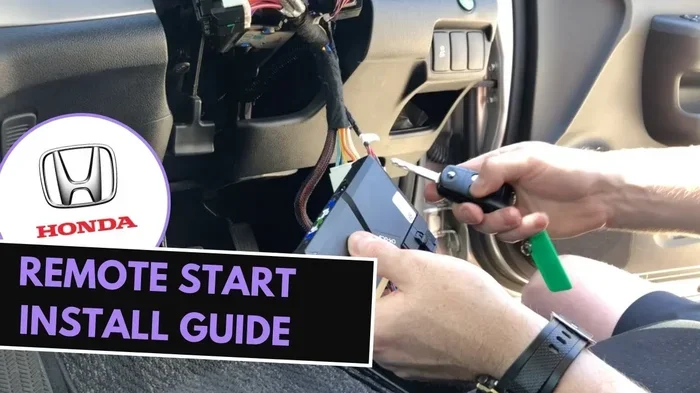
How to Unpair From Honda Car Bluetooth
Honda uses the Honda Audio System, which is slightly different from Toyota. Here is what to do:
- Press the Home or Setup button on your dashboard.
- Navigate to Bluetooth or Phone Settings.
- Select Device Management.
- Choose the phone you want to remove.
- Tap Delete Device and confirm.
Honda systems sometimes hide the Bluetooth menu under the “Phone” section. If you do not see it on the home screen, look in the settings gear icon instead.
How to Unpair From Hyundai Car Bluetooth
Hyundai cars have a user-friendly infotainment system. Follow these steps:
- Tap the Phone icon on the center screen.
- Go to Bluetooth Settings.
- Select Paired Devices.
- Find the phone you want to remove.
- Long press or tap the Settings icon next to the device.
- Choose Unpair or Delete.
Hyundai also lets you rename paired devices, which is handy if you have multiple phones in the same household.
How to Unpair From Ford Car Bluetooth
Ford vehicles use the SYNC system. The process is a bit different from other brands:
- Tap the Phone icon on the SYNC screen.
- Go to Settings or Bluetooth.
- Select Device List or Paired Devices.
- Choose the phone you want to remove.
- Select Delete Device and confirm.
Ford SYNC systems sometimes require you to hold the phone button on the steering wheel for a few seconds to access Bluetooth settings. Check your owner manual if you get stuck.
How to Unpair From Maruti Suzuki Car Bluetooth
Maruti Suzuki cars are very popular in India. The Bluetooth process is simple:
- Press the Phone or Menu button on the audio panel.
- Select Bluetooth from the menu.
- Go to Paired Devices or Device List.
- Select the phone you want to remove.
- Choose Delete or Unpair.
- Confirm your choice.
Many Maruti Suzuki models also support voice commands. You can say “Delete Bluetooth device” and follow the voice prompts. This is a great option if you prefer hands-free operation.
How to Unpair From Mahindra Car Bluetooth
Mahindra vehicles come with their own infotainment systems. The steps are similar to other brands:
- Go to the Settings menu on your display.
- Select Bluetooth or Connectivity.
- Tap on Paired Devices.
- Find the phone you want to remove.
- Select Unpair or Remove Device.
- Confirm the action.
Some Mahindra models also allow you to reset the entire Bluetooth system from the settings menu. This is useful when multiple devices are causing issues.
Common Bluetooth Problems and How Unpairing Fixes Them
Unpairing is not just for removing old devices. It is also a powerful troubleshooting tool. Here are the most common Bluetooth problems and how unpairing helps.
Phone Connects but No Sound
This is one of the most annoying Bluetooth issues. Your phone shows connected, but no music plays through the car speakers. The problem is often a conflict in the audio profile settings. Unpairing and re-pairing resets these profiles and usually fixes the issue immediately.
Phone Will Not Connect at All
If your phone refuses to connect, the pairing data may be corrupted. Both your phone and car are trying to use old information that no longer works. Deleting the old pairing and creating a new one solves this in most cases.
Bluetooth Keeps Disconnecting
A Bluetooth connection that drops randomly is very frustrating. This often happens when the car and phone are fighting for priority. Unpairing removes the conflicting connection history. When you pair again, the devices establish a clean, stable link.
Car Shows “Device Not Found”
Sometimes your car cannot see your phone at all. This could be a settings issue or a memory problem. Clearing the paired device list through unpairing often resolves this. Your car then searches for available devices fresh, without old data getting in the way.
Audio Quality Is Poor
Static, crackling, or low volume through Bluetooth can ruin your driving experience. Old pairing data can degrade audio quality over time. A clean unpair and re-pair often restores full, clear sound.
Quick Tips for Smooth Bluetooth Performance
Once you have successfully unpaired and re-paired your device, you want to keep things running smoothly. Here are some practical tips that make a big difference.
- Keep your phone software updated. Updates often include Bluetooth fixes that improve connection stability.
- Restart both devices regularly. A simple restart of your phone and car infotainment system clears temporary glitches.
- Stay within range. Bluetooth works best within about 30 feet. Keep your phone in the center console or on the passenger seat.
- Avoid too many paired devices. Only keep the devices you actively use. Extra devices slow down the connection process.
- Check your car wiring. A loose 12V car socket to 3 pin adapter can cause power fluctuations that affect Bluetooth performance. Make sure all connections are tight.
- Clear your phone cache. On Android phones, go to Settings > Apps > Bluetooth > Clear Cache. This removes temporary files that can cause issues.
- Turn off other Bluetooth devices. If you have smartwatches, earbuds, or tablets nearby, they can interfere with the car connection. Turn them off temporarily while pairing.
When to See a Professional
Most Bluetooth issues resolve with a simple unpair and re-pair. But sometimes the problem is deeper. Here are signs that you need professional help.
- The Bluetooth function does not turn on at all, even after a full system reset.
- You see error messages that do not go away after unpairing and re-pairing multiple times.
- The car display freezes or crashes every time you open the Bluetooth menu.
- You notice physical damage to the car audio system or the 12V power socket car area.
- Bluetooth works on one phone but not on any phone, suggesting a hardware issue in the car.
In these cases, visit your car dealership or a trusted auto electronics shop. They have diagnostic tools that can identify hardware failures. A damaged Bluetooth module or wiring issue needs professional repair. Trying to fix it yourself could make things worse.
How to Re-Pair Your Phone After Unpairing
Unpairing is only half the process. Re-pairing correctly ensures a strong, stable connection going forward. Here is how to do it.
- Turn on Bluetooth on your phone. Go to Settings > Bluetooth and make sure it is switched on.
- Put your car in Bluetooth mode. On the car display, navigate to the Bluetooth or Phone menu.
- Select “Search for Devices” or “Add New Device.” The car will start scanning for available phones.
- Select your phone from the list that appears on the car display.
- Check both screens for a pairing code. The code should match on your phone and car display.
- Tap “Pair” or “Connect” on both devices. Wait a few seconds for the connection to establish.
- Test the connection. Play music or make a test call to confirm everything works.
Pro tip: Give your car a few seconds to fully boot up before trying to pair. Some systems need extra time to scan for devices after starting. Also, make sure your phone is not connected to another Bluetooth device at the same time, as this can cause conflicts.
If you have a 7 inch display for car, the process is even smoother. Larger screens make it easier to see device names and pairing codes clearly. You also get better visibility of the Bluetooth menu layout.
Frequently Asked Questions
How long does it take to unpair a phone from car Bluetooth?
The process takes less than a minute on most cars. You simply go to the Bluetooth settings, find the device, and select delete. Some cars even let you unpair with a single button press. The hardest part is finding the right menu, but once you know where it is, it is very fast.
Will unpairing delete my phone data?
No, absolutely not. Unpairing only removes the Bluetooth connection between your phone and car. Your contacts, photos, messages, and apps stay completely safe on your phone. The car simply forgets that your phone was ever connected. Nothing gets erased from either device.
Can I unpair my phone remotely from the car?
No, you cannot unpair remotely. You must be physically inside the car and access the Bluetooth settings on the infotainment screen. Some newer cars with app connectivity might allow limited remote management, but the standard unpairing process requires you to be at the vehicle.
Why does my car still show my old phone after I unpair it?
This usually happens because the car system has not fully refreshed. Try turning the car off and back on again. If the old phone still appears, look for a “Refresh” or “Reset Bluetooth” option in the settings. Some systems also require you to restart the infotainment unit by holding the power button for 10 seconds.
How many phones can I pair with my car Bluetooth at once?
Most cars can store between 3 and 10 paired phones at the same time. The exact number depends on your car brand and model. When the memory is full, you will need to unpair an old device before pairing a new one. Check your car manual for the specific limit of your vehicle.
Is it safe to unpair all devices and start fresh?
Yes, it is completely safe. Starting fresh actually improves performance by clearing out old, potentially corrupted data. Many car experts recommend doing a full Bluetooth reset once or twice a year. It keeps the system running smoothly and prevents connection issues from building up over time.
Final Thoughts
Knowing how to unpair phone from car Bluetooth is an essential skill for every car owner. It takes just a few minutes and solves most connection problems instantly. Whether you are dealing with static audio, dropped calls, or a full memory, unpairing is your first line of defense.
The process is simple across all car brands. Toyota, Honda, Hyundai, Ford, Maruti Suzuki, Mahindra, and others all follow a similar pattern. Go to Bluetooth settings, find the device, and delete it. Then re-pair when you are ready. It is that easy.
Keep the quick tips we shared in mind for the best experience. Update your software, keep your connections tight, and avoid overloading your paired device list. These small habits go a long way in keeping your car Bluetooth running smoothly for years to come.
If you ever run into a problem that unpairing does not fix, do not hesitate to seek professional help. A qualified technician can diagnose hardware issues that simple resets cannot reach. But for the vast majority of Bluetooth troubles, unpairing and re-pairing is all you need.
Drive safe, stay connected, and enjoy your music and calls without any hassle. Your car Bluetooth will work like new again with just a few simple steps.
Frequently Asked Questions
What is How to Unpair Phone From Car Bluetooth?
How to Unpair Phone From Car Bluetooth is an important topic with many practical applications.