How Do I Reset My BMW Audio System in Easy Steps
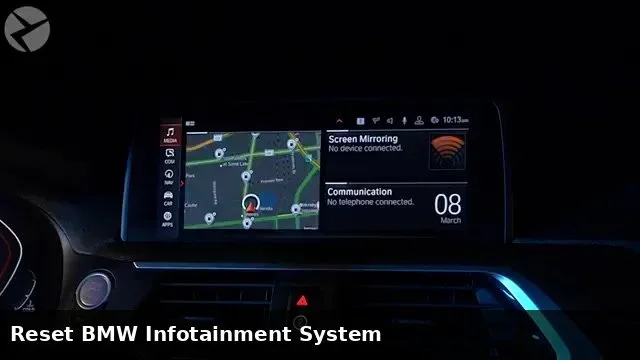
How Do I Reset My BMW Audio System? This guide shows you the easiest methods to reset your BMW audio system using a soft reset or a hard reset. You’ll fix glitches, no sound, and iDrive freezes in just a few minutes.
Your BMW’s audio system delivers premium sound that makes every drive more enjoyable. But sometimes, the system acts up. The screen freezes, the radio cuts out, or you hear nothing at all. These frustrating moments can ruin a good drive.
If you are searching for how do I reset my BMW audio system, you are in the right place. This guide gives you clear, easy steps to reset your BMW audio system safely. You will learn two main methods: a soft reset and a hard reset. Both are simple and do not require a mechanic. I will also share troubleshooting tips for common problems like no sound or Bluetooth issues. By the end, you will know exactly how to bring your BMW sound system back to life.
Resetting the audio system is often the first fix for many BMW owners. It takes only a few minutes. You do not need special tools. Whether you own a BMW 3 Series, 5 Series, or X5, the steps are similar. Let us walk through the process together.
Key Takeaways
- Soft Reset Is Quick and Safe: A simple iDrive menu reset can fix most audio glitches without losing your settings.
- Hard Reset Requires Battery Disconnect: A full power drain resets the entire BMW audio system and clears deeper errors.
- Know the Symptoms: No sound, frozen screens, Bluetooth dropouts, and error messages often signal a needed reset.
- Prevent Future Issues: Regular software updates and proper shutdowns keep your BMW infotainment system running smoothly.
- When to Visit a Dealer: Persistent hardware failures or error codes after a reset may need professional diagnosis.
- Keep Your Radio Code Safe: Always store your BMW radio code before performing a hard reset to avoid audio lockout.
📑 Table of Contents
- Why Your BMW Audio System Might Need a Reset
- How Do I Reset My BMW Audio System? The Simple Guide
- Resetting the iDrive Infotainment System
- How to Find Your BMW Radio Code Before a Hard Reset
- Common Mistakes When Resetting Your BMW Audio System
- Quick Tips for a Successful BMW Audio Reset
- BMW Audio System Reset for Different Model Years
- Troubleshooting Common Audio Issues After Reset
- Preventive Tips to Keep Your BMW Audio System Healthy
- When to Seek Professional Help
- Conclusion
Why Your BMW Audio System Might Need a Reset
Modern BMW vehicles come with advanced infotainment systems. These systems control audio, navigation, and connectivity. Over time, software glitches can build up. A reset clears these glitches and refreshes the system. Think of it like restarting your smartphone when it acts slow.
Common Symptoms of a Glitchy Audio System
You might notice several signs that your BMW audio system needs a reset. Here are the most common symptoms:
- No Sound at All: The radio or music player shows it is playing, but you hear nothing.
- Frozen Screen: The iDrive display stops responding. You cannot tap or swipe.
- Bluetooth Dropouts: Your phone connects, then disconnects randomly during a call.
- Error Messages: You see messages like “Audio System Error” or “System Not Responding.”
- Distorted Sound: Speakers crackle, pop, or sound muffled even at low volume.
- Navigation Audio Issues: Turn-by-turn directions cut out or overlap with music.
These issues often point to a software hiccup. A reset can clear the temporary data causing the problem. It is a safe first step before checking hardware.
When a Reset Solves the Problem
Not every audio problem requires a reset. But many common issues resolve quickly. For example, if you just updated the iDrive software, a reset helps the system apply changes. If you paired a new phone and the system freezes, a reset clears the pairing memory. A reset also helps after a battery replacement or a jump start. These events can disrupt the audio system’s power supply.
Before you reset, try a simple restart. Turn the ignition off and on again. If that does not work, move to the soft reset. If the soft reset fails, then try the hard reset. I will explain both in detail.
How Do I Reset My BMW Audio System? The Simple Guide
Resetting your BMW audio system is straightforward. You have two options: a soft reset and a hard reset. Each method serves a different purpose. I will walk you through both, step by step.
Soft Reset: The Quick and Safe Method
A soft reset restarts the audio software without erasing your settings. It is like closing and reopening an app on your phone. This method takes less than a minute and is the safest first step.
Steps for a Soft Reset:
- Press and hold the volume knob on the iDrive controller.
- Keep holding it for about 10 to 15 seconds.
- Release the knob when the screen goes dark or shows the BMW logo.
- Wait for the system to reboot. This takes about 30 seconds.
- Test your audio by playing a radio station or a song.
If the soft reset works, you are done. Your audio system should now respond normally. If the problem persists, move to the hard reset.
Hard Reset: The Battery Disconnect Method
A hard reset fully powers down the BMW audio system. It drains all residual power from the system’s capacitors. This method clears deeper errors and resets the system to factory defaults. You will need to disconnect the car battery briefly.
Important: Before disconnecting the battery, make sure you know your radio code. Some BMW models require a code after a power loss. Write it down or look it up in your owner’s manual.
Steps for a Hard Reset:
- Park the car on a level surface and turn off the ignition.
- Open the hood and locate the car battery.
- Use a wrench to loosen the negative (black) battery cable.
- Carefully remove the cable from the battery terminal.
- Wait at least 15 minutes. This allows the system to fully discharge.
- Reconnect the negative cable and tighten it securely.
- Start the car and wait for the iDrive system to boot up.
- Enter your radio code if prompted.
The hard reset often fixes stubborn audio problems. It resets the entire infotainment system, including the audio module. After reconnecting, test all audio sources: radio, USB, Bluetooth, and Aux.
Comparison: Soft Reset vs Hard Reset
Choosing the right reset method depends on your problem. Here is a quick comparison table:
| Reset Type | Time Required | Effect | Best For |
|---|---|---|---|
| Soft Reset | 1-2 minutes | Restarts audio software only | Freezes, minor glitches, Bluetooth dropouts |
| Hard Reset | 15-20 minutes | Full system power drain and reset | Persistent errors, no sound after soft reset, post-battery work |
Most BMW owners only need the soft reset. Reserve the hard reset for deeper issues.
Resetting the iDrive Infotainment System
The iDrive system is the brain of your BMW’s audio and navigation. Resetting iDrive often fixes audio problems because the audio module is part of the infotainment unit. A full iDrive reset can clear errors that affect sound output.
iDrive System Restart Without Losing Settings
You can restart the iDrive system without losing your personalized settings. This is a safe method that refreshes the system’s memory.
Steps to Restart iDrive:
- Press and hold the iDrive controller (the rotary knob) for about 20 seconds.
- The screen will go dark. The system will begin to reboot.
- Release the knob when you see the BMW start screen.
- Wait for the system to fully load. This may take up to 60 seconds.
- Navigate to the audio settings and test the sound.
This method works on most BMW models with the iDrive 6 or iDrive 7 system. It is the same as a soft reset but targets the entire infotainment unit.
Navigating the iDrive Menu for a Full Audio Reset
Some BMW models allow you to reset the audio system through the iDrive menu. This method gives you more control. You can reset specific audio settings without affecting navigation or phone profiles.
Steps via iDrive Menu:
- Press the Home button on the iDrive controller.
- Go to Settings (the gear icon).
- Select System or Audio settings.
- Look for Reset Audio Settings or Factory Reset Audio.
- Confirm the reset. The system will restart the audio module.
If you do not see a specific audio reset option, use the volume knob method described earlier. The iDrive menu path may vary slightly depending on your BMW model year.
How to Find Your BMW Radio Code Before a Hard Reset
Before you perform a hard reset, you need your BMW radio code. This code prevents theft and ensures you can restore audio after a power loss. Finding it is simple if you know where to look.
Where to Find Your Radio Code:
- Owner’s Manual: The code card is often in the back of the manual.
- BMW ConnectedDrive App: Log in to your account and check the vehicle details.
- BMW Dealer: Call your dealer with your VIN. They can provide the code.
- Previous Owner: If you bought the car used, ask the previous owner for the code.
Write the code down and store it in a safe place. After a hard reset, you will need to enter this code to restore full audio functionality. Without it, the system may remain silent even after reconnection.
Common Mistakes When Resetting Your BMW Audio System
Many BMW owners make simple mistakes during a reset. Avoid these errors to ensure a smooth process and prevent new problems.
- Skipping the Radio Code: Forgetting the code before a hard reset can leave you with no audio for days until you retrieve it.
- Interrupting the Reset: Do not turn the ignition on or off while the system is rebooting. Let the process complete fully.
- Using the Wrong Battery Cable: Always disconnect the negative terminal first. Removing the positive terminal can cause shorts.
- Resetting While Driving: A reset should only happen when the car is safely parked. A sudden screen blackout while driving is dangerous.
- Ignoring Software Updates: Sometimes the real fix is an iDrive update, not a reset. Check for updates before trying multiple resets.
- Overlooking the Fuse Box: A blown fuse can mimic audio system failure. Check the fuses before assuming a reset failed.
By avoiding these mistakes, you protect your BMW’s audio system and ensure the reset delivers the best results.
Quick Tips for a Successful BMW Audio Reset
Follow these quick tips to make your reset fast and effective. They save time and prevent frustration.
- Have the Radio Code Ready: Write it down before you start any hard reset.
- Use a Soft Reset First: Always try the soft reset before moving to the hard reset. It solves most issues.
- Wait Long Enough: When disconnecting the battery, wait at least 15 minutes. A short wait may not fully discharge the system.
- Test All Audio Sources: After the reset, check radio, USB, Bluetooth, and Aux. Make sure every source works.
- Keep the Battery Charged: A weak battery can cause audio problems. Ensure your battery is in good health before resetting.
- Document the Problem: Write down the symptoms before resetting. This helps you confirm the fix worked.
These tips turn a potentially stressful reset into a simple, routine task. You will handle it like a pro.
BMW Audio System Reset for Different Model Years
The reset process is similar across BMW models, but small differences exist. Here is a quick look at how it varies by model year.
BMW Models with iDrive 6 and iDrive 7 (2016 and newer): These systems support the soft reset via the volume knob and the iDrive menu reset. The hard reset procedure is the same. You can also use the BMW ConnectedDrive app to check for updates that might fix audio bugs without a reset.
BMW Models with iDrive 5 and Older (Pre-2016): Older models may not have the iDrive menu reset option. The volume knob soft reset is the primary method. The hard reset still requires a battery disconnect. The radio code is especially important for these models because they lack digital backup options.
BMW M Models and High-Performance Audio: Vehicles with the Hi-Fi system or Bowers & Wilkins audio may have additional amplifier modules. After a reset, these amplifiers may need a few extra seconds to initialize. Wait for the full system boot before testing the sound.
Knowing your model year helps you choose the right reset path. Always refer to your specific owner’s manual for model-specific details.
Troubleshooting Common Audio Issues After Reset
After you reset your BMW audio system, you might still face some issues. Here is how to handle the most common problems. These tips help you get the best results from your reset.
No Sound After Reset
If you still hear nothing after a reset, check a few things first. The volume might be muted. Press the volume knob to unmute. Also, check the audio source. Make sure the radio or USB is selected. Sometimes the system defaults to a muted Bluetooth input.
Try these steps:
- Press the Mute button on the steering wheel or iDrive controller.
- Cycle through audio sources using the SOURCE button.
- Turn the volume knob up slowly.
- If using Bluetooth, disconnect and reconnect your phone.
- Check the speaker balance setting in the audio menu.
If none of these work, the reset may not have cleared the error. Try the hard reset again. If the problem continues, it could be a hardware issue.
Bluetooth Connectivity Problems
Bluetooth issues are common after a reset. The system may forget paired devices or fail to connect. Here is how to fix it.
Quick Fix for Bluetooth:
- Go to Settings > Bluetooth on the iDrive screen.
- Delete the paired phone from the system.
- Turn off Bluetooth on your phone.
- Restart the iDrive system using the soft reset method.
- Turn Bluetooth back on your phone and re-pair it.
This fresh pairing often resolves connection drops. If the problem persists, check for software updates. BMW releases iDrive updates that fix Bluetooth bugs.
Screen Freezes and Black Screens
A frozen or black screen can make your audio system seem dead. In reality, the system is still running but the display is unresponsive. A hard reset usually fixes this. If the screen stays black after a hard reset, the display unit might need professional attention.
Before calling a dealer, try this:
- Perform a full battery disconnect (hard reset) again.
- Wait 30 minutes instead of 15 minutes for a deeper discharge.
- Check all fuse boxes for blown fuses related to the audio system.
A blown fuse is a common cause of a black screen. Replace the fuse with the correct amperage. You can find the fuse box diagram in your owner’s manual.
Preventive Tips to Keep Your BMW Audio System Healthy
Prevention is the best way to avoid frequent resets. A few simple habits can keep your BMW sound system working perfectly for years.
Regular Software Updates
BMW releases software updates for the iDrive system. These updates fix bugs and improve audio performance. You can check for updates through the BMW ConnectedDrive portal. Some updates require a dealer visit, but many can be installed via USB or over-the-air if your BMW supports it.
Keep your system updated to prevent audio glitches. Updated software reduces the need for resets. It also improves Bluetooth stability and navigation audio clarity.
Avoiding Common Mistakes
Many BMW owners accidentally cause audio problems. Here are mistakes to avoid:
- Turning Off the Car While Music is Playing: Always pause or stop audio before shutting off the ignition. This prevents software conflicts.
- Using Low-Quality USB Drives: Cheap USB drives can cause the audio system to freeze. Use high-quality, formatted USB drives for music.
- Overloading the System: Do not connect too many Bluetooth devices at once. Keep paired devices to a manageable number.
- Ignoring Error Messages: If you see an audio error, address it quickly. Ignoring it can lead to deeper system issues.
- Skipping Regular Restarts: Just like your phone, your BMW iDrive benefits from occasional restarts. A soft reset once a month keeps things running smoothly.
Following these tips reduces the chance of needing a reset. Your BMW audio system will stay reliable and deliver the premium sound you expect.
When to Seek Professional Help
Most audio problems resolve with a reset. But sometimes, the issue is deeper. You should visit a BMW dealer or a qualified auto electrician if you notice certain signs.
Persistent Hardware Issues
If you have tried both soft and hard resets and still have no sound, the problem may be hardware. A blown speaker, a faulty amplifier, or a damaged audio module can cause persistent silence. These issues need professional diagnosis. A technician can test each speaker and check the amplifier with specialized tools.
Do not attempt to open the audio unit yourself. Opening the unit voids the warranty and can cause further damage. Let a professional handle it.
BMW Dealer Service and Warranty
If your BMW is still under warranty, the dealer may cover audio system repairs. Check your warranty documents before paying for repairs. The dealer can also perform a full system diagnostic. They have access to BMW’s proprietary software for deep resets and firmware flashes.
Sometimes a dealer update fixes the root cause. They can flash the latest iDrive software to your system. This update often resolves audio bugs that a simple reset cannot fix.
Keep records of all resets and repairs. These records help the dealer diagnose recurring issues faster.
Conclusion
Resetting your BMW audio system is a simple, effective fix for many common problems. Whether you choose a soft reset or a hard reset, the process is safe and easy to do at home. You now know exactly how do I reset my BMW audio system in just a few minutes. You can fix a frozen screen, restore sound after a glitch, or clear Bluetooth errors without visiting a dealer.
Remember to start with a soft reset. It is quick and does not erase your settings. If that does not work, move to a hard reset by disconnecting the battery. Always keep your radio code handy. And if the problem persists, do not hesitate to seek professional help. Your BMW audio system is built to last. With the right care and occasional reset, it will deliver premium sound for every drive. Now you have the knowledge to handle any audio hiccup confidently. Enjoy the road ahead with your favorite music playing clearly.
Frequently Asked Questions
Can I Reset My BMW Audio System Without Disconnecting the Battery?
Yes, you can perform a soft reset using the volume knob or the iDrive menu. This method restarts the audio software without disconnecting the battery. It is the safest and quickest way to fix minor glitches.
Will a Hard Reset Delete My Saved Radio Stations and Bluetooth Pairings?
A hard reset may clear some personalized settings like radio presets and paired devices. However, your navigation addresses and iDrive profiles usually remain intact. Always back up important data before performing a hard reset.
How Often Should I Reset My BMW Audio System?
You do not need to reset it regularly. Only reset when you notice issues like no sound, freezes, or Bluetooth problems. Performing a soft reset once a month as a preventive measure can help keep the system smooth.
What Should I Do If the Audio System Still Does Not Work After a Reset?
If the problem continues after both soft and hard resets, check the fuses and speaker connections. If those are fine, visit a BMW dealer. There may be a hardware failure or a software issue that needs a professional diagnostic tool.
Is It Safe to Reset the BMW Audio System While Driving?
No, it is not safe. Always perform a reset when the car is parked and the ignition is off. A reset during driving can cause the screen to go dark unexpectedly, which is dangerous. Pull over to a safe location first.
Do I Need Any Special Tools to Reset My BMW Audio System?
No special tools are needed for a soft reset. For a hard reset, you only need a basic wrench to loosen the battery terminal. You should also have your radio code ready. That is all you need to reset your BMW audio system successfully.