Can I Use Google Maps in My Toyota Car or Truck Guide
Yes, you can use Google Maps in your Toyota through your smartphone, the built-in infotainment system, or by mirroring your screen. Whether you drive a Toyota with Apple CarPlay or Android Auto, getting Google Maps working is straightforward. This guide walks you through every method, setup step, and common troubleshooting fix so you can navigate with confidence.
Have you ever slid behind the wheel of your Toyota and realized you have no idea how to get where you are going? Maybe you just moved to a new city, or you are heading out on a road trip through unfamiliar territory. The first thing most of us do is reach for our phone and open Google Maps. But here is the question that keeps coming up: can you actually use Google Maps in your Toyota?
The short answer is yes. The longer answer depends on your Toyota model, year, and the tech setup you have. Some Toyotas come with built-in screens that support Google Maps directly. Others need you to connect your phone through Apple CarPlay or Android Auto. And a few older models might require a little extra work to get everything running smoothly. This guide covers every scenario so you can get Google Maps up and running in your Toyota without the frustration.
We are going to walk through each method step by step. You will learn how to set up Google Maps on your Toyota’s display, how to use it offline, and what to do when things do not work as expected. By the end, you will feel confident navigating with Google Maps no matter which Toyota you drive.
Key Takeaways
- Google Maps works on Toyota vehicles through smartphone integration, the built-in display, or wireless mirroring.
- Apple CarPlay and Android Auto are the easiest ways to access Google Maps on most Toyota models.
- Downloading maps for offline use helps you navigate even when you lose cell signal on the road.
- Toyota’s Entune system offers its own navigation, but Google Maps gives you more real-time traffic and route options.
- Common issues like frozen screens or connection problems can usually be fixed with a simple refresh or restart.
- Safety first always set up your map before driving and use voice commands to keep your eyes on the road.
📑 Table of Contents
- Can You Use Google Maps on a Toyota?
- How Toyota Infotainment Systems Work with Google Maps
- How to Set Up Google Maps on Your Toyota
- How to Download Maps for Offline Use
- Google Maps vs Toyota Built-In Navigation
- Troubleshooting Google Maps on Your Toyota
- Tips for Using Google Maps Safely in Your Toyota
- Expert Tips for Getting the Most Out of Google Maps in Your Toyota
- Common Mistakes to Avoid
- Final Thoughts
Can You Use Google Maps on a Toyota?
The good news is that Google Maps works on most Toyota vehicles made in the last several years. Toyota has embraced smartphone integration across its lineup, which means you have more than one way to get Google Maps on the road. The method you use depends on your specific Toyota model and the technology package it comes with.
Here are the three main ways to use Google Maps in a Toyota:
- Apple CarPlay if you have an iPhone, this mirrors your phone screen onto the Toyota display.
- Android Auto if you have an Android phone, this does the same thing for Google-powered devices.
- Built-in browser or app some newer Toyotas support Google Maps directly through the infotainment system.
Each method has its own benefits. Apple CarPlay and Android Auto are the most popular because they are easy to set up and keep your phone connected. The built-in option works well if you prefer not to rely on your phone for navigation. Let us break down each method so you can pick the one that fits your setup best.
Which Toyota Models Support Google Maps?
Most Toyota models from 2018 onward support either Apple CarPlay or Android Auto or both. This includes popular models like the Toyota Camry, Toyota RAV4, Toyota Highlander, Toyota Tacoma, and Toyota Corolla. If your Toyota has a touchscreen display, there is a very good chance Google Maps will work with it.
Older Toyotas from 2015 to 2017 may have limited support. Some of these models only support Bluetooth audio streaming but not screen mirroring. If you are not sure what your Toyota supports, check your owner’s manual or look for the Apple CarPlay or Android Auto logo on your infotainment screen.
How Toyota Infotainment Systems Work with Google Maps
Toyota’s infotainment system is the brain behind the display screen in your vehicle. It controls everything from audio to navigation to phone connectivity. Understanding how this system works helps you get the most out of Google Maps.
Toyota uses different names for its infotainment systems depending on the model and year. You might hear terms like Toyota Entune, Toyota Multimedia System, or simply the Toyota touchscreen display. Newer models use a more modern interface that works seamlessly with smartphone apps.
Apple CarPlay Integration
If you drive an iPhone, Apple CarPlay is your best friend. When you connect your phone to your Toyota, the CarPlay interface takes over the display. You can open Google Maps just like you would on your phone. The map appears on the big screen, and you can use voice commands to search for destinations.
One great thing about Apple CarPlay is that it keeps your phone charged through the USB connection. You also get access to Siri voice commands, so you can say “Hey Siri, navigate to the nearest gas station” and Google Maps will do the work for you.
Android Auto Integration
Android Auto works the same way but for Android phones. Once you connect your phone, the Android Auto interface appears on your Toyota screen. Google Maps opens just like it does on your phone, and you get access to all the same features. Voice commands through Google Assistant let you search for places without taking your hands off the wheel.
Toyota Entune and Built-In Navigation
Some Toyotas come with Toyota Entune, which is Toyota’s own infotainment platform. Entune includes a built-in navigation system, but it does not always include Google Maps. However, you can still access Google Maps through a web browser on the Entune system in some models. This is not as smooth as CarPlay or Android Auto, but it gets the job done.
How to Set Up Google Maps on Your Toyota
Setting up Google Maps on your Toyota is easier than you might think. The process is different depending on whether you are using Apple CarPlay, Android Auto, or the built-in system. Let us walk through each setup method.
Setting Up Google Maps with Apple CarPlay
Here is how to get Google Maps running through Apple CarPlay in your Toyota:
- Plug your iPhone into the Toyota USB port.
- On the Toyota display, select the Apple CarPlay icon.
- Unlock your iPhone and tap “Trust” when prompted.
- Open Google Maps on your phone.
- The map will now appear on your Toyota screen.
Once you are connected, you can use Siri to control Google Maps hands-free. Just say “Hey Siri, take me home” or “Hey Siri, find the nearest restaurant.” This keeps your eyes on the road and your hands on the wheel.
Setting Up Google Maps with Android Auto
Follow these steps to set up Google Maps with Android Auto:
- Connect your Android phone to the Toyota USB port.
- Select Android Auto on the Toyota display.
- Accept the permissions on your phone.
- Open Google Maps on your phone.
- The map will display on the Toyota screen.
You can also use Google Assistant to control navigation. Say “Hey Google, navigate to” followed by your destination. This works great for hands-free driving.
Using Google Maps Without a Phone Connection
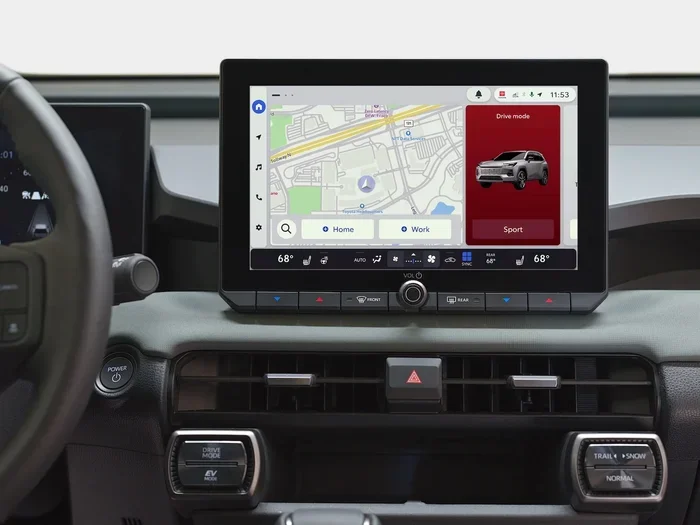
Some newer Toyota models allow you to use Google Maps directly through the infotainment system without connecting a phone. This is handy if you do not want to rely on your phone for navigation. You can search for destinations, get traffic updates, and find directions right on the Toyota screen.
If your Toyota supports this, look for the Google Maps app or browser icon on the home screen of your infotainment system. It may be located in the apps section or under the navigation menu. From there, you can search and navigate just like you would on a phone.
How to Download Maps for Offline Use
One of the best features of Google Maps is the ability to download maps for offline use. This is especially helpful when you are driving through areas with poor cell signal, like mountains or rural highways. You can set this up before you leave home.
To download an offline map, open Google Maps on your phone, search for the area you want, and tap “Download.” The map will save to your phone and work without an internet connection. When you connect your phone to your Toyota through CarPlay or Android Auto, the offline map will still work.
For those wondering about the process on a computer first, you can also download maps to prepare for your trip ahead of time. This ensures you have the latest map data saved before you hit the road.
Why Offline Maps Matter
Offline maps are a game changer for road trips. You do not have to worry about losing GPS signal in dead zones. You also save data since the map does not need to load over a cellular connection. Before your next big trip, take a few minutes to download the regions you will be driving through.
Google Maps vs Toyota Built-In Navigation
If your Toyota comes with a built-in navigation system, you might wonder why you need Google Maps at all. Both options have their strengths. Here is a quick comparison to help you decide which works best for you.
| Feature | Google Maps | Toyota Built-In Navigation |
|---|---|---|
| Real-time traffic updates | Yes | Limited |
| Offline maps | Yes | No |
| Business hours and reviews | Yes | No |
| Voice commands | Yes | Yes |
| Ease of use | Very easy | Moderate |
| Works without internet | With offline maps | No |
| Map accuracy | Excellent | Good |
As you can see, Google Maps has the edge in most categories. It offers real-time traffic updates, business reviews, and offline map support. Toyota’s built-in system works fine for basic directions, but it does not match the depth of Google Maps.
Many Toyota owners choose to use Google Maps as their primary navigation tool and keep the built-in system as a backup. This gives you the best of both worlds. You get the powerful features of Google Maps with the reliability of Toyota’s own system when you need it.
Troubleshooting Google Maps on Your Toyota
Even with the best setup, you might run into issues from time to time. Google Maps on a Toyota is not always perfect, but most problems have simple fixes. Here are the most common issues and how to solve them.
Google Maps Is Frozen or Not Responding
If Google Maps freezes on your Toyota screen, the first thing to try is refreshing the display. A quick refresh often fixes the problem and gets your map working again. This is especially helpful when the screen becomes unresponsive during navigation.
Next, try disconnecting and reconnecting your phone. Sometimes the connection between your phone and the Toyota system gets glitchy. A fresh connection usually solves the issue. If that does not work, restart your phone and try again.
Google Maps Will Not Connect to the Toyota Screen
If Google Maps will not connect, check your cable first. A loose or damaged USB cable is the most common cause of connection problems. Try a different cable or a different USB port in your Toyota.
For wireless connections, make sure Bluetooth is turned on both on your phone and in your Toyota settings. You may also need to make your phone discoverable so the Toyota system can find it. This is a simple setting on your phone that allows nearby devices to detect it.
If you are still having trouble, forget the device on both your phone and the Toyota system, then pair them again from scratch. This fresh connection often resolves stubborn pairing issues.
Google Maps Is Slow or Lagging
A slow Google Maps experience on your Toyota can be frustrating. This usually happens when the system is running low on memory. Close any other apps on your phone before connecting to the Toyota display. This frees up resources for Google Maps to run smoothly.
You can also try clearing the cache in the Google Maps app on your phone. Go to your phone settings, find Google Maps, and clear the cache. This removes temporary files that might be slowing things down.
Tips for Using Google Maps Safely in Your Toyota
Using Google Maps while driving is convenient, but safety should always come first. Here are some tips to help you use Google Maps safely in your Toyota.
- Set up your destination before you drive. Enter your address and start navigation while you are still parked.
- Use voice commands. Say “Hey Google” or “Hey Siri” to search for places without touching your phone.
- Mount your phone securely. A phone mount keeps your device in place and at eye level.
- Keep the screen brightness low. This reduces glare and keeps your eyes adjusted to the road.
- Pull over if you need to make changes. If you miss a turn or need to reroute, find a safe spot to stop first.
Following these tips keeps you safe and makes your Google Maps experience much more enjoyable. The goal is to use technology to help you drive better, not to distract you from the road.
Expert Tips for Getting the Most Out of Google Maps in Your Toyota
Once you have Google Maps working in your Toyota, there are a few extra tips that can take your experience to the next level. These are small things that make a big difference.
First, make sure your Google Maps app is always updated. Updates include new features, better routing, and improved accuracy. Check the App Store or Google Play Store regularly for the latest version.
Second, customize your Google Maps settings for driving. You can set your preferred route type, avoid tolls or highways, and choose whether you want to see satellite or standard map views. These preferences save time every time you open the app.
Third, save your favorite locations in Google Maps. Your home, work, and frequently visited places can be saved so you can navigate to them with just one tap. This is especially useful for daily commutes.
Finally, keep your Toyota display clean. A smudgy screen makes it hard to read the map. Keep a microfiber cloth in your car and give the screen a quick wipe before you start driving.
Common Mistakes to Avoid
When using Google Maps in a Toyota, some common mistakes can cause frustration. Avoiding these pitfalls keeps your navigation experience smooth and stress-free.
- Forgetting to download offline maps. If you are heading to a remote area, always download the map ahead of time.
- Using a damaged USB cable. A frayed cable causes connection issues and unreliable screen mirroring.
- Ignoring app updates. Outdated apps can have bugs and missing features that affect performance.
- Trying to type while driving. Always use voice commands or set up your destination before you start the engine.
- Not restarting the system. A simple restart of both your phone and the Toyota infotainment system fixes most issues.
These mistakes are easy to avoid with a little preparation. Taking a few extra minutes before each trip can save you a lot of headache on the road.
Final Thoughts
Using Google Maps in your Toyota is not only possible but also one of the best ways to stay connected and navigate with confidence. Whether you use Apple CarPlay, Android Auto, or the built-in system, Google Maps gives you powerful navigation tools right at your fingertips. The setup is simple, the features are rich, and the real-time updates make it a must-have for any Toyota driver.
Take some time to explore the different methods we covered in this guide. Find the setup that works best for your Toyota and your driving style. Once you have Google Maps running, you will wonder how you ever navigated without it. Safe travels and happy mapping.
Frequently Asked Questions
Can I use Google Maps on any Toyota model?
Most Toyota models from 2018 onward support Google Maps through Apple CarPlay or Android Auto. Some older models may have limited or no support. Check your Toyota’s infotainment system for CarPlay or Android Auto compatibility.
Do I need an internet connection to use Google Maps in my Toyota?
You need an internet connection for real-time traffic and live updates. However, you can download maps for offline use in Google Maps, which works without a connection once downloaded.
Can I use Google Maps wirelessly in my Toyota?
Yes, if your Toyota supports wireless Apple CarPlay or Android Auto, you can connect your phone without a USB cable. Check your Toyota’s manual or settings to see if wireless connectivity is available.
Why is Google Maps not showing on my Toyota screen?
This is usually caused by a loose cable, a disconnected Bluetooth connection, or a glitch in the infotainment system. Try refreshing the display, reconnecting your phone, or restarting both devices.
Is Google Maps better than Toyota’s built-in navigation?
Most users prefer Google Maps because of its real-time traffic updates, offline map support, and detailed business information. Toyota’s built-in navigation works for basic directions but lacks many of Google Maps’ advanced features.
Can I use Google Maps for directions in my Toyota truck?
Absolutely. Google Maps works in Toyota trucks just like it does in any other Toyota vehicle. Connect your phone through CarPlay or Android Auto, and you will have full navigation access on the truck’s display screen.