How to Set the Date and Time in Car Settings Today
Knowing how to set the date and time in car settings is a simple but essential skill every driver should have. Whether your car clock is off after a battery change or you just moved to a new time zone, adjusting your vehicle’s clock is quick and easy. This guide walks you through every method, from manual input to automatic sync, so your car always shows the correct time.
Have you ever glanced at your dashboard and realized your car clock is off by hours? It happens to the best of us. Maybe you just got a new battery, crossed time zones, or simply never got around to setting it right. Whatever the reason, learning how to set the date and time in car settings is one of those small things that makes a big difference.
Your car clock does more than just tell time. It powers your navigation system, helps with appointment reminders, and keeps your Bluetooth connections running smoothly. When the time is wrong, things start to feel off. The good news is that setting the clock in your vehicle is usually straightforward. Whether you drive a sedan, SUV, or truck, this guide covers everything you need to know.
We will walk you through every method step by step. You will learn how to adjust the car clock manually, use your infotainment system, and even set up automatic time sync. We also cover common problems and brand-specific instructions for popular cars like Ford, Toyota, Honda, and BMW. By the end, you will never have to worry about a wrong car clock again.
Key Takeaways
- Multiple Methods Exist: You can set the date and time manually, through the infotainment system, or via automatic sync depending on your car model.
- It Matters More Than You Think: An incorrect car clock can affect navigation, scheduling, and even Bluetooth phone syncing.
- Every Car Brand Is Different: Ford, Toyota, Honda, BMW, and others each have unique steps for adjusting the car clock.
- Automatic Time Sync Is a Game Changer: Many modern vehicles can sync the car clock with GPS or your phone for hands-free accuracy.
- Common Issues Are Easy to Fix: Most car clock problems stem from dead batteries, loose wiring, or incorrect time zone settings.
- 24-Hour Format Matters: Switching between 12-hour and 24-hour time formats is a quick setting change that can prevent confusion.
- Regular Checks Keep Things Accurate: A quick check of your car clock every few months ensures it stays reliable year-round.
📑 Table of Contents
- Why Getting the Date and Time Right in Your Car Matters
- How to Set the Date and Time in Car Settings Manually
- Setting Date and Time Through the Infotainment System
- Automatic Time Sync: Let Your Car Set Itself
- Setting the Clock Through Your Phone Connection
- Common Car Clock Problems and How to Fix Them
- 24-Hour vs 12-Hour Format: Which Is Better for Your Car Display?
- Brand-Specific Guide: How to Set the Date and Time in Popular Car Brands
- Expert Insights: Tips for Keeping Your Car Clock Accurate Year-Round
- Key Takeaways
- Conclusion
Why Getting the Date and Time Right in Your Car Matters
Some people think the car clock is a minor detail. It is not. The date and time in your vehicle connect to many systems you rely on every day. Let us look at why getting this right matters more than you might expect.
Navigation and GPS Accuracy
Your car navigation system uses the current time to calculate arrival estimates. If your clock is off by even 30 minutes, your ETA could be completely wrong. This is especially important when you are trying to arrive somewhere on time. A correct car clock keeps your GPS directions accurate and reliable.
Bluetooth and Phone Syncing
Many cars sync the vehicle clock with your phone through Bluetooth. When the car clock is incorrect, it can cause issues with call logs, message timestamps, and calendar alerts. Your phone thinks it is 2:00 PM, but your car says 12:00 PM. This mismatch can be confusing and frustrating.
Scheduled Maintenance Reminders
Modern vehicles track maintenance intervals based on the car clock. If the time is wrong, your oil change reminder or tire rotation alert might show up at the wrong time. Keeping your vehicle date and time accurate ensures all your service reminders work properly.
How to Set the Date and Time in Car Settings Manually
Manual adjustment is the most common way to change your car clock. Every vehicle has a slightly different process, but the general steps are very similar. Here is how to do it for most cars on the road today.
Step-by-Step Manual Car Clock Setting
Follow these steps to adjust your car clock manually. The process works for most older and mid-range vehicles.
- Start your engine and let the car run for a few seconds.
- Press the Menu or Settings button on your dashboard or steering wheel.
- Navigate to the Clock or Time Settings option using your arrow keys or touchscreen.
- Select the Date or Time field you want to change.
- Use the up and down buttons to adjust the hours and minutes.
- Select AM or PM if your car uses a 12-hour format.
- Save your changes by pressing the Set or Confirm button.
That is it. Your car clock should now show the correct time. If you are unsure where to find the settings, check your owner manual. Most car manufacturers place the clock settings under the “Vehicle Settings” or “Display” menu in the car settings dashboard.
Quick Tips for Manual Setting
- Keep your car running while adjusting the clock. Turning off the engine may reset your changes.
- Use the steering wheel controls if available. They make navigation much easier than reaching for dashboard buttons.
- Double-check the AM/PM setting. This is the most common mistake people make when setting their car clock manually.
- Adjust the date as well if it is wrong. Some cars let you change the date and time in car settings from the same menu.
Setting Date and Time Through the Infotainment System
Most cars built after 2015 come with an infotainment system. These screens make it even easier to adjust your car clock. The process varies slightly depending on the brand, but the general approach is the same.
For Ford Vehicles
Ford owners can set the clock through the SYNC system. Press the Settings icon on your touchscreen. Go to “System” and then select “Clock.” From here, you can toggle between manual and automatic settings. If you choose manual, simply enter the current time and date. Ford also lets you set the time zone, which helps with automatic adjustments.
For Toyota and Honda Vehicles
Toyota and Honda use slightly different menus. Press the “Setup” or “Settings” button on your audio system. Look for “Clock” or “Time Zone.” Toyota models often have a dedicated “Adjust Clock” button near the audio controls. Honda vehicles typically place the clock setting under the “Display” section of the car settings menu. Both brands support manual input and automatic time sync through GPS in newer models.
For BMW and Luxury Vehicles
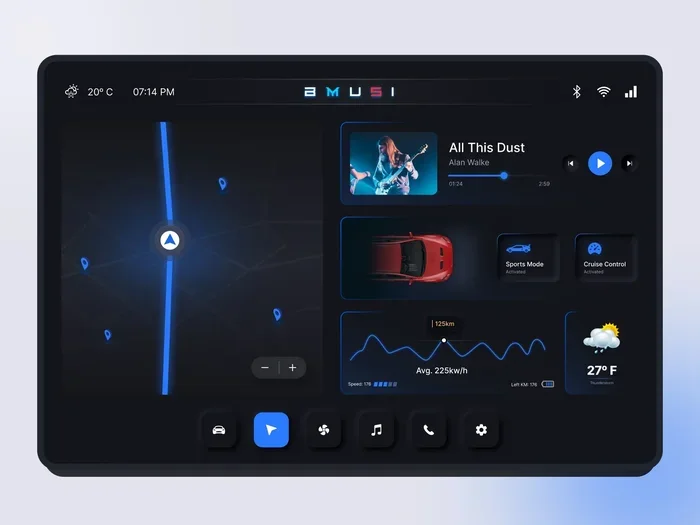
BMW and other luxury brands offer more advanced car clock settings. You can access the time settings through the iDrive controller or touchscreen. BMW vehicles also allow you to set the time zone automatically based on your location. The digital clock in car displays on BMW dashboards is highly customizable, letting you choose between a large clock view or a compact display.
Automatic Time Sync: Let Your Car Set Itself
Automatic time sync is the easiest way to keep your car clock accurate. Many modern vehicles can connect to GPS satellites or your phone to set the correct time without any manual input. Here is how it works and how to turn it on.
How Automatic Car Clock Sync Works
When automatic sync is enabled, your car receives time signals from GPS satellites or cellular networks. The vehicle clock then adjusts itself based on your current location. This means you never have to worry about changing the clock when you travel across time zones. Your car handles it all on its own.
How to Enable Automatic Time Sync
Here is how to turn on automatic sync in most vehicles:
- Go to your car settings menu on the infotainment screen.
- Find the Clock or Time Settings option.
- Look for “Automatic” or “Sync with GPS” and toggle it on.
- Wait a few moments for the car to connect to the signal.
- Verify the time is correct on your car display.
Not all cars support this feature. Older models and base trim levels may only offer manual adjustment. Check your owner manual or search for your specific car model online to see if automatic time sync is available.
Benefits of Automatic Sync
- No manual input needed ever again.
- Automatic time zone changes when you travel.
- Always accurate thanks to GPS and network signals.
- Saves time and removes the hassle of adjusting the car clock yourself.
Setting the Clock Through Your Phone Connection
Another convenient way to adjust your car clock is through your smartphone. Many cars today can pull the time from your phone via Bluetooth or USB connection. This is especially helpful if your car does not have GPS-based auto sync.
Using Bluetooth to Sync Car Clock with Phone
When you connect your phone to your car via Bluetooth, the vehicle can often read the time from your phone. To make this work, ensure your phone’s time is set correctly and that your car is set to “Sync with Phone” in the car settings menu. This method works well for most Android and iPhone users.
Using Apple CarPlay and Android Auto
If your car supports Apple CarPlay or Android Auto, the time display often comes directly from your phone. These systems mirror your phone’s clock on the car infotainment screen. To use this feature, simply connect your phone and open the clock or navigation app. Your car display will show the correct time automatically.
Quick Tip
If your car clock shows the wrong time even after connecting your phone, go into your car settings and disable manual clock mode. This allows the car to pull the time from your phone automatically.
Common Car Clock Problems and How to Fix Them
Even with the best car, clock issues can happen. Here are the most common problems and how to solve them quickly.
Clock Resets After Battery Change
This is the most common car clock issue. When you replace your car battery, the clock resets to a default time, often 12:00 AM. To fix this, simply follow the manual setting steps we covered earlier. It only takes a minute or two.
Clock Runs Slow or Fast
If your car clock runs slow or fast, the internal quartz crystal may be wearing out. This is a common issue in older vehicles. You can try resetting the clock to see if it improves. If the problem persists, you may need to replace the clock module. Visit a mechanic or dealership for help with this repair.
Time Zone Not Updating Automatically
If your car does not update the time zone when you travel, check your automatic sync settings. Make sure GPS is enabled and that your car has a clear view of the sky. Some vehicles also need a software update to fix time zone bugs. Check with your dealer for the latest car settings updates.
Display Shows Wrong Date
A wrong date on your car display is usually easy to fix. Go to the car settings menu, find the date option, and adjust it manually. If the date keeps resetting, your car battery may be low. A weak battery can cause the vehicle date and time to revert to factory defaults.
24-Hour vs 12-Hour Format: Which Is Better for Your Car Display?
Most cars let you choose between a 12-hour and 24-hour clock format. This is a simple setting that can make a big difference in how you read your car clock.
The 12-hour format shows AM and PM. It is familiar to most drivers in the United States. The 24-hour format runs from 00:00 to 23:59. It is common in military vehicles, European cars, and many modern infotainment systems. You can switch between formats in the car clock settings menu.
Choose whichever format feels more natural to you. If you travel internationally, the 24-hour format can be helpful. If you prefer a simple, familiar display, stick with the 12-hour format. Either way, adjusting this setting is quick and easy from your car settings dashboard.
Brand-Specific Guide: How to Set the Date and Time in Popular Car Brands
Every car brand has its own way of handling the clock settings. Here is a quick guide for some of the most popular brands on the road today.
| Brand | Where to Find Clock Settings | Auto Sync Available? |
|---|---|---|
| Ford | Settings > System > Clock | Yes, via GPS |
| Toyota | Setup > Clock or Audio > Clock | Yes, in newer models |
| Honda | Settings > Display > Clock | Yes, via GPS |
| Chevrolet | Settings > Vehicle > Clock | Yes, in most models |
| BMW | iDrive > Settings > Time/Date | Yes, automatic |
| Tesla | Controls > Software > Time | Yes, always automatic |
| Nissan | Settings > Display > Clock | Yes, in newer models |
| Jeep | Settings > Vehicle > Clock | Yes, via GPS |
These steps cover most models for each brand. If your specific model is different, check your owner manual or search online for your exact car settings menu layout. The car infotainment system has become more standardized over the years, so the steps are increasingly similar across brands.
Expert Insights: Tips for Keeping Your Car Clock Accurate Year-Round
Keeping your car clock accurate does not have to be a constant chore. A few simple habits can save you time and frustration.
Check your car clock every few months. A quick glance when you start your engine takes only a few seconds. If the time is off, adjust it right away before it becomes a habit to ignore it.
Enable automatic sync whenever possible. This is the single best way to ensure your car clock is always correct. GPS-based auto sync handles time zone changes, daylight saving time, and all other adjustments without you lifting a finger.
Keep your car battery healthy. A weak battery is the number one cause of clock resets. If your car clock keeps resetting, have your battery tested at a shop. Replacing an old battery can solve the problem permanently.
Update your car software regularly. Many modern vehicles receive over-the-air updates that improve the car settings menu and fix bugs related to the clock display. Keeping your software up to date ensures everything works smoothly.
Use your phone as a backup. If your car clock is acting up, connect your phone via Bluetooth and let it sync the time. This gives you a reliable reference point until you can fix the car clock properly.
Key Takeaways
- Multiple Methods Exist: You can set the date and time in car settings manually, through the infotainment system, or via automatic sync depending on your car model.
- It Matters More Than You Think: An incorrect car clock can affect navigation, scheduling, and even Bluetooth phone syncing.
- Every Car Brand Is Different: Ford, Toyota, Honda, BMW, and others each have unique steps for adjusting the car clock.
- Automatic Time Sync Is a Game Changer: Many modern vehicles can sync the car clock with GPS or your phone for hands-free accuracy.
- Common Issues Are Easy to Fix: Most car clock problems stem from dead batteries, loose wiring, or incorrect time zone settings.
- 24-Hour Format Matters: Switching between 12-hour and 24-hour time formats is a quick setting change that can prevent confusion.
- Regular Checks Keep Things Accurate: A quick check of your car clock every few months ensures it stays reliable year-round.
Conclusion
Setting the date and time in car settings is one of those small tasks that pays off in a big way. A correct car clock keeps your navigation accurate, your phone syncing smoothly, and your service reminders on track. Whether you prefer manual adjustment or automatic sync, the process is quick and easy once you know where to look.
Use the steps in this guide to adjust your car clock today. Check your owner manual for brand-specific details, and consider enabling automatic time sync if your vehicle supports it. A well-set car clock is one less thing to worry about on the road. Take a few minutes to get it right, and you will enjoy a more organized and stress-free driving experience every single day.
Remember, your car clock is connected to more systems than you might realize. Keeping it accurate is a simple way to get the most out of your vehicle. Do not let a wrong clock throw off your day. Follow the tips in this guide and make sure your car always shows the correct time.
Frequently Asked Questions
Can I set the date and time in car settings without starting the engine?
In most vehicles, you need to have the engine running or at least have the car in accessory mode to access the car settings menu. Some newer models with keyless entry allow you to access the infotainment screen without starting the engine, but the clock settings usually require the car to be in a powered state. Check your owner manual for your specific vehicle’s requirements.
Why does my car clock reset every time I turn off the engine?
This usually happens when your car battery is weak or dying. The clock relies on a small backup power source to retain its settings when the engine is off. If that backup power is insufficient, the clock resets to a default time. Have your battery tested and consider replacing it if it is more than three to five years old.
How do I change the time zone in my car settings?
Go to your car settings menu and look for the Clock or Time Settings option. There should be a Time Zone setting where you can select your current zone. In vehicles with GPS-based auto sync, the time zone updates automatically based on your location. Manual time zone changes are also available in most car models through the car settings dashboard.
Does changing the car clock affect the navigation system?
Yes, the car clock is connected to your navigation system. An incorrect clock can cause your GPS to calculate wrong arrival times and provide inaccurate directions. Keeping your vehicle date and time accurate ensures your navigation system works properly and gives you reliable travel estimates.
Can I set a 24-hour format for my car clock?
Most cars allow you to switch between 12-hour and 24-hour time formats. Look for a “Format” or “Display” option in your car clock settings menu. Toggle it to 24-hour format if you prefer that style. This setting is available in most car infotainment systems and can be changed at any time.
What should I do if my car clock will not change no matter what I try?
First, try resetting the car settings to default. If that does not work, check your car battery voltage. A low battery can prevent the clock from updating. You can also try disconnecting and reconnecting the car battery as a hard reset. If none of these solutions work, visit a dealership or mechanic to check for a faulty clock module or wiring issue.
=== SEO TITLE ===
How to Set the Date and Time in Car Settings Today
=== META TITLE ===
Set Date and Time in Car Settings Easily Today
=== URL SLUG ===
how-to-set-date-and-time-in-car-settings
=== META DESCRIPTION ===
Learn how to set the date and time in car settings with our easy step-by-step guide. Covers all car brands, infotainment systems, and common issues. Read now!