How Do I Restart My Bluetooth Cache and Fix Issues
Restarting your Bluetooth cache can solve most connectivity problems in your car. This simple fix clears stored data that causes pairing errors, dropped connections, and audio glitches. You will learn the exact steps to restart your Bluetooth cache and get your car’s audio system working smoothly again.
Have you ever tried to play music through your car speakers and the Bluetooth just refuses to connect? Or maybe your phone pairs with the car one day and then refuses the next? It is incredibly frustrating, and it happens to almost every driver at some point.
The good news is that you do not need to be a tech expert to fix this. In most cases, a simple Bluetooth cache restart solves the problem completely. This guide walks you through everything you need to know about how do I restart my Bluetooth cache and get your car’s audio system back on track.
We will cover what Bluetooth cache is, why it causes problems, and exactly how to clear it on different devices. By the end, you will have the tools to troubleshoot Bluetooth connectivity issues like a pro.
Key Takeaways
- Restart Bluetooth Cache: Clearing cached Bluetooth data fixes most connection problems quickly.
- Step-by-Step Process: Follow simple steps on your phone or car system to reset Bluetooth memory.
- Prevent Future Issues: Regular maintenance keeps Bluetooth running smoothly in your car.
- Know When to Reset: Sometimes clearing cache is not enough; a full Bluetooth settings reset may be needed.
- Common Mistakes: Avoid skipping restart steps or ignoring firmware updates that cause Bluetooth problems.
📑 Table of Contents
What Is Bluetooth Cache and Why Does It Matter?
Every time your phone connects to your car’s audio system, it saves data. This data includes pairing information, device names, and connection preferences. This saved data is what we call the Bluetooth cache. Think of it like a shortcut your phone uses to connect faster next time.
Most of the time, this cache works great. It makes Bluetooth pairing quick and seamless. But sometimes, that stored data gets corrupted or outdated. When that happens, you start seeing Bluetooth connection dropped errors, audio stuttering, or devices that simply will not recognize each other.
What Bluetooth Cache Stores
Your Bluetooth cache memory holds several types of information:
- Pairing keys that let your phone and car recognize each other
- Device profiles like hands-free calling and audio streaming
- Connection settings such as volume levels and auto-connect preferences
- Bluetooth low energy data for newer devices
- Cached audio codecs that handle sound quality
Over time, this collection of data can grow large and become messy. Old paired devices that you no longer use still take up space. Corrupted files can interfere with new connections. That is why learning how to clear this cache is so important.
Why Cache Gets Corrupted
Several things can cause Bluetooth cache files to become corrupted. Software updates on your phone sometimes change how data is stored. A sudden battery death during a connection can leave incomplete data behind. Even moving your phone between different car models can create conflicts in the cache.
Another common cause is simply using Bluetooth for a long time without clearing old data. Think of it like a closet that never gets cleaned out. Eventually, it becomes so cluttered that nothing works properly.
Quick Tip
Make it a habit to remove old paired devices from your phone every few months. This keeps your Bluetooth cache lean and reduces the chance of corruption.
Common Bluetooth Cache Problems in Your Car
Before you learn how to fix the issue, it helps to know what you are dealing with. Bluetooth troubleshooting starts with identifying the right problem. Here are the most common issues drivers face with corrupted Bluetooth cache.
Bluetooth Not Pairing at All
This is the most obvious sign of a cache problem. You go to pair your phone with your car, and nothing happens. The car does not show up on your phone, and your phone does not appear on the car’s screen. Often, this means the Bluetooth pairing problems stem from stale cache data that is blocking new connections.
You might try pairing multiple times, but the Bluetooth error messages keep appearing. Sometimes the error says “Connection Failed” or “Pairing Unsuccessful.” These messages are your phone telling you that the cache needs a refresh.
Audio Cutting Out or Stuttering
Your phone connects to the car, but the music keeps cutting out. Or maybe the audio sounds choppy and stuttered. This is a classic sign of Bluetooth audio stuttering caused by corrupted cache. The data being sent between devices gets mixed up because the cache is holding onto old, conflicting information.
This problem is especially annoying on long drives. You might be listening to your favorite podcast and suddenly the audio drops out for a few seconds. It happens over and over, and restarting the audio does not help because the root cause is the cache, not the connection itself.
Device Not Recognized After Software Updates
Have you ever updated your phone and then found that your car no longer recognizes it? This is a very common Bluetooth sync issue. Software updates change how your phone communicates with Bluetooth devices. The old cache data becomes incompatible with the new software version.
The same thing can happen after a car firmware update. Your car’s infotainment system gets new software, and suddenly it cannot read the cached pairing data from your phone. A cache restart fixes this by forcing both devices to create fresh, compatible connection data.
How to Restart Your Bluetooth Cache (Step by Step)
Now for the part you have been waiting for. Here is exactly how to restart your Bluetooth cache on different devices. Follow these steps carefully, and you should see improvements right away.
On Android Devices
Android phones make it relatively easy to clear Bluetooth cache. Here is the process:
- Open your phone’s Settings app
- Tap on Connections or Network and Internet (the exact name varies by phone)
- Select Bluetooth
- Tap the gear icon next to the paired car device
- Choose Unpair or Forget
- Go back to the main Bluetooth screen
- Tap the three dots in the top right corner
- Select Reset Bluetooth settings
- Confirm the reset
- Re-pair your phone with your car
This process clears the Bluetooth cache and removes all saved pairing data. It is like starting fresh. Your car should appear as a new device when you search for it again.
Expert Insight: If the reset does not work the first time, try restarting your phone before re-pairing. A full phone restart clears temporary memory and helps the new cache settings take effect properly.
On iPhone
iPhone users have a slightly different process, but it is just as effective:
- Open Settings
- Tap Bluetooth
- Find your car in the list of devices
- Tap the info icon (the “i” in a circle)
- Select Forget This Device
- Turn Bluetooth off and wait 30 seconds
- Turn Bluetooth back on
- Re-pair your iPhone with your car
Apple does not have a dedicated “clear cache” button like Android. But forgetting the device and re-pairing achieves the same result. The old Bluetooth cache data is removed, and a fresh connection profile is created.
Quick Tip for iPhone Users
If you still have issues after forgetting the device, try toggling Airplane Mode on and off. This forces your phone to reset all wireless connections, including Bluetooth. It is a quick trick that often solves stubborn Bluetooth connectivity issues.
In Your Car’s Infotainment System
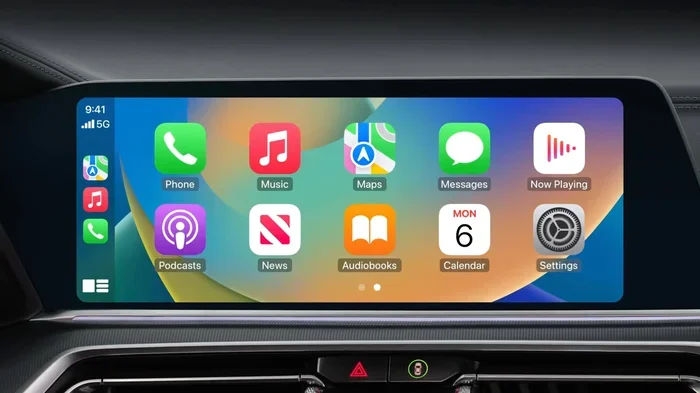
Do not forget about your car’s system itself. Most modern cars also store Bluetooth cache data. Clearing the cache on the car side can be just as important as clearing it on your phone.
The exact steps vary by car brand and model, but here is a general approach:
- Go to Settings on your car’s infotainment screen
- Find Bluetooth or Phone Connections
- Look for Paired Devices or Device List
- Select your phone and choose Delete or Forget
- Look for a Reset Bluetooth or Clear Cache option in the settings menu
- Restart your car’s infotainment system
Some cars, like those with BMW iDrive or Audi MMI, have a dedicated Bluetooth module reset option buried in the settings. Check your car’s manual if you cannot find it. A quick online search for your specific car model and “Bluetooth cache reset” usually brings up the right steps.
Restart Bluetooth Cache vs. Reset Bluetooth Settings
People often confuse restarting the cache with resetting all Bluetooth settings. These are two different actions, and knowing the difference helps you choose the right fix for your problem.
| Action | What It Does | When to Use It | Data Lost |
|---|---|---|---|
| Restart Bluetooth Cache | Clears stored pairing data and temporary files | Connection drops, audio stuttering, pairing failures | Paired device list and preferences |
| Reset Bluetooth Settings | Wipes all Bluetooth data and returns to factory defaults | Cache restart does not work, persistent errors | All paired devices, profiles, and settings |
| Soft Reset (Toggle Bluetooth) | Temporarily disables and re-enables Bluetooth | Minor hiccups, slow connection | Nothing |
Start with the softest option first. Toggle Bluetooth off and on. If that does not work, try restarting the cache. Only go to a full settings reset if the other methods fail. A full reset should be your last resort because it removes all paired devices and requires you to set up connections from scratch.
Common Mistake: Many people jump straight to a full reset when a cache restart would have fixed the problem. This wastes time and forces you to re-pair every device. Always try the least aggressive fix first.
Tips to Prevent Bluetooth Cache Issues
Fixing problems is great, but preventing them in the first place is even better. Here are simple habits that keep your Bluetooth connection running smoothly in your car.
Keep Your Software Updated
Both your phone and your car’s infotainment system benefit from regular software updates. These updates often include Bluetooth driver updates that fix known bugs and improve compatibility. Make it a habit to check for updates once a month.
On your phone, go to Settings and look for Software Update or System Updates. For your car, check the manufacturer’s website or visit a dealership for firmware updates. Some newer cars support over-the-air updates, making this process much easier.
Limit the Number of Paired Devices
Your car’s Bluetooth system can usually handle several paired devices. But having too many saved devices clutters the cache and increases the chance of conflicts. Keep only the devices you actually use in the paired list.
Go through your paired devices list every few weeks and remove any devices you no longer use. This simple habit goes a long way toward preventing Bluetooth troubleshooting situations in the future.
Avoid Using Bluetooth in Extreme Temperatures
This might sound surprising, but extreme heat and cold can affect Bluetooth performance. Very hot temperatures can cause your phone to throttle performance, which affects Bluetooth signal strength. Very cold temperatures can drain your battery faster, leading to unexpected disconnections.
Where possible, keep your phone in a shaded area during hot days and use a phone mount that allows some airflow. In winter, try to keep your phone warm until you are ready to connect.
Key Takeaways
- Clear cache regularly: A quick cache restart every few months prevents most problems.
- Update both devices: Keep your phone and car software current for the best compatibility.
- Remove old devices: A clean paired device list means a cleaner cache.
- Start simple: Always try the least aggressive fix before doing a full reset.
- Re-pair after clearing: Always delete and re-pair your devices after clearing the cache for best results.
Expert Tips for Long-Lasting Bluetooth Performance
After years of helping drivers fix Bluetooth not working in car issues, here are a few expert tips that make a real difference.
First, always restart your car before re-pairing. A car restart clears the infotainment system’s temporary memory and gives it a fresh start. This is especially important after a cache reset. Turn the car off, wait 10 seconds, and turn it back on before attempting to pair.
Second, disable Bluetooth on other devices nearby. If you have a smartwatch, tablet, or headphones that are also connected to your car, they can cause Bluetooth signal interference. Your phone and car might fight over which device gets priority, leading to dropped connections and audio glitches.
Third, check your Bluetooth profile settings. Most phones support multiple Bluetooth profiles, including Hands-Free Profile (HFP) for calls and Advanced Audio Distribution Profile (A2DP) for music. If one profile is misconfigured, it can affect the other. Go into your Bluetooth settings and make sure both profiles are enabled for your car.
Fourth, consider a Bluetooth adapter. If your car is older and does not have modern Bluetooth support, a quality Bluetooth adapter can make a huge difference. These adapters have their own processors and cache, which reduces the load on your car’s system.
Finally, do not ignore persistent problems. If you have restarted your cache multiple times and the issue keeps coming back, there may be a deeper problem. It could be a faulty Bluetooth module in your car, a hardware issue with your phone, or a software conflict that needs professional attention.
Knowing when to seek professional help saves you time and frustration. A dealership or qualified auto electronics shop can diagnose hardware-level Bluetooth problems that no cache restart can fix.
Conclusion
How do I restart my Bluetooth cache is a question that solves a surprisingly large number of car audio problems. A simple cache restart clears corrupted data, removes outdated pairing information, and gives your Bluetooth connection a fresh start. It takes just a few minutes and requires no special tools or technical knowledge.
Remember to start with the simplest fix. Toggle Bluetooth off and on. If that does not work, clear the cache on your phone. Then clear the cache on your car’s infotainment system. Re-pair your devices and test the connection. In most cases, this process resolves Bluetooth connectivity issues completely.
Prevention is just as important as fixing. Keep your software updated, remove old paired devices, and make it a habit to restart your car regularly. These small habits keep your Bluetooth hands-free calling and audio streaming working reliably every time you get behind the wheel.
Now that you know how to restart your Bluetooth cache and prevent future problems, you can enjoy uninterrupted music, podcasts, and hands-free calls on every drive. Try these steps today and experience the difference a clean Bluetooth cache makes.
Frequently Asked Questions
How do I know if my Bluetooth cache needs to be restarted?
If your Bluetooth keeps disconnecting, audio stutters during playback, or your phone and car refuse to pair even though they are close together, your Bluetooth cache is likely corrupted. These are the most common signs that a cache restart will help.
Will restarting my Bluetooth cache delete my phone’s data?
No. Restarting your Bluetooth cache only removes Bluetooth pairing information and connection settings. Your photos, contacts, apps, and all other phone data remain completely safe. You will simply need to re-pair your devices after the restart.
How often should I clear my Bluetooth cache?
There is no set schedule, but clearing your cache every two to three months is a good practice. You should also clear it whenever you notice connection problems or after a major software update on your phone or car.
Can Bluetooth cache issues affect my car’s safety features?
Yes, in some cases. If your car’s hands-free calling system relies on Bluetooth and the cache is corrupted, you may experience dropped calls or difficulty connecting to emergency services. Keeping your Bluetooth cache clean helps ensure your car’s connectivity features work when you need them most.
What is the difference between unpairing and clearing the Bluetooth cache?
Unpairing removes one specific device from your list of saved connections. Clearing the Bluetooth cache removes all saved pairing data and temporary files at once. Clearing the cache is a more thorough fix that addresses broader connectivity problems.
Does restarting Bluetooth cache help with Bluetooth low energy devices?
Yes. Bluetooth low energy devices like smartwatches and fitness trackers also store cache data. Restarting your Bluetooth cache clears this data and can fix connection issues with low energy devices, especially if they keep disconnecting or fail to sync properly.